
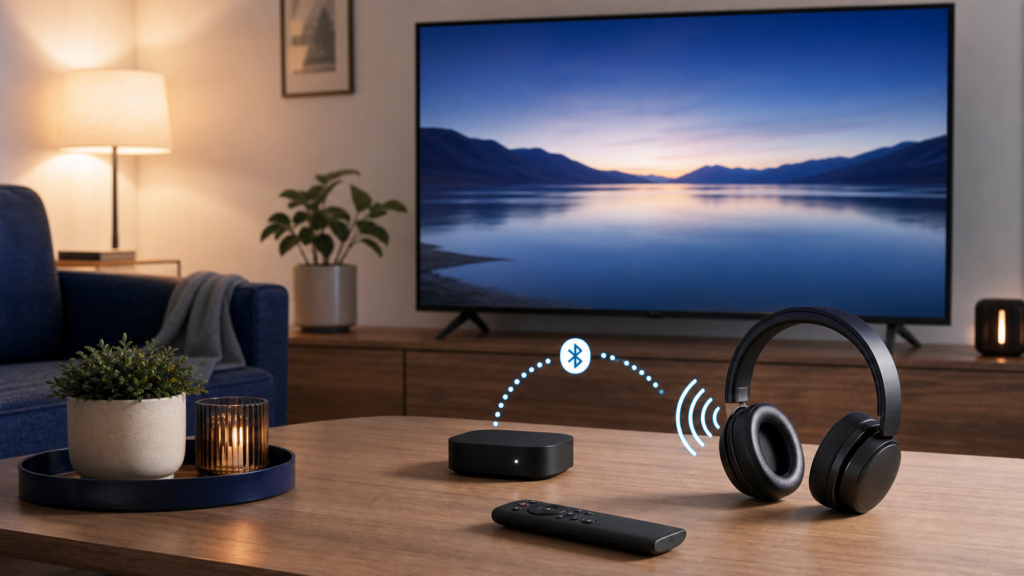
Quick answer: To use Bluetooth headphones with IPTV, pair the headphones with the device that actually runs the player, choose the headphones as the audio output, and test a permitted item before adjusting volume or sync. Bluetooth support varies between Smart TVs, Android TV boxes, Firestick-style devices, and individual players. If the headphones pair but no sound plays, check the selected output, disconnect other audio devices, and test the TV speakers separately.
Wireless headphones can make IPTV easier to enjoy without disturbing other people, but they introduce another connection in the audio path. The player may run on the TV while the headphones pair with the TV, or the player may run on an external box while the headphones pair with that box. Pairing headphones with the wrong device can make the connection look successful while the audio continues through the TV.
Identify the correct Bluetooth device
Start by identifying where the IPTV player runs. If the player is installed on the Smart TV, open the TV’s Bluetooth or audio settings. If the player runs on an Android TV box or another streaming device, check that device’s settings instead. Our IPTV devices guide explains why the player location affects setup.
Write down the device, player, headphone model, and current audio output. Do not share account credentials while asking a pairing question. Bluetooth pairing does not require your IPTV username, password, private playlist URL, or activation message.
Before pairing headphones for IPTV
Check the headphones
Charge the headphones, turn off pairing with a nearby phone or computer, and place them in pairing mode according to their instructions. Some headphones reconnect automatically to the last device and may not appear to the TV until that connection is released.
Confirm the plan and device path
Review the IPTV pricing and subscription information for device and support questions. The headphones change your local listening setup; they do not change the content source or subscription terms. Use authorized equipment and content in accordance with the rules that apply to your location.
How to set up Bluetooth headphones for IPTV
Step 1: Open the correct device settings
Open the Bluetooth, audio, or accessories section on the device that runs the IPTV player. If the TV has its own Bluetooth menu but the player runs on a separate box, begin with the box. This is the most common setup mistake because the TV and external device may both show Bluetooth options.
Step 2: Put the headphones into pairing mode
Follow the headphone instructions and wait for the device name to appear. Choose the correct entry, especially if several nearby devices are available. If the device asks for confirmation, complete it and wait until the connection status changes from pairing to connected.
Step 3: Select the headphones as the audio output
Pairing does not always select the headphones automatically. Open the audio output menu and choose the connected headphones. Test a device menu sound or another permitted app before launching IPTV. If the TV speakers continue playing, check whether the device supports switching or simultaneous output.
Step 4: Test one IPTV item
Open the player and test a short section of a permitted item. Check left and right sound, volume control, and whether the audio remains connected after pausing and resuming. If audio cuts out, compare the behavior with the TV speakers. The IPTV audio troubleshooting guide covers sound-only symptoms separately.
Step 5: Check audio delay carefully
Bluetooth can introduce a small delay depending on the device, headphones, player, and content. If the video and speech do not appear synchronized, look for an audio-sync option on the player or device. Make one small change, use the same test item, and return to the original value if it does not help. Avoid claiming a fixed delay because different hardware behaves differently.
Step 6: Make reconnection predictable
After the first successful test, turn the headphones off and on once, then confirm how the device reconnects. If it connects to a phone instead, disable the competing connection or choose the TV device manually. Tell other household users which device and output to select without writing private IPTV details in the guide.
Common Bluetooth headphone problems
The headphones pair but there is no IPTV sound
Check the active audio output. The device may still be sending sound to TV speakers, a soundbar, or another paired device. Disconnect unused audio devices and test the headphones with a device menu before checking the player.
The headphones work in menus but not during IPTV playback
The player may select a different audio track or output mode during playback. Check the player’s audio settings and compare another permitted item. If the problem is limited to one item, report the item rather than resetting the whole device.
The connection drops repeatedly
Move the headphones closer during testing, charge them, remove competing Bluetooth connections, and restart the device once. If the problem follows only one player or device, record that pattern. Do not install unknown Bluetooth tools just to force a pairing.
The TV speakers and headphones play together
Some devices support dual output while others do not. Review the audio output setting and choose the arrangement intended for the household. A dual-output mode may create an echo or different timing between listeners.
When to contact IPTV support
Contact support when the player works through TV speakers but fails through connected headphones, when the audio menu disappears during playback, or when you need help identifying the device that runs the player. Use the IPTV support hub and official WhatsApp or Telegram buttons. Share the device, player, headphone connection status, output choice, and non-sensitive steps. Never publish passwords.
FAQ
Do Bluetooth headphones pair with every IPTV device?
No. Bluetooth support depends on the TV, external device, operating system, and player path. Confirm the device documentation before buying accessories.
Why are headphones connected but IPTV sound stays on the TV?
The device may still have TV speakers selected as the active output, or the headphones may be paired with the wrong device.
Can Bluetooth cause IPTV audio delay?
It can add a device-dependent delay. Test the player’s audio-sync option with one consistent item and avoid assuming every setup has the same timing.
What should I send support?
Send the device, player, headphone connection status, output setting, and symptom. Do not send passwords or private playlist URLs.
Final checklist
Identify the player device, charge and pair the headphones, select the active output, test a permitted item, check sync, and test reconnection. Keep a short note of which device owns the pairing and which output is active, especially when a household uses more than one TV. Separate Bluetooth behavior from IPTV account, playlist, and network issues. For setup guidance, review the IPTV service information and contact official support.


