
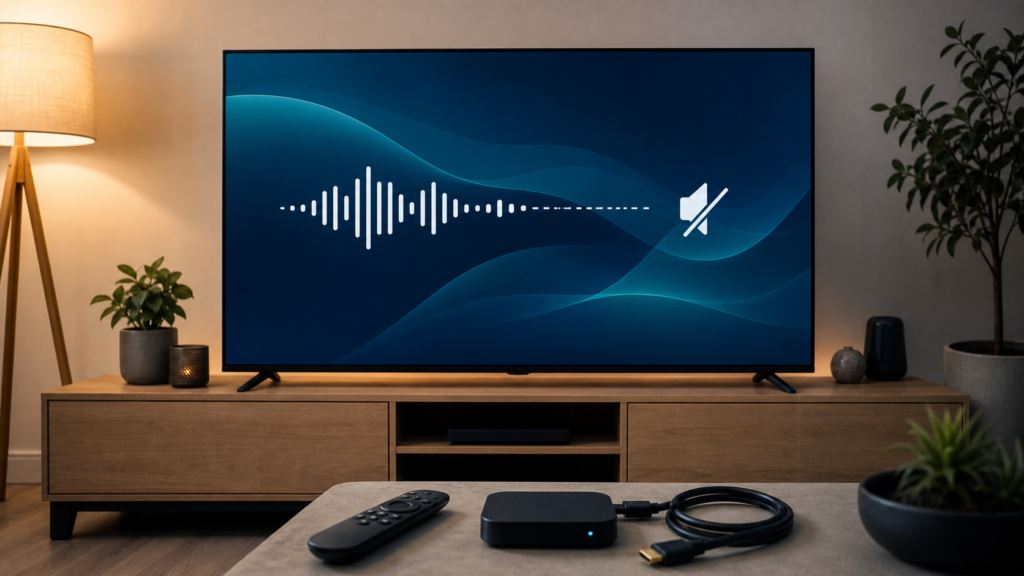
Quick answer: If IPTV audio cuts out while the video continues, check mute and volume controls, the TV output, HDMI or audio connection, player audio-track settings, and whether the problem affects one item or every item. Test a short clip with another permitted source before changing advanced settings. Intermittent audio is different from a permanent no-sound problem, so record when the sound disappears and whether pausing or restarting restores it.
Audio can pass through several parts of a home setup: the IPTV source, player, streaming device, HDMI cable, television, soundbar, and sometimes an audio receiver. A small mismatch or unstable connection can affect sound while the picture stays visible. The fastest diagnosis follows the signal path from the player to the speakers and changes one variable at a time.
What does intermittent IPTV audio mean?
Audio may cut out for a moment, disappear when changing channels, drop after pausing, or work in menus but not during playback. It may affect every item, one group, or only a particular audio track. These patterns matter because they point to different parts of the setup.
If the TV menus make normal sounds but an IPTV item loses audio, check the player and source. If every app loses sound, check the TV, soundbar, output mode, and cables. If audio returns after a restart but later cuts out again, note the time and action that precedes it. Our IPTV devices guide helps identify the devices and connection paths in a typical setup.
Before changing audio settings
Record the current signal path
Write down whether the audio comes from TV speakers, a soundbar, headphones, or an external receiver. Note the player, device, HDMI connection, and whether audio cuts out on one item or everything. Do not send screenshots that reveal usernames, passwords, private playlist URLs, or activation details.
Confirm the source and plan terms
Use content access that you are authorized to use in your location. Review the IPTV pricing and subscription information for device and support questions. Audio behavior should be diagnosed as a playback issue; it should not be used to make unsupported claims about a plan or source.
How to fix IPTV audio that keeps cutting out
Step 1: Check mute, volume, and the selected output
Confirm that the TV, player, and soundbar are not muted and that the correct output is selected. Increase the volume briefly for testing, then return it to a comfortable level. If headphones or Bluetooth audio are connected, disconnect them temporarily and test the TV speakers. A simple output change can explain why menus and playback seem different.
Step 2: Compare a different permitted source
Play another app or content item on the same device. If audio cuts out everywhere, focus on the TV, soundbar, output mode, power, or HDMI path. If only IPTV playback is affected, review the player and source. Keep the test short and note the result instead of changing multiple settings.
Step 3: Reseat the HDMI or audio connection
Check that the cable is connected securely at both ends. If another compatible cable or input is available, test one controlled swap. Do not assume a cable is defective because one item has intermittent sound; confirm whether the problem follows the cable, input, or device. If the TV uses an optical, ARC, eARC, or Bluetooth path, check the documented connection direction and output selection.
Step 4: Review player audio-track options
During playback, open the audio or language menu if the player provides one. A content item may offer more than one track, and the selected track can behave differently. If audio disappears only after changing tracks, return to the previous option and record the result. If the menu is missing, do not install unknown add-ons to force a feature.
Step 5: Use a conservative audio output mode
Some devices provide automatic, stereo, passthrough, or surround output modes. If a soundbar or receiver does not support the selected format, audio may fail or cut out. Use the device’s recommended or automatic setting for comparison. Change one setting, test the same item, and restore the original setting if it does not help.
Step 6: Restart the player and device
Close the player normally, restart the streaming device, and test again. A restart can clear a temporary audio session problem, but it does not prove the underlying cause is fixed. If the audio returns only briefly, record the repeatable pattern and contact support. The IPTV support hub can help you describe the device and player without sharing private credentials.
Common causes of intermittent sound
One item has a different audio track
Different items may provide different tracks or formats. If one item cuts out and another works, report the item and track rather than changing the whole TV configuration.
The TV and soundbar use different output modes
An automatic or passthrough setting may interact differently with a soundbar or receiver. Test TV speakers and the external audio device separately when possible.
The device or cable loses the audio handshake
A connection can remain stable for video while audio drops. Reseat the connection and test one alternate input or cable without changing the rest of the setup.
Buffering is mistaken for audio failure
If the picture also pauses or recovers at the same time, the symptom may be playback or network instability rather than a sound-only problem. Use the IPTV buffering guide to compare the patterns.
When to contact IPTV support
Contact support when audio cuts out only in the player, when the same authorized item behaves differently on compatible devices, or when you need help identifying a documented output setting. Use official WhatsApp or Telegram buttons and include the player, device, output path, item tested, and non-sensitive steps. Never send a password in a public group.
FAQ
Why does IPTV video keep playing when audio cuts out?
Video and audio travel through related but separate processing and output paths. A player track, HDMI handshake, output mode, or sound device can affect audio while video remains visible.
Should I use surround or passthrough mode?
Use the device’s recommended or automatic mode for comparison unless the connected audio equipment is known to support another format.
Why does restarting fix sound temporarily?
A restart can reset a temporary audio session or connection, but repeated recurrence suggests that the player, output path, device, or source needs further diagnosis.
What should I send support?
Send the device, player, audio output path, item tested, and visible behavior. Do not send passwords or private playlist URLs.
Final checklist
Check mute and output, compare another source, inspect the cable path, review the player audio track, test a conservative output mode, and restart once. Separate sound-only symptoms from buffering and video problems. For setup and plan guidance, review the IPTV service information and contact official support.


