
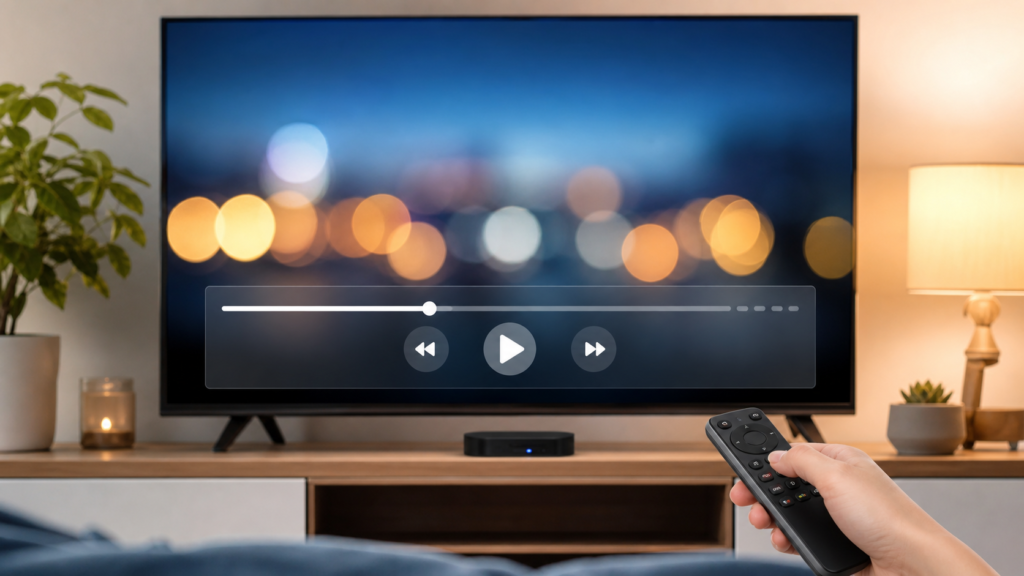
Quick answer: If IPTV playback controls are missing, first move the remote, mouse, or pointer to reveal the control bar, then press the device’s Select, Play/Pause, Back, or Menu button once. The control layout depends on the player and device. Check whether controls are missing only in live playback, only in a full-screen view, or everywhere. Avoid repeatedly pressing buttons because some players hide the bar after a short period of inactivity.
Playback controls may include pause, seek, volume, subtitles, audio track, aspect ratio, or information. A live stream may not support every control available for on-demand content. Some players show a control bar when you press Select; others require a touchpad, mouse pointer, or a long press. Understanding that difference prevents a simple interface behavior from being mistaken for a broken IPTV service.
What does “IPTV controls are missing” mean?
The control bar may not appear at all, the buttons may be too small, the remote may move focus without selecting, or only some options such as subtitles may be absent. Write down exactly what is missing and whether the video continues playing. If the video is still visible, focus on player navigation and input. If playback also stops, check the player and network separately.
Identify whether the player runs on a Smart TV, Android TV box, Firestick-style device, or another streaming device. Our IPTV devices guide explains why the same player action can feel different on each platform.
Before troubleshooting the playback interface
Record the current input method
Note whether you use a remote, Bluetooth remote, mouse, keyboard, or mobile companion control. Test the Home, Back, Select, and Play/Pause buttons in another app. This tells you whether the input works at the device level. Never include usernames, passwords, private playlist URLs, or activation details in screenshots.
Confirm the player and plan
Use an authorized player and content source in accordance with your location and plan terms. Review the IPTV pricing and subscription information for compatibility questions. A missing control bar is usually a player-interface issue, not evidence that a plan has a particular feature.
How to restore IPTV playback controls
Step 1: Press the normal reveal button
During playback, press Select, OK, Play/Pause, or the center button once. Some players reveal controls only after this action. If the bar appears, move through the buttons slowly and test one option. If nothing happens, try the device’s Menu or Info button once, then wait for the player to respond.
Step 2: Move focus instead of scrolling the page
Use directional buttons to move focus across the bar. A control can be visible but not selected. Watch for a highlight, border, or change in focus. If the remote moves through the TV interface but not the player, the player may require a different input method or a pointer.
Step 3: Exit and re-enter full-screen mode
Some players hide controls in a full-screen layout. Press Back once to return to the player view, then open the item again and test the reveal button. Avoid pressing Back repeatedly because it may close the player or return to the device home screen.
Step 4: Test another permitted item
Live streams, on-demand items, and guide previews can expose different controls. Try another permitted item and compare. If controls appear elsewhere, the first item may not support pause, seeking, subtitle, or audio options. Record the difference instead of changing the whole setup.
Step 5: Check player accessibility and input settings
Look for remote navigation, pointer, focus, control-bar timeout, subtitle, or accessibility options. Increase the control timeout only if the player provides that setting and the viewer needs it. Change one option and test the same item. Our IPTV accessibility guide includes related navigation principles.
Step 6: Restart the player once
Close the player normally and reopen it. If the controls return temporarily, note what action caused them to disappear again. A restart can clear an interface state, but repeated recurrence points toward player compatibility, input focus, or a software issue. Do not clear app data before confirming that you can restore the authorized setup.
Common control-bar problems
The bar appears but disappears too quickly
Move the remote or pointer only when you need to reveal the controls, and check for a timeout setting. Some players hide the bar intentionally during playback. If the viewer needs more time, use an accessibility or control-timeout option when available.
Pause works but subtitles are missing
The item may not provide subtitles, or the player may have a separate audio and subtitle menu. Test another permitted item before concluding that the player lacks the feature.
The remote works in menus but not the player
The player may not have focus, may expect a pointer, or may use a different Select action. Exit and re-enter playback, then test the center button or a compatible input device.
The controls disappear with buffering
If playback pauses at the same time, investigate the network and player behavior separately. The IPTV buffering guide helps classify the symptom.
When to contact IPTV support
Contact support when controls are absent on every permitted item, the player is compatible but remote focus never works, or an update changed the interface. Use the IPTV support hub and official WhatsApp or Telegram buttons. Share the device, player, input method, missing control, and steps tested. Do not send passwords or private playlist URLs.
FAQ
How do I show IPTV playback controls?
Press Select, OK, Play/Pause, or the center button once during playback. The exact reveal action depends on the player and device.
Why do IPTV controls disappear?
Many players hide the bar after inactivity or in full-screen mode. Press the reveal button or move the pointer, then check the player timeout settings.
Why can I pause but not seek?
Live streams may not support seeking, while on-demand items may. Compare another permitted item before changing settings.
What should I send support?
Send the device, player, input method, missing control, and non-sensitive steps. Do not send passwords or private playlist URLs.
Final checklist
Identify the input method, reveal the bar, move focus, test full-screen mode, compare another item, review accessibility settings, and restart the player once. Write down which button revealed the controls and whether the behavior changed after leaving full-screen mode. This small record helps another household user repeat the correct action and gives support a clear description of the interface. Also note whether the control bar appears after pausing, changing channels, or pressing the center button, because those behaviors can differ between live and on-demand playback. Record the player version if visible. Note whether the issue is limited to one device or profile. Keep this troubleshooting record short and private. Separate interface behavior from buffering and account issues. For setup guidance, review the IPTV service information and contact official support.


