
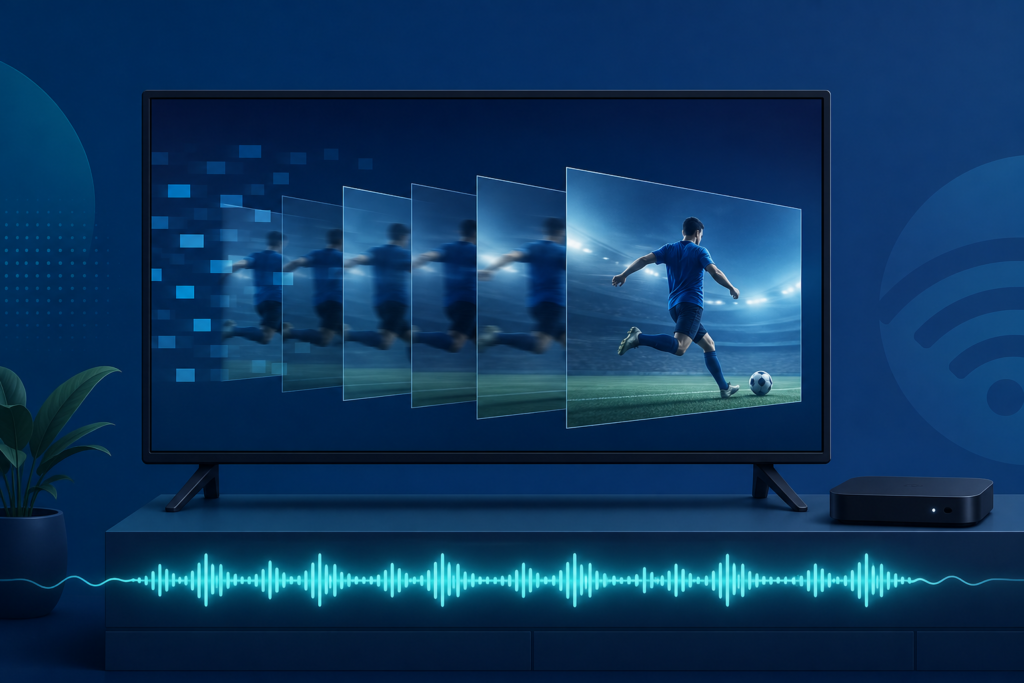
Quick answer: If IPTV video stutters while audio continues, first compare another program and application, then check the device connection, player decoder, output frame settings, storage, and temperature. This symptom is different from a complete freeze: the audio path continues while video rendering falls behind. Identify whether the problem is content-specific, network-related, or local to the device before reinstalling the player.
This guide covers Smart TVs, Android TV boxes, Fire TV-style devices, and external HDMI setups. It focuses on controlled tests, safe updates, and non-sensitive support reporting.
What video stutter can indicate
Stutter can look like repeated frames, uneven motion, short jumps, or a picture that pauses while sound remains continuous. Possible layers include inconsistent delivery, decoder workload, frame-rate mismatch, limited storage, overheating, or a television motion setting. One symptom can have several causes, so comparisons matter.
- One program only: compare another stream before changing the device.
- All IPTV programs: review network, decoder, and output settings.
- Other apps also stutter: focus on the TV, box, HDMI path, or system load.
- Starts after warming up: inspect airflow and safe placement.
Step 1: Compare program and app behavior
Play a second program in the same player and note whether motion remains uneven. Then open another legitimate streaming app. If the second app is smooth, review the IPTV player and source. If every app stutters, focus on the device, display, or network.
Use the same scene type for comparisons when possible. Fast motion reveals stutter more clearly than a static menu, but do not compare unrelated frame styles as if they were identical.
Step 2: Check connection stability
Confirm the device is connected to the intended private network and test another app. A high peak speed does not prove that delivery is stable. If Ethernet is available, use it as a temporary comparison. Keep the device location and program consistent while testing.
If Ethernet improves the picture, inspect wireless placement, interference, mesh roaming, or band choice. If both paths behave the same, continue with decoder and output checks.
Step 3: Review hardware decoding and frame settings
Open player video settings and review hardware acceleration, decoder choice, frame-rate matching, and output resolution if available. A decoder that does not suit the device can make video stutter while audio remains normal. Return a recently changed option to its previous value and restart playback.
Use a standard display mode supported by both the device and TV. Avoid forcing high refresh or advanced HDR modes during diagnosis. Change one setting at a time and record the result.
Step 4: Check storage and temperature
Review free storage and remove only files or apps you recognize. Clear player cache before clearing app data. App data clearing can remove authorized configuration and should not be the first response.
Check ventilation around the box. If stutter begins after extended playback, place the device in an open, safe position and allow it to cool normally. Do not cover vents or use unsafe cooling methods.
Step 5: Test HDMI and TV processing
Reseat HDMI and test a direct connection to the TV if a receiver or soundbar is involved. Temporarily use a normal TV picture mode and reduce aggressive motion processing for comparison. These controls do not repair a damaged stream but can make uneven motion more noticeable.
Restore the original setup after testing and document which path was smooth. Install updates only through official manufacturer settings and stores.
Support and internal links
Review the IPTV service guide, services, and homepage. Contact support through WhatsApp or the official Telegram support group with device, player, connection, and comparison results. Never share passwords, private URLs, tokens, or payment data.
FAQ
Why does audio continue when video stutters?
The audio and video paths can have different decoder or rendering workloads. Compare another program and review hardware decoding.
Can Wi‑Fi cause video-only stutter?
Yes. Uneven delivery can affect video frames while audio continues. Compare Ethernet and another application.
Should I force a higher refresh rate?
No. Use a mode supported by both the device and TV, and test one setting at a time.
Will clearing cache fix stutter?
It may help damaged temporary files, but it cannot fix overheating, a decoder mismatch, or unstable delivery.
Conclusion
Resolve IPTV video stutter by comparing programs and apps, testing connection stability, reviewing decoder and frame settings, checking storage and heat, and simplifying HDMI processing. Keep changes controlled and report non-sensitive evidence through official support.
{“@context”:”https://schema.org”,”@type”:”FAQPage”,”inLanguage”:”en-US”,”mainEntity”:[{“@type”:”Question”,”name”:”Why does audio continue when video stutters?”,”acceptedAnswer”:{“@type”:”Answer”,”text”:”Audio and video can have different decoder or rendering workloads. Compare another program and review hardware decoding.”}},{“@type”:”Question”,”name”:”Can Wi-Fi cause video-only stutter?”,”acceptedAnswer”:{“@type”:”Answer”,”text”:”Yes. Uneven delivery can affect video frames while audio continues.”}},{“@type”:”Question”,”name”:”Should I force a higher refresh rate?”,”acceptedAnswer”:{“@type”:”Answer”,”text”:”No. Use a mode supported by both the device and TV.”}}]}
Use a short repeatable test: the same program, the same scene, and the same output path. Note whether the stutter appears immediately or only after several minutes. Immediate stutter points more toward decoder or output settings, while delayed stutter can make storage, heat, and connection stability more important clues.
Do not judge the result from a single pause during a program change. Wait for playback to settle, then observe motion through a continuous scene. If restarting the player helps only briefly, record the trigger instead of repeatedly clearing data.
When a setting improves the picture, leave unrelated TV motion and color controls unchanged. A stable baseline makes later support and update comparisons much easier.
When comparing network paths, do not change the player, router, HDMI cable, and TV picture mode at the same time. Change one variable, replay the same scene, and record whether motion improves. This method distinguishes delivery interruptions from local rendering problems and avoids unnecessary reconfiguration.
If audio remains continuous but the picture stutters on every program, test a standard output resolution and the player’s supported hardware decoder. If only one stream stutters, preserve the rest of the setup and report the program-specific symptom rather than resetting the whole device.
Check the device date and time, official updates, and free storage as normal maintenance. Avoid unknown “performance booster” apps that may alter decoder, network, or privacy settings.
Do not confuse a brief transition while changing programs with continuous motion stutter. Test a stable scene after playback has started. If the result changes after standby, record the wake-up sequence and whether a full restart restores smooth video.
A direct TV connection is useful when a receiver or soundbar is involved. Restore the normal equipment after the comparison and keep the working path documented.
When support is needed, include the player name, device family, connection type, and whether another application is smooth. Do not include private setup details. A technician can begin with the symptom, timing, and controlled comparisons.
After identifying a working mode, avoid unnecessary factory resets and leave the stable output documented for future reference.
Use one repeatable scene for the final check and stop once motion is stable.
Keep unrelated picture and audio controls unchanged after the repair.
Record the final working decoder and output mode for future updates.
Confirm smooth motion after a normal restart before closing the task.
Keep the working playback path unchanged afterward.
Document the final result for future troubleshooting.
Use a consistent scene after playback has settled and record whether the issue begins immediately, after standby, or after several minutes. This timing helps separate decoder settings from heat, storage, and connection stability. Keep the working output mode documented and avoid changing unrelated picture or audio controls during the comparison.


