
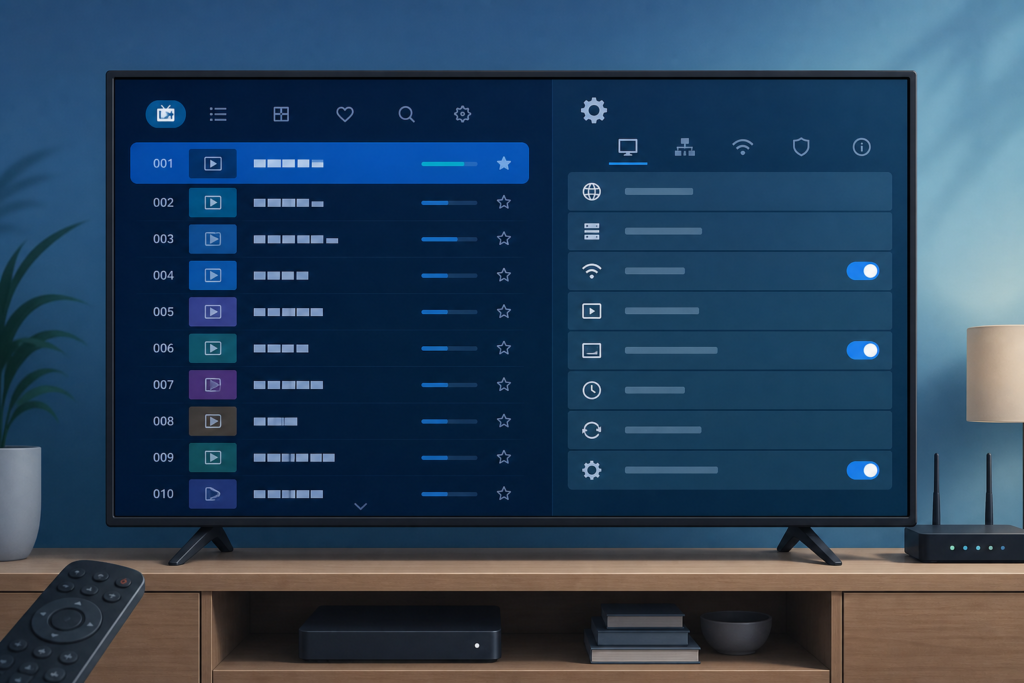
Quick answer: If IPTV channel names are missing, truncated, or replaced by blank entries, first check the player’s list view, font or column settings, and whether the source supplied metadata. Then refresh the authorized list once, compare another group, and test another supported player. Blank or shortened names do not necessarily mean playback is unavailable; the stream and display label are separate parts of the list.
This guide covers Smart TVs, Android TV boxes, Fire TV-style devices, and IPTV players. It avoids repeated imports and protects private setup information while you identify whether the issue is a display layout, local cache, or source metadata problem.
Why channel names can disappear
A player may hide names when the list view is too narrow, text scaling is unusual, metadata is incomplete, or the list was imported in a format the player only partly supports. A search filter or favorites view can also display fewer labels than the main group. Some sources use technical names rather than friendly names.
- Names truncated in one view: check column width, font size, and zoom.
- Names blank in one group: compare another group and source.
- Names disappear after refresh: check cache and list update behavior.
- Playback still works: the stream may be available despite missing metadata.
Step 1: Check list view and display scaling
Open the player’s list settings and review compact mode, column layout, font size, and zoom. A narrow panel can shorten every name. Return to a normal layout for testing and confirm whether the full name appears when an entry is selected.
Check the TV and device display scaling as well. System zoom or overscan can hide the end of a label. Do not change picture calibration when the problem is limited to list text.
Step 2: Compare groups and search modes
Switch from Favorites, Recent, or Search to the original live channel group. A merged view may omit or shorten metadata. Clear the search filter and compare a second group. If names appear normally elsewhere, the problem is likely a view or group setting.
Select an entry and check whether the player shows a detail label or program guide name. This helps distinguish a missing display label from a stream that cannot load.
Step 3: Refresh the authorized list once
Use the player’s normal refresh or update action. Do not import the same source repeatedly; some players append records or preserve stale metadata. Wait for the update to finish, close the player normally, and reopen it.
If the issue began after an update, record the app version and list behavior before clearing anything. Clear cache before app data. App data clearing may remove the authorized configuration and require setup again.
Step 4: Check source format and metadata
Different supported setup formats may provide different labels. Review the player’s documented playlist or portal format and confirm that the authorized setup matches. Do not edit private URLs or credentials in a public message. If another supported player shows complete names from the same source, the first player may handle metadata differently.
A provider or source may intentionally use a short technical name. Treat a name as missing only when the same item is fully labelled elsewhere or the source documentation indicates that metadata should be present.
Step 5: Review storage, updates, and device state
Check free device storage and install updates through official sources. Restart the device after a list refresh. If names change after standby, record whether a full restart restores them. Avoid modified players and unknown “playlist repair” tools.
Support and internal resources
Review the IPTV service guide, services, and homepage. Use WhatsApp or the official Telegram support group with device, player, group, and refresh details. Never send passwords, private playlist URLs, tokens, or payment information.
FAQ
Can missing names still play?
Yes. Display metadata and stream playback are separate. Select an entry to see whether playback works.
Why are names complete in one group but not another?
Groups may use different metadata, filters, or source formats. Compare the original group and clear search filters.
Should I import the list again?
Not repeatedly. Use the normal update action and check whether the player appends or replaces data.
Will app data clearing restore names?
It may remove stale local data but can also delete authorized setup. Try layout, group, refresh, and cache checks first.
Conclusion
Fix missing or truncated IPTV channel names by checking list layout, groups, filters, refresh behavior, metadata format, storage, and official updates. Preserve the authorized setup and report non-sensitive examples when support is needed.
Compare a complete name in the main group with the same entry in Favorites or Search. If only one view truncates the label, the source may be fine and the issue is presentation width or a filter. If every view omits the name, record the exact item and whether playback still opens.
After a successful refresh, close the player normally and reopen it once. Avoid repeated imports because a player may append another copy or preserve stale metadata. Keep the original authorized setup available privately before clearing app data.
A useful support report includes the device family, player version, group name, visible label, and result of a second group comparison. It should not include passwords, private URLs, access tokens, or payment details.
Some players display technical identifiers when friendly names are missing. That does not by itself indicate a failed list. Compare the same source in another supported player only when you are authorized to do so, and keep the test focused on labels rather than repeatedly changing the connection details.
Review text size, column width, zoom, and overscan before assuming that metadata is absent. A long name may be clipped by the interface while the underlying value is still present. Selecting the entry or opening its details can reveal the complete label.
If the issue returns after every refresh, note whether the player replaces or appends data. A stable update sequence is more useful than importing the source multiple times.
Once labels are readable, leave the list layout and source configuration unchanged until the player has survived a normal close and restart.
For persistent metadata issues, compare the label in the source group, the detail screen, and the search result. If only one interface is affected, the display layer is the likely focus. If every view omits names but playback works, the source metadata may be incomplete and should be described accurately rather than “fixed” with repeated imports.
Keep the player’s supported format and authorized configuration recorded privately. This makes it easier to restore a clean list after an update without exposing sensitive information.
After the list remains readable through one restart, avoid further imports and keep that state as the working baseline.
That baseline makes later troubleshooting faster and safer.
Confirm the final label in the main group before closing the task.
Keep the working list unchanged afterward.


