
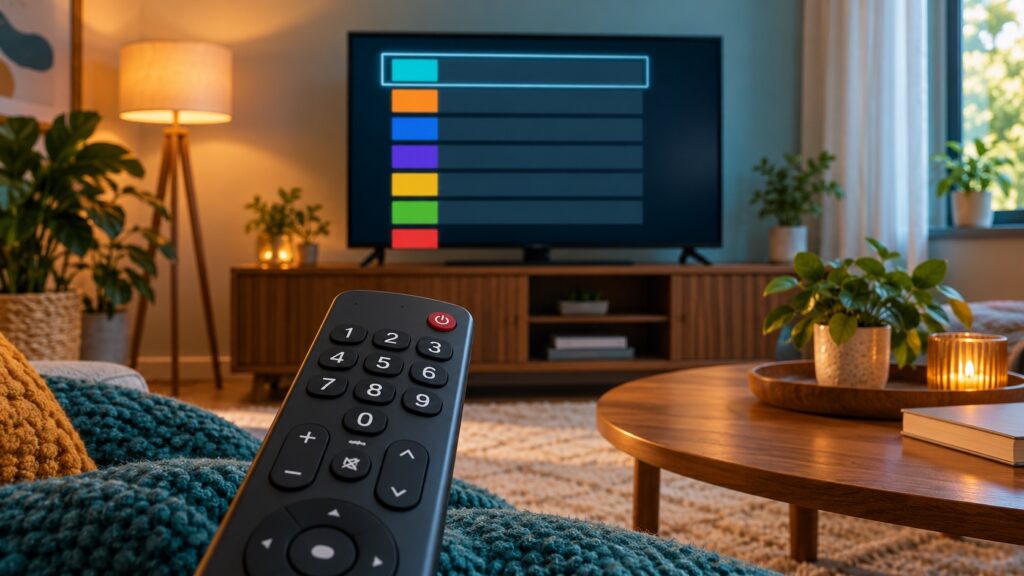
Quick answer: If the number keys on an Android TV remote do nothing inside an IPTV app, first check whether the remote sends number-key input to other apps, whether the player is focused on its live-TV screen, and whether the selected playlist or channel layout supports direct numeric tuning. Do not factory-reset the box or change several player settings at once. Test one variable at a time, note the result, and restore the original setting if the test changes nothing.
This guide is for the specific case where an Android TV box responds to its directional and OK buttons, but pressing digits does not jump to the expected channel in the IPTV player. The goal is to separate a remote/input problem from a player behavior or channel-numbering issue. Menu names differ by device and app version, so use the labels shown on your screen rather than assuming every Android TV interface is identical.
What “number buttons do nothing” can mean
A numeric keypad can be working electrically while an app does not use it for channel selection. The remote may send a key event that the current screen ignores; the app may require a long-press, a confirmation delay, or a specific live-TV layout; or the visible channel number may not match the playlist’s internal ordering. A remote can also send digits to a search field but not to a video screen, which is a useful clue: the keys are being detected, but the player may not map them to tuning.
Separate the symptom into observable parts. Does the TV show a digit overlay? Does the number appear in a search or text field? Does the player briefly display a channel number but remain on the same stream? Does nothing happen in any app? Those differences help identify the responsible layer without guessing.
Start with a safe, repeatable test
- Write down the app name, Android TV box or television model, and whether the issue began after a change. Do not include passwords or a complete playlist URL in public notes.
- Open the IPTV app’s live channel list. Use the directional pad to highlight one channel and confirm the OK button opens it. This verifies basic navigation, but does not prove number-key support.
- Try a digit in a harmless editable field in a different app, such as a search field that does not submit automatically. Remove the test text afterward. If digits fail there too, start with the remote and device input checks below.
- Return to the IPTV player and try a short one- or two-digit channel number you can identify in the list. Pause briefly before pressing another key; rapid presses can be interpreted as a different number or ignored by some interfaces.
- Record exactly what changed. Avoid repeatedly pressing digits while a stream is loading, because you may not know which input the player received.
Check whether the remote sends number input
Inspect the keypad and batteries
Check that the remote actually has dedicated number keys; some compact remotes use a virtual keypad or require an on-screen control. Replace weak batteries if other inputs are intermittent, and make sure no protective film or debris is holding a key down. Press a single number once and release it fully. A worn keypad membrane may cause a digit to work only when pressed unusually hard, while other buttons still seem normal.
If the remote is Bluetooth or paired wirelessly, verify that it remains paired in the device’s settings. If it uses infrared, check that the TV’s sensor is not blocked and that the remote is pointed toward the television. These checks are general input troubleshooting; a successful test of the directional buttons alone does not establish that number-key signals are arriving.
Compare with another input device
If available, connect a compatible USB keyboard and test the number row while the IPTV app is open. This is only a diagnostic comparison, not a promise that every app supports keyboard channel shortcuts. If the keyboard types digits into a text field but still cannot change channels, the app may not map that input to tuning. If the keyboard changes channels while the remote does not, the remote’s key delivery or key mapping becomes more likely.
Do not install an unknown “remote mapper” app just to force a result. Such apps can request broad accessibility or input permissions and may complicate later troubleshooting. Prefer the device maker’s built-in remote test or the IPTV app’s documented controls.
Confirm the player is in the right screen and mode
Number entry is often contextual. A digit may be treated differently in a channel list, an on-screen keyboard, a search box, a full-screen player, or a settings panel. Close any dialog or text field, return to live playback, and test again. If the app provides a channel list overlay, open it once, select a channel with the directional pad, then test whether numbers behave differently on the list and full-screen views.
Look in the player’s own help or control settings for terms such as “numeric keys,” “channel number,” “direct tuning,” or “remote control.” Treat these as examples, not guaranteed menu labels. Do not change decoder, network, or playlist settings to troubleshoot a keypad; those settings do not determine whether the app receives a number-key event.
If the app offers multiple remote-control layouts, note the current choice and change only one option at a time. Test a known channel, then revert if the behavior does not improve. Screenshots of the relevant menu can help support staff understand the context, but crop out account details, server addresses, and credentials.
Check the channel numbers, not just channel names
A visible row order is not necessarily a promise that pressing its row position will tune that item. A playlist may carry a channel number, a display name, and an ordering that the player interprets separately. Some lists contain gaps, duplicate numbers, hidden groups, or custom sorting. If channel “12” appears twelfth in a list, that alone does not prove the player’s direct-tune number is 12.
Compare the number shown in the app’s channel information, if available, with the number you are entering. Check whether a group filter is active and whether sorting has been changed. If the interface has a favorites-only view, test from the complete channel list before assuming a missing number is a remote failure.
Do not edit a provider’s playlist or rename channels as a first response. Editing can make it harder to reproduce the issue and may affect other devices. If you own or administer the playlist, keep a private backup before making any change. Never paste a private playlist URL, username, password, token, or live stream address into a public forum or an online checker.
Use a controlled app and device restart
After recording the original state, close the IPTV app normally and reopen it. If the problem remains, restart the Android TV device using its ordinary system restart option. A restart can clear a temporary input or focus problem, but it should not erase app data. Avoid selecting “clear storage,” “remove account,” or “factory reset” unless the device manufacturer or service provider specifically guides you through a backed-up recovery.
Check for an app update only through the platform’s normal app store or the app publisher’s official channel. If the issue started immediately after an update, note the version and date rather than installing an unofficial older package. Also check whether the same number keys behave normally in another compatible IPTV player only if you already have a legitimate app available; do not add untrusted software as a test.
Isolate remote, app, or playlist behavior
Use a simple matrix rather than changing everything together:
- Digits fail across multiple apps and text fields: investigate the remote, pairing, batteries, device input settings, or keypad hardware.
- Digits type in fields but do not tune in one IPTV app: check that app’s remote-control documentation, screen context, and channel-number mapping.
- Digits work in another player but not the current one: the issue is more likely specific to the app or its current mode; report the app version and exact steps.
- A number overlay appears but the wrong channel opens: compare the entered value with the channel number assigned by the playlist or player, and check sorting or group filters.
- Only some digits fail: inspect those physical keys for wear and compare a second input device before changing app settings.
This matrix narrows the fault; it does not prove a cause by itself. For example, a second app may use a different remote-input implementation, and an external keyboard may send a different key code than a Bluetooth remote. Record what is observed, not what you assume.
What information to collect before asking for help
A concise report can save time without exposing private data. Include the device make and model, Android TV version if visible, IPTV app name and version, whether the remote is Bluetooth or infrared if known, and whether digits work in another app. Describe the steps in order, such as “open live list, select a channel, press 4, no overlay appears.” Note whether the issue affects every digit or only some, and whether it began after a software or settings change.
You can include a cropped photo of the remote and the relevant player screen if it contains no identifying or account information. Do not send passwords, one-time codes, payment details, or full playlist links. If a support agent needs to verify a subscription, use the provider’s private, official support route and share only the minimum account reference requested.
For general setup context, see the IPTV on Android TV guide and the Android TV box IPTV setup walkthrough. For other input symptoms, the remote navigation checks and OK-button selection guide cover related but different behaviors. You can also browse the site’s IPTV tools and checklists for relevant diagnostics; none of these should require publishing a private playlist or credentials.
Common mistakes to avoid
- Do not assume the list position equals the numeric channel number.
- Do not hold multiple remote keys or rapidly enter a long sequence before checking whether the first digit appeared.
- Do not change playlist formats, decoder settings, or network settings when the symptom is limited to number-key input.
- Do not clear app storage before noting the current setup; this can remove local preferences or require configuration again.
- Do not install unofficial remote-control utilities or share credentials with people offering to “test” the playlist.
- Do not conclude that a service is offline because direct tuning fails; first select the same channel through the visible list and test playback.
Frequently asked questions
Why do the number buttons work on the Android TV home screen but not in my IPTV app?
The home screen and player can handle remote key events differently. The app may not support direct numeric tuning on that screen, may expect a different view, or may use a channel-number mapping that differs from the visible list order. Confirm the app’s own control behavior before changing the remote.
Can I jump to a channel by entering its position in the list?
Not necessarily. A list position, a channel’s assigned number, and its internal identifier are different concepts. Check the number shown by the player or playlist details rather than counting rows.
Should I clear cache or reinstall the IPTV app?
Not as the first step for a keypad-only issue. Start with remote input, focus, player mode, and channel-number checks. If you later reinstall, make sure you have the legitimate setup information needed to restore the app and do not expose it publicly.
Does this mean the playlist is broken?
No. If selecting a channel from the list plays it normally, that is evidence that playback and number-key handling are separate symptoms. It does not establish playlist health in every respect, but it helps narrow this particular issue.
Will a USB keyboard always let me type channel numbers?
No. Keyboard support and numeric shortcuts depend on the app and screen. Use a keyboard only as a comparison test, and do not treat one result as universal behavior across Android TV apps.
What should I send to customer support?
Send the device and app versions, the exact steps, whether digits work elsewhere, and a redacted screenshot if useful. Never post passwords, one-time codes, payment data, or a complete private playlist URL in a public channel.
Bottom line
When IPTV number buttons do nothing on an Android TV box, first establish whether the remote sends digits elsewhere, then test from the live player and verify that the number you enter matches the player’s channel-number scheme. Make one change at a time, preserve the original setup, and avoid destructive resets. If the issue remains, provide support with the exact device/app versions and reproducible steps—not secrets. For account or service questions, use the existing WhatsApp support entry or the official TVMemberLink Telegram channel; never share credentials in a public group.
Editorial note: Remote behavior and menu names vary by hardware, firmware, app, and version. The checks above are diagnostic steps, not a guarantee that a particular player supports numeric channel tuning.
For reference, Android documents that remote input and device controls can vary by platform and configuration. This article avoids relying on a single menu path because different Android TV manufacturers expose settings differently.
Official Android TV Help · Sony Android TV remote troubleshooting · Google TV remote troubleshooting
