
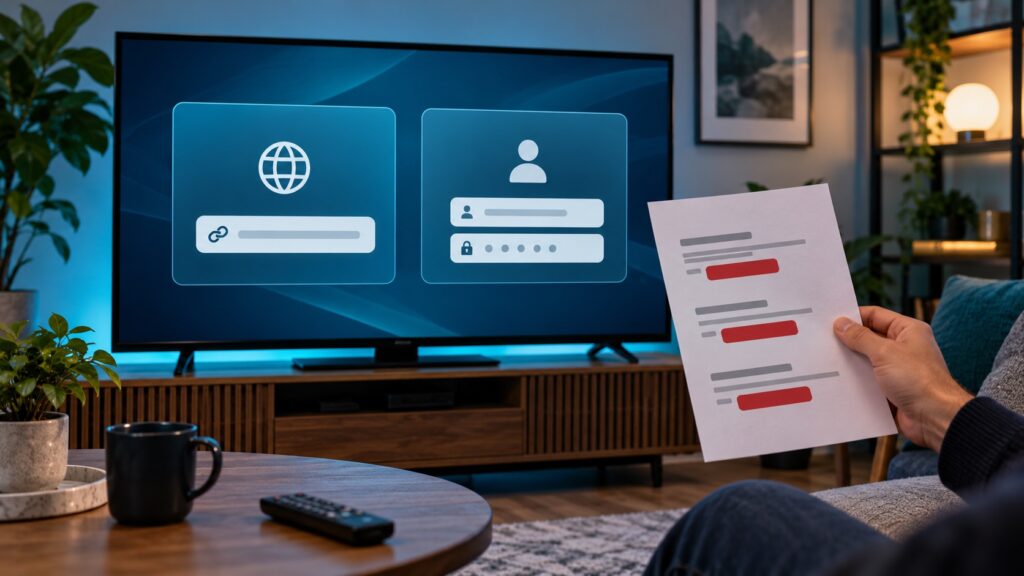
Quick answer: An IPTV app may offer two different setup routes: an M3U playlist URL field, or an Xtream-style form with a server address, username, and password. Use the route that your provider explicitly supplied and that the app actually supports. Do not paste a complete M3U URL into a server-only field, and do not assume that every app accepts both formats. If you are unsure which details you received, identify the labels and message format privately before entering anything.
This guide explains how to distinguish the two common setup patterns without publishing credentials, changing a working account, or trying random URL edits. It is written for Android TV and similar streaming-device interfaces, where a remote makes long strings and separate fields easy to mix up. Terminology and app screens vary, so the app’s current documentation and provider instructions take priority.
What the two login choices mean
An M3U setup usually gives the player one playlist address or asks you to select a local playlist file. The playlist is a text-based index that can contain entries and stream references; in many services, the URL itself is account-specific. An Xtream-style setup usually separates the server or portal address from a username and password. An app may then request optional fields such as a profile name. These are different input shapes, even when a provider’s M3U URL contains components that resemble account details.
Do not infer support from the fact that a field looks familiar. Some applications accept only one method, some provide both, and others have distinct workflows for live channels, movies, or series. A screen labeled “M3U playlist” expects an address or file in a format it understands; a screen labeled “Xtream Codes API” expects the separate values indicated on the form. If the provider only supplied one type, ask them which app route to choose rather than manufacturing a second type.
Recognize the information you received
An M3U playlist URL
A playlist URL is typically presented as one complete web address, often beginning with an HTTP or HTTPS scheme. It may include a host, path, and query parameters. Treat the entire address as sensitive: anyone who can use it may be able to access the associated playlist or account. Do not split it into fields unless the provider’s instructions explicitly say to do so, and do not post it into a screenshot, public chat, search engine, or unrelated online checker.
Separate server and account fields
An Xtream-style message commonly labels a server address separately from a username and password. Enter each item only in the matching field. The server address is not necessarily the same as the full playlist URL, and adding an unrequested path, port, or slash can change what the app contacts. Preserve the provider’s spelling and punctuation. If the provider gives a port or a specific URL scheme, use it exactly as instructed rather than guessing.
A local playlist file
Some apps can open a downloaded M3U file rather than fetching a URL. That route is different from both account forms. Confirm the filename, storage location, and whether the app has permission to access that location. Keep local copies in a private folder and avoid downloading a playlist from an unverified third party. The file may contain sensitive stream addresses even if it does not visibly show a username or password.
Choose the matching screen on Android TV
- Open the IPTV app’s add-playlist or account screen. Note the exact option labels before selecting one.
- Compare those labels with the provider’s private setup message. Look for an explicit M3U playlist URL or separate server, username, and password fields.
- If the values are separate, choose the matching separate-field login. If you received one playlist address, select the URL or playlist route the app documents.
- Enter only the requested values. Use the remote carefully with the on-screen keyboard; watch for look-alike characters, accidental spaces, and punctuation being omitted.
- Save once, wait for the app’s result, and note the exact error text. Avoid repeated submissions while the screen is still loading.
Menu wording changes between app versions, and not every player uses the same names. If the app displays a blank field that does not match your provider’s message, stop rather than placing the entire message into that field. A setup walkthrough for the device can help orient you: see our IPTV on Android TV guide and the Android TV box setup checklist.
Common field-mapping mistakes
Putting the whole M3U URL in a server box: a server field may expect only the base address or a particular provider endpoint. The app may reject a full playlist string or create a malformed request. Follow the provider’s exact field mapping.
Using the server address as the playlist URL: a base domain alone may not identify a playlist. Do not append guessed paths such as “/get.php” or add query parameters from internet examples. Provider systems differ, and examples on public sites may be unrelated or unsafe.
Reversing username and password: on a television keyboard, moving between fields can be confusing. Confirm the focus highlight before typing, especially after an on-screen keyboard closes.
Entering a profile label as a credential: “name” or “playlist name” may simply be a local label. It is not necessarily a username. A label can usually be descriptive and private, but it should not contain your password or full URL.
Assuming login success proves all channels are configured: a successful account connection may only show that the app accepted the entry. It does not guarantee every section, guide, or stream will load. Diagnose those symptoms separately after the initial connection.
Check formatting without exposing the secret
First verify the visible structure, not the private value itself. Does the provider message contain one complete URL, or distinct labeled values? Does the chosen app screen show one URL field or multiple credential fields? These simple shape checks can resolve many selection errors without copying the secret anywhere.
If you already have written values and want help distinguishing their format, the M3U and Xtream connection-details helper is intended for this kind of field-mapping question; review its behavior and privacy notes before entering anything. You can also browse the IPTV tools directory. Do not assume an online tool is safe for credentials: never submit a complete account URL, username, password, token, or private stream. When in doubt, use a redacted example such as “server field present” rather than the real value.
For an M3U text file that you own or are authorized to inspect, a local text editor can show whether it begins with a playlist header and contains entries. Do not edit a live provider playlist just to make it resemble a sample. Keep a backup and use offline inspection where possible. A browser-based analyzer may process data locally, but confirm the page’s privacy behavior before use and never paste a remote credential-bearing URL into a public page.
Safe troubleshooting if the app rejects the details
- Read the error exactly: “invalid URL,” “authentication failed,” and “playlist empty” describe different stages. Record the wording without sharing secret values.
- Recheck the chosen login method against the provider’s instructions. Do not convert an M3U address into separate fields unless those fields were supplied or the provider documents that method.
- Check the input for accidental spaces before or after a value. Do not remove punctuation that appears intentional or alter letter case unless instructed.
- Verify that the device date and time are reasonable and that the network is connected. Avoid changing DNS, VPN, or router settings until the provider or app documentation suggests a relevant test.
- Try one fresh entry only if you can safely clear the incorrect draft without deleting unrelated app data. Keep a private note of the original, but do not store secrets in a public note-taking service.
- Contact the provider through its verified support channel if the supplied information seems incomplete, expired, or inconsistent. Never send a password or full playlist link to an unofficial social account.
If the app reports an authentication failure, repeated retries may not help and can sometimes trigger account protections. Pause after a small number of careful checks. Do not ask a stranger to test the account on their device. If the service has an account dashboard, use the official one and avoid changing a password unless you are sure how that affects configured devices.
Privacy and account-security checklist
- Keep account messages in a private channel and remove them from shared screenshots.
- Do not paste passwords, one-time codes, full M3U URLs, or stream links into public troubleshooting posts.
- Use only the provider’s official delivery and support channels; verify links before opening them.
- When asking for help, describe the field labels and error message instead of sending the actual values.
- If a credential was accidentally shared publicly, contact the provider promptly about revocation or rotation.
- Do not upload a playlist file to a third-party site unless you have confirmed that you are permitted to share it and understand how it is handled.
These precautions matter because a playlist URL can function like a bearer credential. Redacting only the password may not be enough if the URL itself includes a token or account identifier. If you need to show a screen, replace the entire value with a neutral placeholder and check the image at full size before sending it.
What details to share with support
A useful support request can be short and private: device model, operating-system version if known, app name and version, which login option you selected, the exact non-sensitive error message, and whether the problem began after a change. Tell support whether you were given one URL, a file, or separate labeled fields, but do not reveal the values. If a provider needs an account reference, share the minimum requested through a verified private channel.
Include the steps you tried and the outcome of each. For example: “Android TV, app version shown in About; selected the M3U URL option; app says ‘invalid URL’; digits and network work elsewhere.” This is more actionable than “IPTV broken,” and it avoids transmitting secrets. For broader service questions, review IPTV service information and use the established support page. TVMemberLink also lists its official Telegram support channel; do not post credentials in a public group.
Frequently asked questions
Is Xtream login the same thing as an M3U URL?
No. They are different input methods. One commonly uses separate server and account fields; the other commonly supplies a playlist address or file. An app or provider may support one, both, or neither of a particular combination.
Can I derive an Xtream login from any M3U URL?
Do not assume so. A URL may contain account-specific information, but the provider may use a different scheme or may not authorize another login method. Ask the provider for the supported format rather than reverse-engineering or publishing the URL.
Should I remove the path from my M3U address?
Not unless the provider’s instructions tell you to. The path and query string may be essential to the playlist request. Use the value exactly as supplied in the matching field.
Why does the app accept my login but show an empty list?
Acceptance and playlist loading can be separate steps. Check the selected category or playlist view, refresh only through the app’s normal controls, and note whether the app reports a separate loading or data error. Contact the provider privately if the playlist remains empty.
Can I send my login to support for testing?
Do not post it publicly or send it to an unverified account. Use only a verified private support route, and share credentials only if the provider explicitly requires them under its published security process. Never send one-time codes.
Which setup option should I choose?
Choose the route named in the provider’s instructions and supported by your app. If the message is ambiguous, ask the provider what its labels mean before submitting the values.
Conclusion
The safest way to distinguish Xtream-style login from an M3U setup is to compare the information’s shape with the labels on the app screen, then use exactly the route the provider supports. Do not split, rewrite, or upload a sensitive URL based on a public example. If the details are rejected, make a small number of careful checks and report the non-sensitive error, device, and app version privately. This keeps troubleshooting focused while protecting account access. Contact support through WhatsApp or the official Telegram channel; never send credentials publicly.
App names and login workflows vary. This article describes common input patterns and does not claim every provider or player uses the same fields.
Reference links: XMLTV project resources explain the separate XMLTV listings format; Kodi PVR IPTV Simple Client documentation describes a specific application’s playlist and guide configuration; VLC official support provides player-specific help. These are examples of application documentation, not endorsements or instructions for every service.
