
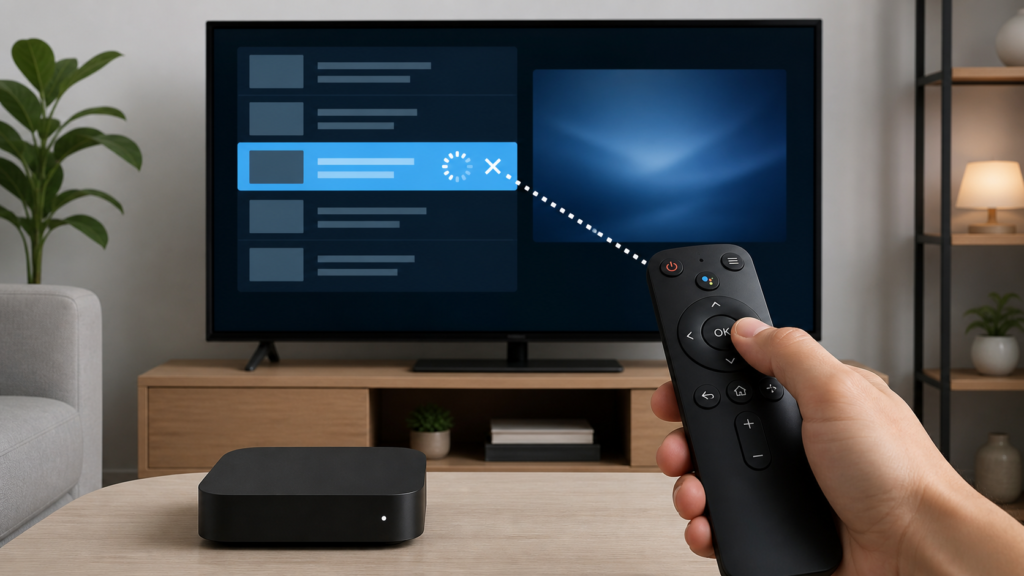
Quick answer: If an IPTV channel will not select when you press OK on an Android TV box, first establish whether the button works in the Android TV menus, then compare the guide, channel list, and player focus. Check the remote mode, visible highlight, one alternate selection method, and the player version before changing application data. These checks separate a remote-input problem from a focus or interface problem without exposing account credentials or changing unrelated settings.
Android TV Box IPTV OK Button Not Selecting a Channel: Safe Checks
An IPTV channel list usually depends on two separate actions: moving the highlight and confirming the highlighted item. When the highlight moves but the OK button does not open a channel, the cause may be the remote, the Android TV focus state, a guide view, or the player itself. When neither movement nor confirmation works, the investigation should begin with the remote and system menus. This guide uses observable checks rather than assumptions about a provider, channel catalog, or network performance.
What the symptom can tell you
Describe the exact behavior before trying a fix. Does the highlight move with the directional keys? Does the OK key make a sound, animation, or focus change? Does a channel open if you press an on-screen control? Does OK work on the Android TV home screen or in another application? Each answer narrows the next safe test.
A remote may be sending a different command if it is in the wrong device mode or if a button is physically worn. An application may also capture focus inside a guide and ignore confirmation until a row is fully loaded. A delayed screen can make a successful command appear to fail, so press once and wait for the normal response.
Step 1: Test OK outside the IPTV player
Return to the Android TV home screen and use OK on a visible application icon or settings item. Use one press, wait, and observe. If OK fails everywhere, the player is unlikely to be the only cause. Check whether the remote’s other navigation keys work and whether the button feels stuck or unusually soft. Do not open the remote or apply liquid.
If OK works on the home screen, open a second ordinary application and select one visible item. A system-wide working button with a player-only failure points toward focus, application state, or the specific view. It does not prove that the service or account is at fault. Record the comparison for support.
Step 2: Check focus in the channel list
Open the player’s channel list and move the highlight deliberately. Confirm that the selected row has a visible border, color, or other focus indicator. Some interfaces display a cursor that is easy to miss against a busy background. Press OK only when the intended row is visibly focused.
Compare a live channel list with the guide and favorites view if those views are available. If OK works in one view but not another, do not reset the application immediately. The difference may be a view-specific focus state or a documented navigation rule. Note the view, the selected row, and the response.
Step 3: Use one alternate selection method
If the player exposes an on-screen select, play, or enter control, use it once as a comparison. Some Android TV players also support a mouse pointer or touchpad mode, but only use an input method that the device and player document. If the alternate method opens the same channel, the remote command path deserves attention. If it also fails, keep the focus and player view in the report.
Do not repeatedly press OK, Back, and directional keys in quick succession. Queued input can move the highlight after the screen has changed and make the sequence difficult to reproduce. A controlled test is one selection, one wait, and one recorded result.
Step 4: Check remote mode and pairing
Review the Android TV box manufacturer’s documented remote mode and pairing status. If the remote controls the home screen, do not unpair it as a first reaction. A pairing reset can introduce a new variable and may require setup again. Check batteries and test the same OK button in system menus before considering a documented re-pair procedure.
When practical, compare a second compatible input with the same player screen. If the second input selects a channel, report that boundary. If both inputs fail only inside one view, focus on the player state. Avoid claiming a hardware fault from a single failed press.
Step 5: Review player and device state
Record the IPTV player version and Android TV box software version. If an official update is available, follow the platform’s normal update path and test the same channel list afterward. Do not install an unknown modified application to test a button. A different application can change the result but may not be a controlled comparison.
Restart the box once using its normal system option. After restart, open the same view and test the same selection. If the problem returns only after standby, record that timing. If it appears immediately, record the exact screen and whether the highlight is visible.
Step 6: Consider local data carefully
Only use a documented cache-clear or reset option after recording the original behavior and understanding its effect. Clearing data can remove local preferences, favorites, or setup information. It is not a universal fix for a button that fails in one guide view. Change one setting, reopen the player, and compare the result.
Practical checklist
- Describe whether the highlight moves.
- Test OK on the Android TV home screen.
- Test one other ordinary application.
- Confirm visible focus in the IPTV list.
- Compare guide, list, and favorites views.
- Use one documented alternate selection method.
- Check batteries, mode, and pairing state.
- Record player and device versions.
- Restart once and repeat the same test.
- Protect passwords and private access details.
When to request help
Review the Android TV box setup guidance, the IPTV service page, and the services page. Contact the official Telegram support channel with the box model, player version, affected view, highlight behavior, and safe checks completed. Do not send passwords, tokens, payment information, or private playlist links.
FAQ
Why does OK work on the home screen but not in IPTV?
The player may have a different focus state or the selected guide view may handle confirmation differently. Compare another player view before resetting data.
Should I press OK repeatedly?
No. Press once, wait, and record the response. Repeated input can queue commands and hide the original symptom.
Is the remote broken?
Test OK in the home screen and another application. A failure everywhere is more relevant than a single failed IPTV view, but it still needs a controlled comparison.
What should I tell support?
Share the device model, player version, screen, visible focus, alternate-control result, and restart result. Keep credentials private.
Conclusion
An Android TV box IPTV OK-button problem should be isolated across remote input, pairing, visible focus, guide views, application state, and device software. Use one controlled action at a time and preserve the original evidence. Start with the TVMemberLink home page for general service information.
