
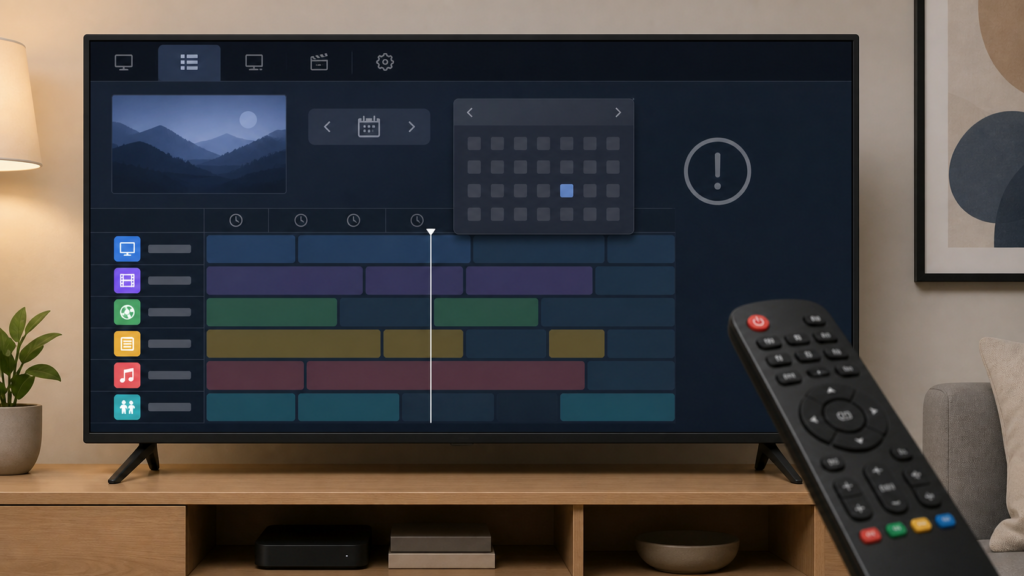
Quick answer: If the IPTV EPG date selector does not respond, test whether the directional keys work elsewhere, confirm the guide has focus, compare one adjacent date, and reopen the guide once. Check the device clock and the player version. Avoid repeatedly pressing buttons or clearing app data before documenting the original selector state.
IPTV EPG Date Selector Not Responding: Safe Guide Checks
An EPG date control can be a row of dates, a calendar icon, or a previous/next-day button. When it stops responding, the issue may be focus, a loading guide, a player layout, a device clock, or a temporary interface state. This guide uses controlled checks and avoids assuming that missing dates or empty schedules prove a service-wide issue.
Define the symptom
Note whether the date is highlighted but does not change, whether the control is grey, whether the guide shows a spinner, or whether the date changes but the rows remain the same. Also record whether ordinary channel navigation works. These are separate observations.
Press one date control once and wait. Repeated input can queue commands and make the date appear to skip or remain frozen. Keep private account information out of screenshots.
Step 1: Confirm focus
Move through the guide with directional keys and look for the focus border or highlight. A visible date may not be selected. Test one adjacent date and wait for the guide to redraw. If other guide controls also fail, record that broader behavior.
Compare the date control with one ordinary row selection. If rows respond but dates do not, focus on the selector or its view. If neither responds, check whether the guide is still loading.
Step 2: Wait for loading
Watch for a progress indicator, changing row count, or delayed text. A guide may ignore date input while building its current view. Wait for the normal completion, then test once. Avoid leaving and re-entering the guide repeatedly.
Compare one adjacent date only. Record whether the guide moves, shows a new range, or remains unchanged. Do not jump rapidly across many days.
Step 3: Compare guide views
If the player documents grid, list, or timeline views, compare the same date in one alternative view. Some views may display a date header without supporting date navigation. Check the player’s documented previous-day and next-day controls.
Change one view at a time and restore the original setting after comparison. Record whether the problem follows the date or the layout.
Step 4: Verify time settings
Check the device date, time, and time zone through normal system settings. An incorrect clock can make the guide show an unexpected period, although this check alone does not prove causation. Use the platform’s documented automatic-time option where available.
After a clock change, reopen the same guide view and test once. Record the before-and-after state. Avoid changing region, language, and time zone together.
Step 5: Reopen and refresh once
Exit the guide normally, return to playback or the player home screen, and open it once. Test the same date. If the control works after reopening, record that persistence result. If the player documents an EPG refresh, run it once and wait.
Do not clear data before noting favorites, sorting, and setup information. A reset may remove local preferences and does not explain the original selector behavior.
Step 6: Compare versions
Record the device model, system software, and player version. Check official updates and repeat the same date test after an update. When practical, compare another supported player or device using the same approved setup. A different result is evidence about the interface boundary, not proof of one universal cause.
Checklist
- Describe the exact selector behavior.
- Confirm guide focus.
- Press once and wait.
- Compare one adjacent date.
- Check loading indicators.
- Compare one documented guide view.
- Verify date, time, and time zone.
- Reopen the guide once.
- Run one documented refresh.
- Record versions and protect credentials.
When to request help
Review the IPTV setup guidance, IPTV service page, and services page. Use the official Telegram support channel with device, player, guide view, date behavior, clock state, and refresh result. Keep passwords and private URLs hidden.
FAQ
Why is the date highlighted but unchanged?
The guide may not have active focus or may be loading. Compare one adjacent date after waiting.
Should I refresh repeatedly?
No. Run one documented refresh and record the result.
Can the device clock matter?
It can affect the displayed period. Verify it safely without changing unrelated settings.
What should support receive?
Share device, player, view, date behavior, clock state, and refresh result. Keep credentials private.
Conclusion
An IPTV EPG date-selector problem should be isolated across focus, loading, view layout, clock settings, refresh behavior, and player versions. Use one controlled test at a time. Start with the TVMemberLink home page.
For a clear support record, note the date shown before selection, the control used, the wait time, and the date shown afterward. Mention whether channel rows changed, stayed the same, or became empty. Redact usernames and private URLs from screenshots. Keep the first comparison narrow and record each change before testing again.
For a clear support record, note the date shown before selection, the control used, the wait time, and the date shown afterward. Mention whether channel rows changed, stayed the same, or became empty. Redact usernames and private URLs from screenshots. Keep the first comparison narrow and record each change before testing again.
For a clear support record, note the date shown before selection, the control used, the wait time, and the date shown afterward. Mention whether channel rows changed, stayed the same, or became empty. Redact usernames and private URLs from screenshots. Keep the first comparison narrow and record each change before testing again.
Also compare the selector after returning from a different guide view, but use only one navigation path for each test. If the date changes while the program rows remain the same, report those as separate observations. If the control is grey until the guide finishes loading, note that timing. The purpose is to identify the interface boundary, not to force the guide into an unsupported state.
When a device clock adjustment is tested, write down the original setting and restore it if the change is unrelated. Do not alter language, region, and time zone together. A concise before-and-after record helps support understand what the device displayed.
For a clear support record, note the date shown before selection, the control used, the wait time, and the date shown afterward. Mention whether channel rows changed, stayed the same, or became empty. Redact usernames and private URLs from screenshots. Keep the first comparison narrow and record each change before testing again.
Also compare the selector after returning from a different guide view, but use only one navigation path for each test. If the date changes while the program rows remain the same, report those as separate observations. If the control is grey until the guide finishes loading, note that timing. The purpose is to identify the interface boundary, not to force the guide into an unsupported state.
When a device clock adjustment is tested, write down the original setting and restore it if the change is unrelated. Do not alter language, region, and time zone together. A concise before-and-after record helps support understand what the device displayed.
For the final comparison, use the same date control and the same guide category after reopening. Note whether the selector responds, whether the header changes, and whether the rows match the new date. This gives a clear result without repeated refreshes or unverified changes.
