
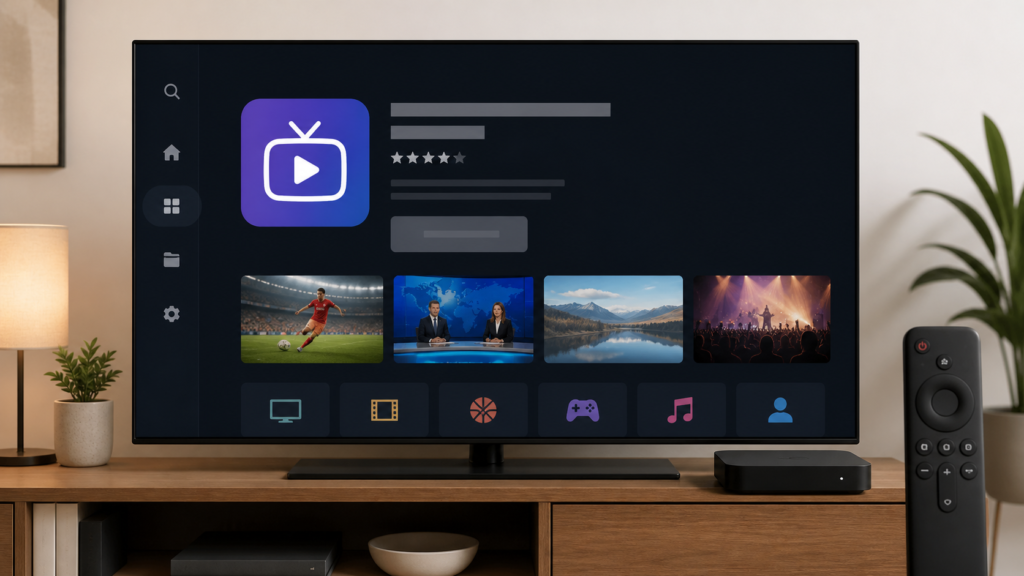
Quick answer: If an IPTV app installation button is greyed out on an Android TV box, confirm the exact app listing, check device storage and compatibility, verify that the system is online, and review whether the store is still processing another action. Test one ordinary app listing for comparison. Do not install an unknown APK or repeatedly reset the box before recording the visible message.
IPTV App Install Button Greyed Out on Android TV Box: Safe Checks
A grey installation button can mean the app store is still loading, the listing is not compatible with the box, storage is limited, an update is pending, or the system account is not ready. It can also be a temporary store interface state. This guide explains how to isolate the cause with observable checks while protecting login details and avoiding unsupported promises about any particular application.
Describe the store state
Note whether the button is grey before opening the listing, whether an update or uninstall option appears, and whether a message says unavailable, pending, or incompatible. Check the application name and developer shown by the official store. Similar names can refer to different apps, so do not assume that every listing is the intended player.
Do not send a screenshot that exposes an account email, payment profile, or private activation information. If a screenshot is useful, crop or redact those fields. The first goal is to determine whether the store or one listing is affected.
Step 1: Test another store listing
Open one ordinary application listing that is known to be available for the Android TV box. Wait for the page to load and observe its install control. If other listings also have disabled controls, focus on store connectivity, account state, pending updates, or the device. If only the IPTV listing is grey, compatibility or listing status becomes more relevant.
Use one comparison only. Opening many pages quickly can leave the store loading and make the result unclear. Record the listing type and visible button state.
Step 2: Check connectivity and pending actions
Open the box network settings and confirm that the device reports a normal connection. Then return to the store and wait for any download, update, or account process to finish. Do not repeatedly disconnect and reconnect the network during the first test.
If an update is pending for the operating system or store, use the official update path. A store may temporarily restrict installation while another system action is unfinished. Record the exact status instead of guessing.
Step 3: Check storage
Review available storage through the Android TV box settings. A nearly full device may prevent a store from enabling installation. Remove only clearly unnecessary applications through normal system controls, and make sure you understand what data will be removed.
Do not delete the IPTV player or its setup information as a first response if the app is not yet installed. Avoid cleaning unrelated data while the store state is still being identified.
Step 4: Review compatibility
Read the official listing’s device requirements and supported operating-system information. A phone or tablet version may not be available for a television box. A similarly named application on another platform does not establish Android TV compatibility.
If the store explicitly reports that the app is unavailable or unsupported, save that wording. Do not bypass the store with a modified package simply to force an installation. A supported alternative player may be considered only after confirming compatibility and setup requirements.
Step 5: Check account and parental controls
Review the store account state and documented parental or purchase restrictions. Do not share account credentials with a third party. If the store requests a normal sign-in, complete it privately using the platform’s official screen.
Check the box date and time if the store shows certificate or connection errors. Use automatic time when the system documents that option. Change one setting, return to the same listing, and compare.
Step 6: Restart and update safely
Exit the store, return to the home screen, and restart the box through its normal system menu. Reopen the same listing once. If the button becomes active, record that result. If it remains grey, record the message, box model, system version, and store state.
Use only official updates and documented recovery actions. A factory reset removes unrelated settings and is not a first-line fix for one disabled install control.
Practical checklist
- Confirm the exact app listing.
- Record the grey button and message.
- Test one ordinary listing.
- Check network status.
- Wait for pending updates.
- Review available storage.
- Read Android TV compatibility details.
- Review store restrictions privately.
- Restart normally once.
- Keep account data confidential.
When to request help
Review the Android TV box setup guidance, the IPTV service page, and the services page. Use the official Telegram support channel with the box model, system version, listing message, storage state, and comparison result. Never send passwords, payment data, or private URLs.
FAQ
Why is only one app’s install button grey?
The listing may not support the box or its operating-system version. Check the official compatibility message.
Should I install an APK from a website?
Not as a first troubleshooting step. Use the official store or a documented, compatible installation path.
Can low storage disable installation?
Yes, it can be relevant. Check storage before deleting data and remove only clearly unnecessary items.
What should support receive?
Share the model, version, visible message, storage state, and safe checks. Keep credentials private.
Conclusion
An IPTV app install button greyed out on an Android TV box should be isolated across the listing, store state, connectivity, storage, compatibility, restrictions, and software. Use one controlled check at a time. Start with the TVMemberLink home page.
Before contacting support, write down the exact store wording, box model, Android TV version, available storage, and whether another app can be installed. This creates a useful report without revealing account or private service details. Keep the original listing visible during the first comparison. If the store shows a compatibility warning, follow official platform guidance and do not bypass it with an unverified package.
Before contacting support, write down the exact store wording, box model, Android TV version, available storage, and whether another app can be installed. This creates a useful report without revealing account or private service details. Keep the original listing visible during the first comparison. If the store shows a compatibility warning, follow official platform guidance and do not bypass it with an unverified package.
Before contacting support, write down the exact store wording, box model, Android TV version, available storage, and whether another app can be installed. This creates a useful report without revealing account or private service details. Keep the original listing visible during the first comparison. If the store shows a compatibility warning, follow official platform guidance and do not bypass it with an unverified package.
Also check whether the store has already installed a similarly named player, whether the listing shows an update control, and whether the box has enough free space for a normal installation. These checks should be performed through the platform menus. If the listing changes after a private account refresh, record that result without sharing the account information. A grey control can be a platform decision, not a signal to bypass the store.
After each safe action, return to the same listing and wait for its status to settle. Record the button state, message, and time. If the box is managed by a family or workplace account, ask the account owner to review restrictions privately rather than publishing access details.
Before contacting support, write down the exact store wording, box model, Android TV version, available storage, and whether another app can be installed. This creates a useful report without revealing account or private service details. Keep the original listing visible during the first comparison. If the store shows a compatibility warning, follow official platform guidance and do not bypass it with an unverified package.
Also check whether the store has already installed a similarly named player, whether the listing shows an update control, and whether the box has enough free space for a normal installation. These checks should be performed through the platform menus. If the listing changes after a private account refresh, record that result without sharing the account information. A grey control can be a platform decision, not a signal to bypass the store.
After each safe action, return to the same listing and wait for its status to settle. Record the button state, message, and time. If the box is managed by a family or workplace account, ask the account owner to review restrictions privately rather than publishing access details.
