
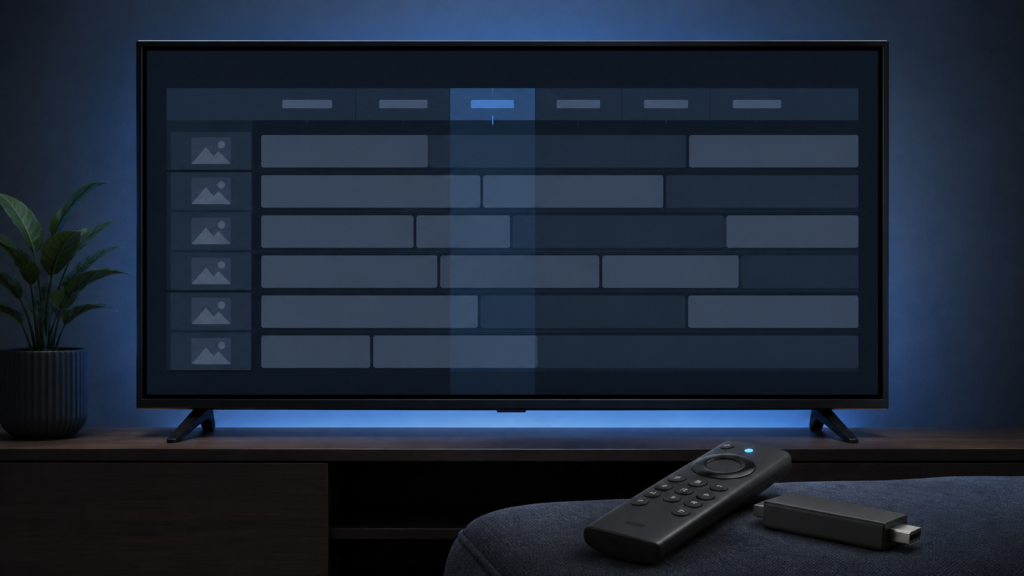
Quick answer: If channel logos are missing from an IPTV EPG on Firestick but channel names and programme data still load, the guide may be working while image assets fail to load. Check whether logos are disabled in the layout, refresh the guide once, test another category, and compare the same guide on one supported device. Do not mistake missing artwork for missing channels.
IPTV EPG Channel Logos Missing on Firestick: Safe Checks
Many EPG layouts show logos beside channel names. When those images disappear, the grid can look unfinished even though programme titles remain available. Logos are often optional assets loaded separately from guide text, so a missing logo does not automatically mean the playlist, account, or channel data is unavailable.
Define what still works
Check whether channel names, programme titles, times, and playback still work. If only the image is absent, focus on display and asset loading. If the entire guide is empty, use a broader guide troubleshooting process. Test a second category because some guide groups may have artwork while others do not.
Step 1: Check EPG layout preferences
Open guide or appearance settings and look for channel logos, artwork, compact view, or show images. Ensure logos are enabled and choose the standard grid view. Close side panels and return to the full-screen guide. A compact mode may intentionally hide artwork to show more rows on a small screen.
Check image size and scaling
If names appear but logo spaces are blank, verify that Firestick display scaling or accessibility magnification has not pushed images outside the visible region. Return the screen to its normal size and restart the guide view. Avoid changing network settings until you know whether the logos are missing in every category.
Step 2: Refresh the guide safely
Exit the EPG to the channel list, wait for the interface to settle, and open the guide again. If a refresh option exists, use it once. Move to another date and return to the current date. This can rebuild the guide and request image assets again. Avoid pressing refresh repeatedly because it can make a slow guide harder to assess.
See the setup guide for general Firestick checks and the IPTV service page for service context.
Step 3: Compare categories and devices
Check whether logos are missing for all categories or only a particular group. Then compare one other supported device using the same guide date. If logos appear elsewhere, focus on Firestick app cache, version, display mode, or local asset state. If they are missing everywhere but guide text works, report the pattern as an artwork issue rather than a channel outage.
Safe checklist
- Confirm guide text and playback still work.
- Check whether logos are enabled in layout settings.
- Use full-screen standard grid mode.
- Restore normal Firestick display scaling.
- Refresh or reopen the guide once.
- Compare categories and guide dates.
- Test one supported device if available.
- Record app version and affected categories.
FAQ
Are channels unavailable when logos are missing?
Not necessarily. Logo artwork can fail while names, guide data, and playback remain available.
Should I clear Firestick app storage?
Not first. Try layout, reopen, category, and device comparisons before removing local setup.
How do I contact support?
Share device, app version, affected categories, and a redacted screenshot through the official Telegram group or site WhatsApp button.
Conclusion
Missing EPG logos are best isolated by checking layout, scaling, guide refresh, categories, and another device. The text guide may remain healthy. Visit the services page or home page.
Check whether only artwork is affected
Use one category where channel names and programme times are visible. If names, schedule text, and playback work while only the logo spaces are empty, the guide is not necessarily missing its data. Artwork can be loaded separately and may be optional. Compare a second category and move to another guide date so you can see whether the same pattern persists.
After selecting the standard grid and enabling logo display, leave the guide and reopen it once. Give the interface time to finish loading. Do not press refresh repeatedly or clear app storage during the first test. If a second supported device shows the same missing artwork while text works, record that cross-device result. If only Firestick is affected, record the Firestick model, app version, display scale, and whether the app was recently updated.
When contacting support, send a redacted screenshot showing the guide layout and category, not a login screen or private URL. Explain whether playback works and whether names and times remain present. This description is more actionable than saying every channel is gone, and it avoids unnecessary changes to account configuration.
Understand why logos can load differently from guide text
Guide text and logo artwork are often separate parts of the interface. Text may arrive quickly while optional images are delayed, unavailable for a category, or hidden by a compact layout. Wait briefly after opening the grid and check whether the blank spaces fill. If they do not, switch between standard and compact view once and return to the guide.
Review the Firestick date and time only if other app assets also fail; an incorrect system clock can affect secure asset requests, but it is not the first explanation when playback and guide text work. Confirm the TV is online through its settings and test another ordinary image-heavy app. Avoid repeated refreshes, account changes, or storage deletion while isolating the issue.
For support, state exactly what remains visible: channel name, programme title, time, and playback. Include the category and app version, and hide private data in screenshots. The setup guide and WhatsApp button can be used alongside the Telegram group.
Final controlled check
Before making a larger change, return the device to its ordinary viewing state and repeat the smallest test once. A problem that disappears after a normal reopen should be logged as a temporary interface or playback state. A problem that remains across devices, categories, or apps should be described with those comparisons. Avoid promising a particular cause until the evidence supports it. Keep the troubleshooting notes factual, use redacted screenshots, and contact support through the site WhatsApp button or official Telegram group rather than publishing private service details.
These checks are designed to protect a working setup while narrowing the cause. They do not require sharing passwords, payment data, or access tokens. Once the result is clear, follow the relevant setup and services pages for the next safe step.
Repeat the test after a brief pause and note whether the result is consistent. Consistency matters because a one-time display or playback delay can look like a permanent configuration problem. Use one device and one variable at a time, keep the original settings recorded, and restore any temporary test setting when finished. If the symptom persists, provide the model, app version, affected view or channel, and exact reproduction steps. This lets support investigate efficiently without asking for credentials or other sensitive information.
For general navigation, review the setup and services pages. Use the existing WhatsApp button or official Telegram support route for a private conversation.
