
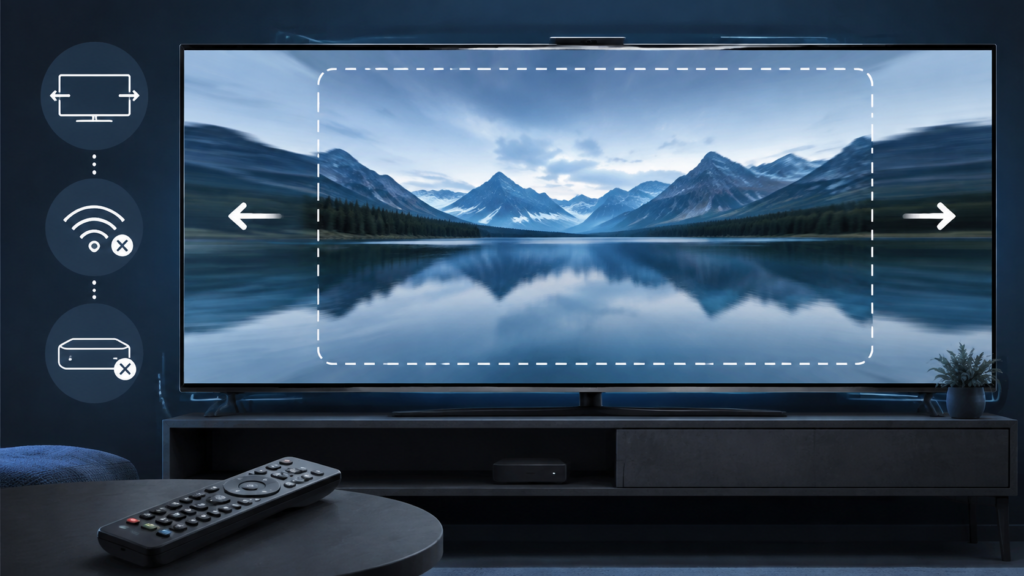
Quick answer: If an IPTV picture looks stretched or faces appear unusually wide on Android TV, check the television picture mode, player aspect-ratio setting, zoom or overscan, and whether the problem affects one channel or every app. Start with the default display mode and compare another video source before changing service settings.
IPTV Picture Stretched on Android TV: Safe Aspect Ratio Checks
A distorted picture is usually a display geometry problem rather than a login or account problem. The player may be receiving a normal image while the television expands it to fill the screen. Different channels can also use different source formats, so a picture that looks correct on one channel may appear stretched on another.
Identify the scope
Look at familiar objects such as faces, circles, and text. Then change to a second channel and test another app on the same television. If every app looks wide, focus on TV picture settings. If only the IPTV player is affected, focus on the player mode. If only one channel is distorted, the source format or a channel-specific player rule may be involved.
Step 1: Reset the television picture mode
Open the TV picture settings and choose the normal, original, screen fit, or auto aspect option. Names differ by manufacturer. Turn off zoom, wide zoom, stretch, and overscan modes for the test. Do not change colour or advanced calibration settings because they do not correct geometry. Return to playback and check a familiar scene.
Check HDMI and display resolution
If Android TV runs through an external box, verify that the HDMI input is using the recommended automatic resolution. A forced resolution or unusual scaling mode can make the image appear incorrect. Test the same box on another HDMI input only if convenient, and keep a note of the original setting.
Step 2: Check the IPTV player aspect control
Open the player controls and look for aspect ratio, fit, original, crop, zoom, or stretch. Choose original, fit, or auto for a controlled test. Avoid crop and stretch while diagnosing. If the option changes the picture immediately, the player was using a local playback preference. Close the control panel and confirm the result after changing channels.
For device setup context, visit the IPTV setup guide and the IPTV service overview. These checks do not require changing credentials.
Step 3: Compare channels and playback routes
Test live playback, a guide-launched channel, and one other category if available. If distortion appears only after launching from the guide, the player may be retaining a route-specific mode. If it follows one channel, record that channel and the picture behaviour. If it appears after a restart, check whether the player saves a zoom preference.
Safe checklist
- Test another channel and another app.
- Choose normal or screen-fit TV picture mode.
- Disable zoom and overscan temporarily.
- Use original, fit, or auto in the player.
- Check external box resolution and HDMI settings.
- Compare live and guide-launched playback.
- Record device, app version, channel, and mode.
FAQ
Why is only one channel stretched?
Channels can use different source formats or trigger a channel-specific player preference.
Should I change service credentials?
No. Picture geometry is normally local to the display or player.
What should I send support?
Share the device, app version, affected channel, and a redacted screenshot. Use the official Telegram group or site WhatsApp button, without sending passwords.
Conclusion
Start with TV screen-fit settings, then test the player aspect option and compare channels. This isolates display, player, and source-format causes safely. See the services page or home page.
Use a reversible display comparison
Take note of the original television picture mode before changing it. Select the normal or screen-fit option and compare a scene with a round object, a face, and on-screen text. If the proportions return to normal, the player was likely being displayed through a zoom or stretch mode. Restore the preferred mode after testing and avoid advanced calibration changes that cannot explain geometry.
When an external Android TV box is involved, test the same box on the same television before moving it to another screen. Check automatic resolution and HDMI input picture settings, but change one setting at a time. If the IPTV player is the only source with distortion, record its aspect option and app version. If every source is affected, record the TV model and picture mode for support.
A useful report includes whether distortion affects all channels, whether full-screen mode changes it, and whether reopening the player restores the original proportions. Do not send passwords or private service URLs. These details let support distinguish source format, player preference, and television scaling without a disruptive account reset.
What to record before asking for help
Describe the screen shape in plain language: wide faces, flattened circles, cropped edges, or black bars. Explain whether the effect appears in the television menu, another streaming app, and every IPTV channel. Mention whether the player has an original or fit option and whether a normal restart changed the result. This information gives support a clear starting point and avoids a broad request to reset the account.
Check the same scene after leaving full-screen mode. If the windowed player looks correct but full-screen playback is stretched, the display handoff or a full-screen preference deserves attention. If both modes are affected, compare the television picture mode and the external device resolution. Keep changes reversible and restore the original value if the test does not help.
Do not judge the result from one title card or one programme alone. Test a face, circular graphic, and ordinary text. Different source formats can make one channel look different from another. Record the affected channel and time, and use the site WhatsApp or official Telegram support without sending credentials.
Final controlled check
Before making a larger change, return the device to its ordinary viewing state and repeat the smallest test once. A problem that disappears after a normal reopen should be logged as a temporary interface or playback state. A problem that remains across devices, categories, or apps should be described with those comparisons. Avoid promising a particular cause until the evidence supports it. Keep the troubleshooting notes factual, use redacted screenshots, and contact support through the site WhatsApp button or official Telegram group rather than publishing private service details.
These checks are designed to protect a working setup while narrowing the cause. They do not require sharing passwords, payment data, or access tokens. Once the result is clear, follow the relevant setup and services pages for the next safe step.
Repeat the test after a brief pause and note whether the result is consistent. Consistency matters because a one-time display or playback delay can look like a permanent configuration problem. Use one device and one variable at a time, keep the original settings recorded, and restore any temporary test setting when finished. If the symptom persists, provide the model, app version, affected view or channel, and exact reproduction steps. This lets support investigate efficiently without asking for credentials or other sensitive information.
For general navigation, review the setup and services pages. Use the existing WhatsApp button or official Telegram support route for a private conversation.
