
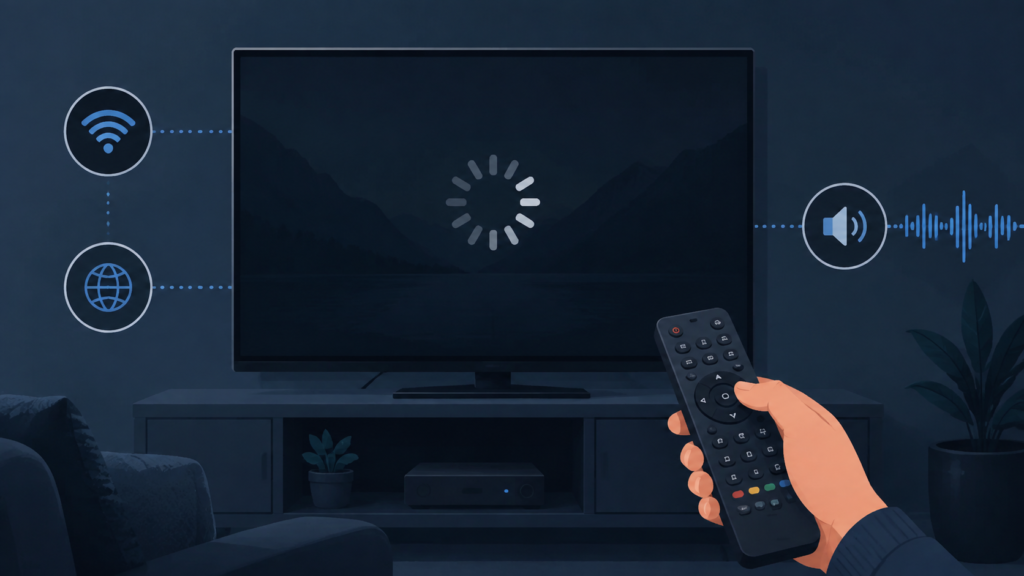
Quick answer: If an IPTV picture shows a buffering spinner while audio continues on a Smart TV, the stream may be receiving audio while video frames are delayed, or the player overlay may be stuck. Check another channel, test another app, verify the network connection, and reopen playback once. Keep the test controlled before changing account or service details.
IPTV Buffering Spinner While Audio Continues on Smart TV: Safe Checks
Audio and video do not always arrive or render at exactly the same moment. A player can continue audio while the picture pauses, displays a spinner, or falls behind. The cause may be temporary network variation, device workload, app rendering, or a channel-specific stream condition.
Identify the pattern
Note whether the spinner appears briefly or stays on screen while sound continues. Change to another channel and check whether the picture returns. Test a non-IPTV streaming app on the same television. If only one channel is affected, record it. If several apps buffer, focus on the home network or TV workload.
Step 1: Check network stability
Move the Smart TV closer to the wireless access point if practical, pause large downloads, and test the connection from the TV settings. Prefer a wired connection when the television supports it. Do not repeatedly restart the router while trying to identify a single-channel issue. One controlled network test is more useful than many changes.
Check device workload
Close unused apps and restart the television normally. A TV with many suspended apps or limited free storage may render video less reliably. After restart, open the IPTV player and test the same channel for a short period.
Step 2: Reopen playback and compare quality
Exit to the channel list, open another channel, and return. If the player offers a quality or buffer setting, use its default or automatic option for the test. Avoid choosing a higher quality simply to solve a buffering symptom. Compare the result on another channel and note whether audio and video recover together.
The setup guide covers general device checks, while the IPTV service overview provides service navigation.
Step 3: Separate overlay from playback
Press a player control once and wait. If the spinner disappears but the picture remains paused, the overlay may have been stuck. If audio continues and the picture updates only after reopening, the player video surface may need to be rebuilt. Record whether subtitles, guide launch, or full-screen mode changes the result.
Safe checklist
- Record whether audio continues and how long video pauses.
- Compare another channel and another app.
- Test the TV network once and pause heavy downloads.
- Close unused apps and restart normally.
- Reopen playback without clearing storage.
- Use default quality or buffer settings.
- Record device, app version, channel, and time.
FAQ
Does continuing audio prove the network is fine?
No. Audio may use less data or remain buffered while video frames wait.
Should I increase video quality?
No. Use the default setting while testing; higher quality can require more bandwidth and decoding.
What should I send support?
Share the TV model, app version, channel pattern, network type, and timing. Use the official Telegram group or WhatsApp button without sharing passwords.
Conclusion
When audio continues but IPTV video shows buffering on Smart TV, compare channels and apps, check network stability, reduce device workload, and reopen playback safely. These steps separate connection, player, and overlay causes. Visit the services page or home page.
Build a simple comparison
Use the same Smart TV, network, and playback mode while comparing one affected channel with another. Note whether the spinner is brief, whether the image freezes while audio continues, and whether the picture catches up. Then test a non-IPTV video app. This separates a general network or television workload problem from a channel-specific player condition.
Check the TV connection once and pause large downloads or uploads for the test. If possible, compare wired Ethernet with the normal wireless path, but do not change several network variables at once. Close unused applications and restart the television normally. After the restart, let the IPTV app finish loading before judging a short playback sample.
Player settings should remain conservative while diagnosing. Use automatic or default quality and buffer settings; choosing a higher quality can add bandwidth and decoding demand. If reopening the channel clears the spinner, record whether the issue returns after launching from the guide, entering full-screen, or changing subtitles. Share the device, app version, network type, channel pattern, and approximate time through support, never passwords or payment details.
Check whether the spinner is an overlay or a real pause
Watch the picture closely when the spinner appears. If frames continue behind it, the indicator may be stuck while playback is healthy. Press one player control, wait, and close the overlay. If frames stop and the sound continues, the video path may be delayed while audio remains buffered. Compare another channel and a non-IPTV app before changing the service configuration.
Keep the Smart TV at its normal output resolution and use automatic player quality for the first comparison. A higher quality setting can increase decoding work and does not prove that a stream is better. If the issue occurs only after returning from the EPG, note that route; if it follows full-screen mode, note that too. These boundaries help identify player state rather than general connectivity.
Support reports should include the TV model, app version, wired or wireless connection, affected channel, approximate time, and whether audio and video recover after reopening. Redact usernames, private URLs, passwords, and payment details. Use the setup guide, WhatsApp, or official Telegram to communicate safely.
Final controlled check
Before making a larger change, return the device to its ordinary viewing state and repeat the smallest test once. A problem that disappears after a normal reopen should be logged as a temporary interface or playback state. A problem that remains across devices, categories, or apps should be described with those comparisons. Avoid promising a particular cause until the evidence supports it. Keep the troubleshooting notes factual, use redacted screenshots, and contact support through the site WhatsApp button or official Telegram group rather than publishing private service details.
These checks are designed to protect a working setup while narrowing the cause. They do not require sharing passwords, payment data, or access tokens. Once the result is clear, follow the relevant setup and services pages for the next safe step.
Repeat the test after a brief pause and note whether the result is consistent. Consistency matters because a one-time display or playback delay can look like a permanent configuration problem. Use one device and one variable at a time, keep the original settings recorded, and restore any temporary test setting when finished. If the symptom persists, provide the model, app version, affected view or channel, and exact reproduction steps. This lets support investigate efficiently without asking for credentials or other sensitive information.
For general navigation, review the setup and services pages. Use the existing WhatsApp button or official Telegram support route for a private conversation.
