
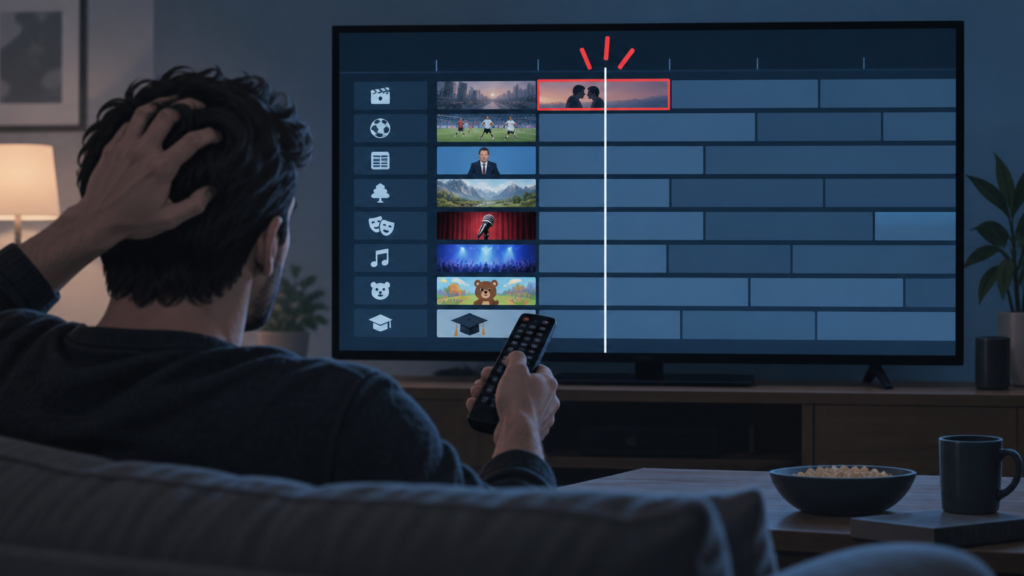
Quick answer: If an IPTV EPG highlights the wrong programme as “now” on Android TV, check the device date, time zone, guide date, and whether the guide is using a different timeline than the clock. Then reopen the EPG and compare one channel with another. A wrong highlight does not necessarily mean the channel schedule or account is unavailable.
IPTV EPG Highlights the Wrong Current Programme on Android TV: Safe Checks
The current-programme highlight is a visual guide that marks the item the app believes is playing now. It depends on the device clock, time zone, guide data timestamp, and the app’s timeline calculation. If any of those are out of sync, the guide may show a programme that started earlier or one that has not started yet.
Define the mismatch
Compare the highlighted item with the actual programme on one channel. Note the device local time, guide date, channel name, and how far the highlight is shifted. Check a second channel because a single schedule entry can be incomplete while the rest of the guide is correct. Avoid changing credentials while the symptom is limited to the visual timeline.
Step 1: Check Android TV date and time
Open system date and time settings. Confirm automatic date, automatic time, and the correct time zone are enabled when available. A manual clock or travel-related time zone can move the “now” marker. After correcting the setting, close the EPG and reopen it so the app can recalculate the timeline.
Check daylight and date boundaries
If the mismatch is exactly one hour or appears around midnight, note the time-zone or date boundary. Move the EPG to the next day and return to today. This forces the guide to rebuild its date window without deleting local setup.
Step 2: Refresh the guide view
Exit to the channel list, wait for rows to load, and open the guide again. Change category or date once, then return. Avoid repeated refreshes. The IPTV setup guide and IPTV service overview provide broader device context.
Step 3: Compare guide and player
Open the highlighted channel and compare the actual programme title with the EPG. If playback is normal but only the highlight is wrong, focus on guide time data or the local clock. If several channels are shifted consistently, record the offset. If one channel is wrong, report the channel and date rather than resetting the whole app.
Checklist
- Record the exact time offset.
- Check automatic Android TV date, time, and time zone.
- Move the guide date forward and back once.
- Reopen the EPG after the device setting is correct.
- Compare a second channel and actual playback.
- Record device, app version, channel, and date.
FAQ
Does a wrong highlight mean the stream is offline?
No. Playback and guide timeline data are separate.
Should I reinstall the app?
Not first. Check time and guide state before removing setup.
How do I contact support?
Share the offset and redacted device details through the official Telegram group or WhatsApp button; never send passwords.
Conclusion
Check the Android TV clock, time zone, guide date, and one-channel comparison before making larger changes. Visit the services page or home page.
Record the offset before changing settings
Write down the device clock, guide date, channel name, highlighted title, and the actual programme you expect to be playing. A consistent one-hour shift suggests a time-zone or daylight-saving mismatch, while a larger or changing shift can point to guide refresh or date-window state. Compare one more channel before drawing a conclusion.
After correcting automatic time and time zone, close the EPG and reopen it rather than judging the old screen. Move the guide one day forward and back once to refresh its timeline. If the highlight becomes correct after a normal reopen, the old guide view was stale. If it remains wrong across multiple channels and devices, report the approximate offset and date.
Do not change service credentials for a visual time marker. Keep screenshots redacted and use the site WhatsApp button or official Telegram support if the pattern continues.
Make the result repeatable
Repeat the smallest relevant test after a short pause and keep the same device, profile, and network. A symptom that appears once during loading should be described differently from a symptom that survives a normal reopen. The goal is not to make a confident guess from one screen; it is to find the boundary where the behaviour changes.
For guide timing issues, compare the device clock with a trusted local clock and note the exact offset. For remote delay, test the OK button outside the IPTV app and observe whether directional movement is also affected. For standby sessions, compare wake from standby with a full reboot and note whether other apps lose their state. These controlled comparisons are more useful than repeated resets.
Keep normal settings recorded before a temporary change. If a picture mode, time zone, input method, or app option is changed for testing, restore it when the test is complete unless the result clearly improves the experience. Avoid clearing app storage, reinstalling, or changing credentials until the local evidence points to that action. Those steps can remove useful state and create an additional setup problem.
When contacting support, include the product page or setup context only as needed, plus the device model, app version, affected screen, approximate time, and exact reproduction sequence. Redact usernames, passwords, access URLs, tokens, payment details, and personal contact information from screenshots. Support can investigate a display, remote, guide, or session symptom without receiving sensitive credentials.
Safe support handoff
Use the WhatsApp button already shown on the website or the official Telegram support group. Explain what worked and what did not: for example, whether another channel worked, whether another app accepted OK, or whether the app stayed logged in after a normal close. A concise, factual report helps avoid duplicate tests and keeps the account configuration protected.
After the cause is isolated, review the setup guide, IPTV service page, and services page for the next supported step. Return to the home page for navigation.
Do not treat a temporary improvement as proof of a permanent fix. Recheck once after normal use and note whether the same symptom returns. A clear timeline, one controlled variable, and redacted evidence are enough for a safe support handoff. The service team should never need a password, payment detail, or private access token to understand these device-level symptoms.
Keep the next step proportional to the evidence: refresh a guide for a guide-only issue, test a remote for an input-only issue, and compare power states for a standby-only session issue. This approach protects working settings while making the problem easier to resolve.
Keep a short record of the successful and unsuccessful checks, including the order in which they were performed. This prevents repeating disruptive steps and gives support a clear history. If the symptom is resolved, keep the normal configuration and avoid changing unrelated settings. If it returns, use the same sequence so the result can be compared accurately.
These troubleshooting notes are intended for device and interface diagnosis. They do not replace the service terms or any local legal requirements, and they do not promise indexing or a specific playback result. Use the published support routes for follow-up.
