
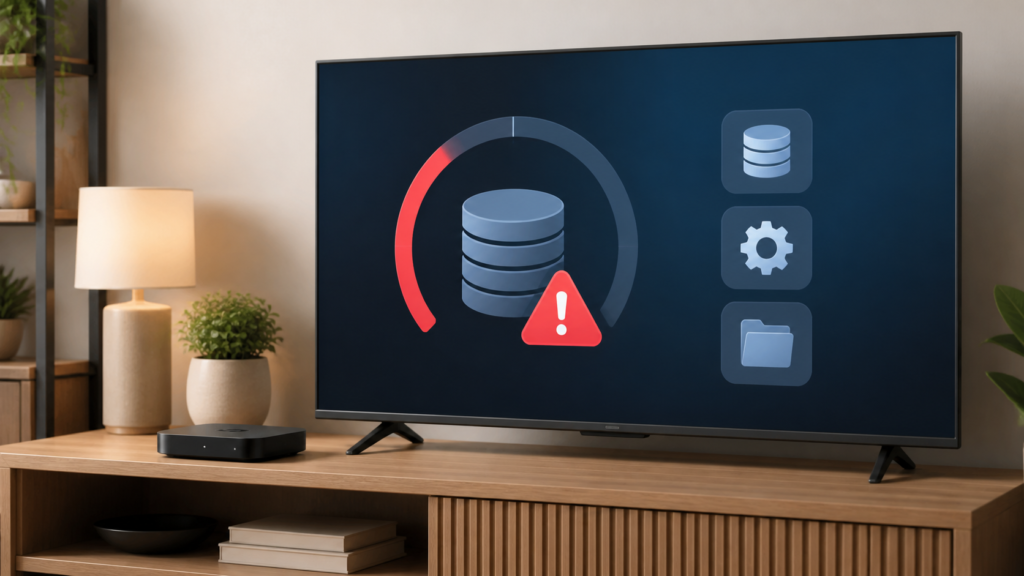
Quick answer: When an IPTV device reports that storage is full, start with the operating system’s storage screen and identify what is using space. Remove only items you recognize, clear temporary data through documented settings, and keep enough room for normal app and system updates. Do not delete player data or unknown files before confirming how the device restores its settings.
Why low storage affects streaming devices
A streaming box or smart TV needs local space for applications, temporary media data, logs, downloads, and system updates. The exact layout differs by device, so avoid assuming that a menu or label from one brand applies to another. Low storage can appear as slow menus, failed app updates, an application that closes, missing thumbnails, or a warning when installing a player. These symptoms can also have other causes, which is why the storage screen is the first useful evidence.
Before changing anything, note the device model, operating-system version, free-space message, and whether the problem started after an update or new installation. If the device contains personal photos, downloads, recordings, or other local files, back them up using the device’s supported method. Never post account credentials, activation codes, or private files in a support channel.
Read the storage breakdown
Check apps and app data
Open the system settings and find storage, device preferences, or an equivalent menu. Look for categories such as apps, downloads, photos, system, and temporary files. Sort applications by size if the device offers that option. An app’s listed size may include its installed package and separate user data, so read the confirmation screen before clearing anything.
Uninstall applications you recognize and no longer use. Remove old downloads only when you can identify them. If the device lists multiple versions of a media player, keep the version you actively use and confirm that removing another one will not remove shared configuration. A small number of large, known files is often safer to address than many unknown folders.
Use cache controls carefully
Clearing cache usually targets temporary files, while clearing storage or data can reset an application. The labels and consequences vary by operating system. Read the device warning and record any settings you may need to restore before confirming. If a player requires a legitimate account or playlist setup, make sure you know the normal recovery process without copying private credentials into notes or messages.
Safe cleanup sequence
- Open the built-in storage overview.
- Record free space and the largest visible categories.
- Remove known, unused downloads or applications.
- Clear temporary cache only where the system explains the result.
- Restart the device and recheck free space.
- Open the IPTV player and confirm the list and settings remain available.
- Keep a record of each cleanup action.
Do not use random “cleaner” applications that request broad permissions. They may remove useful files, display misleading warnings, or create additional background activity. The operating system’s own storage controls are the best starting point because they identify the category and show the expected effect before deletion.
Storage versus IPTV service behavior
Low storage can prevent an app update or cause a player to close, but it does not automatically explain every playback problem. After cleanup, test the device in a controlled way: open the player, load the normal list, open one item, and return to the menu. If the player still closes, record whether the closure happens at launch, list loading, or playback. That timing helps separate storage pressure from connection or player-state issues.
If the list is present but thumbnails or guide details are missing, allow the player’s normal refresh to finish after the device has space. Do not repeatedly refresh while the device is under pressure. If a system update is pending, use the device’s documented update path and power conditions. Avoid interrupting an update or removing power while it is writing system files.
External storage and reset decisions
Some devices support external storage, while others do not or require a particular format. Check the manufacturer’s documentation before moving applications or formatting a drive. Formatting is destructive to the selected drive, so it should never be the first response to a storage warning. If you are unsure what a device volume contains, stop and obtain device-specific guidance.
A factory reset is a last resort because it removes settings and local data. It does not prove that an IPTV player or network problem was caused by storage. Before considering a reset, back up supported personal data, confirm the device account recovery method, and make sure you can reinstall legitimate applications from their normal source. Keep the reset separate from service troubleshooting so the result can be evaluated.
Prevent future storage pressure
Review downloads periodically, remove unused applications, and check storage before starting a major system or app update. Keep the player configuration documented in a private, secure way. If the device has automatic download or recording features, review those settings and set a limit supported by the device. Leave free space for normal operation rather than filling the storage immediately after cleanup.
Watch for recurring warnings. If storage becomes full again quickly, identify which category grows instead of repeatedly clearing everything. Rapid growth may point to downloads, logs, recordings, or an application problem. Record dates and sizes so support can see a pattern. Do not upload private files or credentials when sharing that information.
Support checklist
For assistance, note the device model, operating-system version, free space before and after cleanup, largest category, player version, and exact symptom. The [IPTV service page](https://tvmemberlink.com/iptv-service/) provides service context and the [services page](https://tvmemberlink.com/services/) offers a starting point for support. You can also use the official [Telegram support group](https://t.me/iptvresellertml). Share only the minimum technical details needed and never send passwords or access tokens.
FAQ
Can low storage make an IPTV app close?
It can contribute to slow or failed app operations, but a closing app may have other causes. Check the storage breakdown and record when the closure occurs.
Is clearing cache safe?
Cache and app data are different. Use the system’s explanation and warning, and do not clear app data unless you understand that it may reset local settings.
Should I install a cleaner app?
Start with built-in storage controls. Unknown cleaner apps can add permissions and remove files without enough context.
When should I factory reset?
A reset is a last resort after supported backups and recovery checks. It removes settings and does not prove that storage caused every issue.
Conclusion
An IPTV device storage warning is best handled as a measured device-maintenance task. Read the storage breakdown, remove known items, use cache controls carefully, restart, and test the player. Keep reset and formatting decisions separate until the evidence supports them. For general service information, visit the [TVMemberLink home page](https://tvmemberlink.com/) and use safe, account-free details when requesting support.
After cleanup, allow the device a moment to finish indexing and then repeat the same test. If the free-space number changes unexpectedly, record the category that changed. This simple comparison is more reliable than judging the device only by whether one menu opens.
