
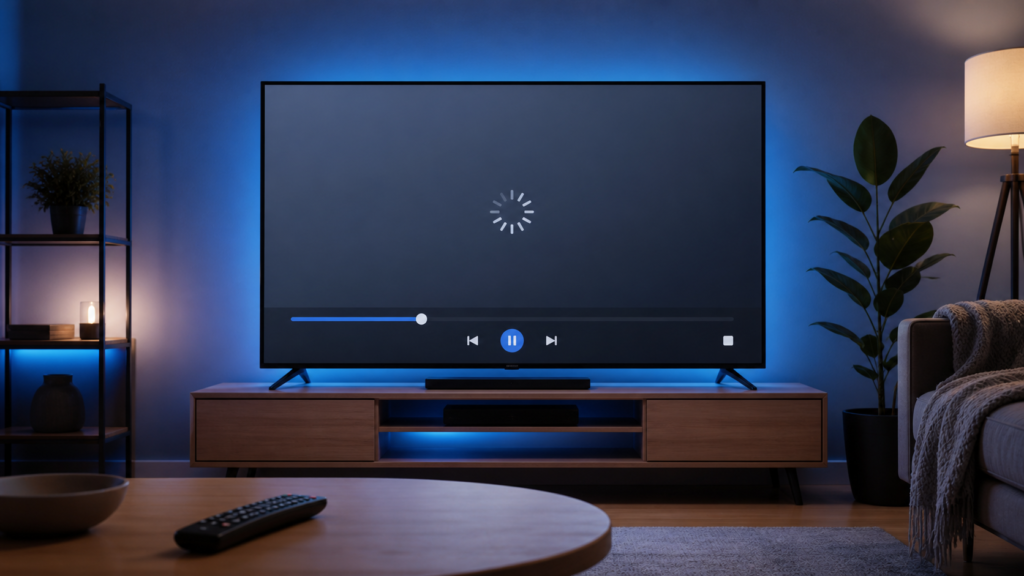
Quick answer: If IPTV picture does not return after pressing pause, first check whether audio continues, whether the controls respond, and whether the problem affects one item or every item. A pause-resume failure can be a player state issue, a decoder handoff problem, a temporary stream response, or a device resource problem. Use short, reversible tests before changing account or service settings.
Identify the exact pause symptom
Press pause once and wait briefly. Then press play once and watch the screen, audio, and controls separately. If the picture is frozen but audio continues, the player may have lost video decoding while the audio pipeline remains active. If both audio and picture stop but the progress control moves, playback may be trying to recover. If the remote stops responding entirely, the application may be busy or the device may be low on resources.
Test a second item only after recording the first result. A single-item issue suggests a temporary stream or content-state condition, while an all-items issue points more strongly to the player, device, connection, or decoder. Record the device model, player version, connection type, and whether the failure occurs after a short pause or a longer pause. Do not publish or send private access information when asking for help.
Try controlled playback actions
Use one command at a time
Rapidly pressing pause and play can queue commands and leave a remote-controlled player in an uncertain state. Press play once, wait, and then try the player’s seek-forward or back action if it is available. If the frame returns after a small seek, the paused decoder state may not have resumed cleanly. Return to live playback using the player’s normal control instead of repeatedly pressing buttons.
Exit and reopen the item
Back out to the list and reopen the same item. This creates a new playback session without deleting settings. If the picture returns, note that the issue was recoverable through a session restart. If the screen remains black, test another item and observe whether its audio and picture start normally. Avoid changing several playback settings before the comparison is complete.
Check the device and display path
When the player controls work but the image remains absent, check the TV input and HDMI path. Confirm that the TV is still on the input used by the streaming device and that the HDMI cable is seated. If the device has a resolution or display mode setting, use the device’s standard recommended option rather than forcing an unusual mode. A display-path issue can resemble a video-decoding issue, especially after the TV wakes from standby.
Test the TV’s own menu or another local app. If the TV menu is visible and another video displays normally, the external player session is a more likely focus. If every source has a display problem, stop changing IPTV settings and investigate the TV, cable, receiver, or input. This separation prevents an unrelated display fault from being attributed to the service.
Check playback and resource conditions
Close unused apps on the streaming device and restart the player. If the device is warm, slow, or showing delayed menu responses, allow it to cool and finish any normal system task before testing again. Low available memory or storage can affect app behavior, but do not delete data blindly. Use the device’s own storage and app-management screens so you can see what will be removed.
Verify the device date and time using its normal automatic setting where available. A wrong clock can create connection or certificate errors that interrupt a new playback session. If the problem began after a player update, note the update date and the exact version displayed in the app. Avoid downloading unofficial APK files or modified players as a quick fix; an unknown package can introduce security and reliability risks.
Connection isolation
Pause-resume requires the player to request or continue media data. Check whether other permitted online functions on the same device respond normally. If the connection is unstable, a resume request may not complete even though the original stream had already buffered. If possible, compare Wi-Fi and Ethernet only as a controlled test, keeping the same device and player. Do not infer that a single successful resume proves a permanent network change is needed.
Look for visible player messages such as loading, timeout, or decoder errors. Write down the wording instead of paraphrasing it. A screenshot can help if private identifiers are hidden. If the issue affects only one item, report the item category and time of the test without sharing credentials. Support can then distinguish an item-specific event from a device-wide playback condition.
Practical checklist
- Pause once, wait, and press play once.
- Check audio, video, controls, and any visible message separately.
- Back out and reopen the same item.
- Test one other item and record the difference.
- Check TV input, HDMI seating, and another local video source.
- Close unused apps and restart the player.
- Confirm date, time, player version, and connection type.
- Report the exact symptom without sending passwords or tokens.
When to request help
The [IPTV service page](https://tvmemberlink.com/iptv-service/) is a useful place to understand the service context, and the [services page](https://tvmemberlink.com/services/) provides a route for assistance. You may also contact the official [Telegram support group](https://t.me/iptvresellertml). Include device, player, pause duration, audio behavior, whether reopening helped, and whether another item worked. Keep account credentials private.
FAQ
Why does audio continue while the picture is frozen?
Audio and video can be handled by separate playback paths. The video decoder or display handoff may need to recover even when audio continues. Reopen the item and test another item to compare.
Is a black screen after pause always a network issue?
No. It can involve player state, decoder behavior, the display input, device resources, or the connection. Separate those possibilities with controlled tests.
Should I change resolution first?
No. Confirm the TV input and test another local source before changing display settings. Use the device’s recommended mode if a display setting is involved.
What should I send to support?
Send the device and player details, exact symptom, test sequence, visible message, and whether one or all items are affected. Hide passwords, tokens, and private identifiers.
Conclusion
When an IPTV picture fails to return after pause, a calm sequence of playback, display, resource, and connection checks is more useful than repeated remote commands. Reopen the item, compare one other item, confirm the display path, and record the result. If the problem continues, provide a clean symptom report through the [TVMemberLink home page](https://tvmemberlink.com/) or the support channels so the issue can be investigated without exposing sensitive information.
Keep the troubleshooting notes concise and chronological. A useful report says what was playing, what pause did, what play did, whether audio continued, and what happened after reopening the item. This gives a technician a reproducible starting point without requiring private account information.
