
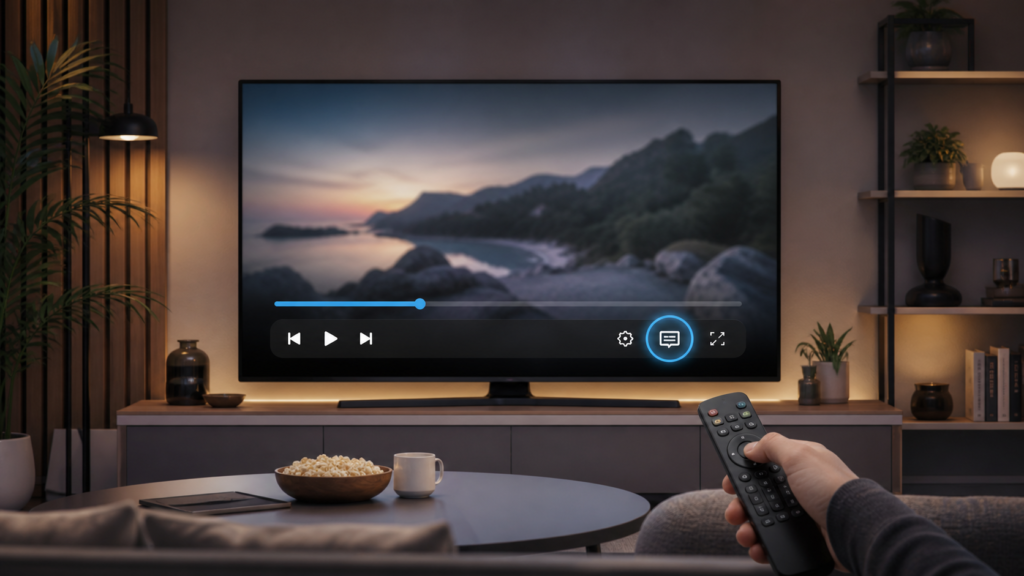
Quick answer: If IPTV subtitles are not showing, check whether captions are enabled in the player, whether the selected item actually provides subtitle data, and whether the device uses a compatible text or language setting. Test one item with a known subtitle control, reopen the session, and compare another item before reinstalling the player or changing service settings.
Separate subtitle settings from subtitle availability
“Subtitles not working” can describe several different situations. The player may not display a captions button. The button may appear but show no language choices. A language may be selected but no text appears. Captions may work on one item and not another. These symptoms do not have the same cause. Start by recording exactly what appears on the screen and whether the issue is limited to one title, one category, or every item.
Note the device model, player name and version, language preference, and the item used for testing. Do not send passwords, access tokens, or private account details to support. A screenshot is useful only after sensitive identifiers have been hidden. If the device is shared, avoid changing the system language until the first test is complete.
Check the player’s caption controls
Open controls during playback
Start an item and open the playback controls using the player’s normal remote command. Look for a captions, subtitle, CC, text, or speech-bubble control. Some interfaces place it under an overflow menu rather than on the first row. If the control is absent, the player may not support subtitles in that mode, or the current item may not expose subtitle metadata. Check another item before concluding that the entire app is broken.
If a language list appears, choose one option and wait for the player to apply it. Avoid pressing several language buttons rapidly. Some devices need the controls to close before text becomes visible. Move the playback position slightly if the player applies caption changes only after a new segment is loaded, then observe whether the result changes.
Check system text and language settings
Confirm that the device can render text in the selected language. If the system uses a font-size, accessibility, or high-contrast setting, temporarily test a standard readable configuration. Do not disable an accessibility feature permanently; this is only an isolation step. A text layer may be present but invisible because its color, scale, or position is unsuitable for the selected display mode.
Check whether the player has a separate preferred subtitle language and whether it is different from the device language. If the player offers “off,” “auto,” or “forced” choices, record which one is selected. A preferred language is not proof that the item contains that language. The most useful comparison is another item with a visible caption option.
Compare items and categories
Test a second item in the same category and then, if available, a different category. If captions work elsewhere, the original item may not include a subtitle track or may label it differently. If captions fail everywhere, continue with player and device checks. This comparison avoids deleting a working configuration when the limitation is tied to metadata.
Do not repeatedly refresh the entire list while testing captions. A list refresh changes another part of the application and makes the result harder to interpret. Keep the player, device, and network unchanged for the first comparison. Write down the item type, selected language, and exact result.
Safe player recovery steps
- Exit the caption menu and reopen it once.
- Play the same item from the beginning or move a small amount along the timeline.
- Back out to the list and reopen the item.
- Close the player normally and launch it again.
- Restart the streaming device if the player controls remain unresponsive.
- Recheck one item before changing settings or reinstalling.
Clearing an application cache can remove temporary interface data, but the device may use different labels for cache and storage. Read the warning before confirming. Clearing app data may remove local preferences and require a legitimate setup process again, so it is not a first-line subtitle fix. Avoid unofficial modified players and unknown subtitle plug-ins because they create privacy and security variables.
Connection and metadata considerations
Subtitle data may load separately from the main video. If the picture plays normally but captions never appear, note whether the player shows loading or language-selection feedback. If both video and captions fail, investigate the broader player or connection symptom first. Test another permitted online function on the device without changing the network at the same time.
Check the device date and time using the normal automatic setting if the player reports connection or certificate errors. An inaccurate clock can affect connected applications, although it does not prove why a particular subtitle track is missing. Make one controlled change, retest, and record the result. Do not assume that a single successful test proves a permanent network change is required.
When to ask for help
For service context, review the [IPTV service page](https://tvmemberlink.com/iptv-service/) and the [services page](https://tvmemberlink.com/services/). The official [Telegram support group](https://t.me/iptvresellertml) is also available. Provide the device and player details, whether the captions control is visible, the selected language, whether another item worked, and any exact error message. Keep passwords and private tokens out of the report.
FAQ
Why do subtitles work on one item but not another?
Items can carry different subtitle tracks or metadata. A working comparison suggests the player may be functioning and the original item may not provide the selected language.
Why is the subtitle button missing?
It may be under an overflow menu, unsupported in the current mode, or unavailable for the item. Check the controls and compare another item.
Should I reinstall the IPTV player?
Reinstallation is not the first step. Reopen the item, restart the player, and compare another item before removing local settings.
What details help support?
Device, player version, item type, caption control visibility, selected language, exact message, and comparison result are useful. Hide credentials and private identifiers.
Conclusion
When IPTV subtitles do not show, first determine whether the player lacks a caption control, the item lacks subtitle data, or the text layer is hidden by settings. Use one controlled comparison, safe player recovery, and a concise report. For general information, start with the [TVMemberLink home page](https://tvmemberlink.com/) and use account-safe support channels.
For a repeatable test, use the same remote, the same device profile, and the same caption language while comparing two items. First confirm that the captions menu opens. Next confirm whether a language can be selected. Finally observe whether text appears after playback resumes. These three observations are more informative than a simple yes or no result. If the item has no caption choice at all, report that separately from a caption track that can be selected but remains invisible.
Keep accessibility needs in mind when testing text size, contrast, or background settings. A temporary standard setting can identify a rendering conflict, but restore the user’s preferred accessibility configuration afterward. The goal is to understand the player behavior while preserving a usable device for everyone in the household.
