
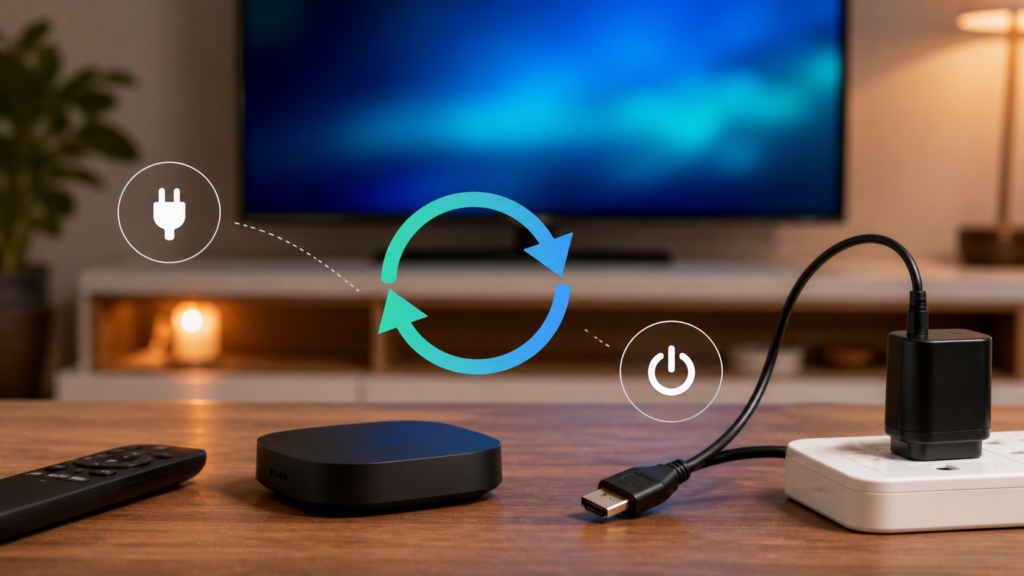
Quick answer: If an IPTV device turns off, restarts, or returns to the home screen during playback, check the power adapter, outlet, cable connections, device ventilation, and software stability before changing the playlist. Test the device with a short session and record whether the restart happens at launch, after a long session, or when playback begins. Do not keep forcing power cycles or substitute an adapter just because its connector fits.
A restart can come from power interruption, heat, a system crash, an app failure, or a device setting. These causes can look similar on a television because the screen goes blank or returns to a home menu. The most efficient diagnosis starts with the physical path, then checks software and player behavior. This also prevents an unnecessary subscription change when the actual problem is a loose cable or unstable power source.
What happens when an IPTV device restarts?
Some devices fully reboot and show a startup screen. Others lose the player and return to the Android TV, Smart TV, or streaming-device home screen. A television may also show “no signal” when the external device restarts, even though the TV itself is working. Note which screen appears and how long it takes the device to return.
Timing is important. A restart immediately after connecting power suggests a power or boot issue. A restart when playback begins may involve the player, decoder, storage, or heat. A restart after a long session points toward sustained load, placement, or hardware stability. Our IPTV devices guide can help you separate device behavior from service and player behavior.
Safety checks before troubleshooting power
Stop if there is visible damage
If a plug, cable, adapter, or device shows damage, unusual smell, smoke, sparks, or excessive heat, disconnect it safely and seek qualified help. Do not continue testing damaged equipment. This article is for setup checks, not electrical repair.
Keep account information private
Restarting the device does not require publishing a username, password, or private playlist URL. Record only the device model, player, visible message, and timing. When reviewing a plan or compatibility question, use the IPTV pricing and subscription information and official support channels.
How to troubleshoot an IPTV device that turns off during playback
Step 1: Confirm the TV input and signal path
Check that the television remains on the intended input. If the screen reports no signal, verify the HDMI connection at both ends and confirm that the streaming device’s indicator or startup screen changes when it restarts. If possible, test one known-good cable or input at a time. Do not replace every component simultaneously.
Step 2: Check the power adapter and outlet
Use the adapter supplied for the device or a documented compatible replacement. Inspect the cable and connection for looseness, bending, or visible damage. If the outlet is controlled by a switch or power strip, confirm that it is not being interrupted. Avoid using an adapter with unknown specifications, even if it physically connects.
Step 3: Improve ventilation
Move the device to a hard surface with clear space around its vents. Do not stack it on warm electronics or hide it behind the TV where heat can accumulate. Test a short session after the device has cooled safely. If the restart pattern changes after relocation, record that result instead of assuming the issue is solved permanently.
Step 4: Test without immediately opening the IPTV player
After the device boots, leave it on its home screen for a short period, then open a different permitted app if one is available. If the device restarts without the IPTV player, focus on power, heat, storage, or system software. If it stays stable until the IPTV player opens, investigate the player and playlist separately.
Step 5: Check storage and system updates
Review the device’s storage screen and remove only items you recognize. Check for system and player updates from trusted sources. Before clearing app data or resetting the device, confirm that you can restore the authorized setup. A factory reset is a last-resort action, not the first step after a single restart.
Step 6: Compare one short playback test
Use one permitted item and note whether the device restarts at the same point. If the failure occurs only in one item, report that pattern. If every app and item causes a restart, the issue is more likely at the device, power, or system level. If the app closes but the device remains on, use the app troubleshooting process rather than treating it as a power failure.
Common causes that are easy to confuse
Power interruption versus app closure
A power interruption usually causes a boot screen or full device restart. An app closure often returns you to the home screen while the device remains responsive. Watch the indicator and test the remote before deciding which event occurred.
Heat versus network buffering
Buffering pauses content but does not necessarily restart the device. Heat may produce instability after sustained use, while a network issue may affect loading or playback quality. The IPTV buffering guide covers network symptoms separately.
HDMI loss versus device shutdown
A loose HDMI connection can produce a blank screen while the device stays powered. Check the device indicator and try its home screen before replacing the power adapter.
When to contact support
Contact support when a compatible device restarts only with a particular player, when the player works on one device but not another, or when you need to verify setup steps before a reset. Use the IPTV support hub and the official WhatsApp or Telegram buttons. Give the device, player, power behavior, visible screen, timing, and non-sensitive tests. Never send credentials in a public message.
FAQ
Why does my IPTV box restart when playback begins?
Possible causes include power instability, heat, player or system failure, storage pressure, or a playback-specific error. Compare the home screen, another app, and one short permitted playback test.
Should I replace the power adapter?
Use the supplied adapter or a documented compatible replacement. Do not choose a replacement only by connector shape.
Is a factory reset the best fix?
No. Check power, HDMI, ventilation, storage, updates, and player behavior first. A reset can remove local settings and should be treated as a last resort.
What information helps support?
Share the device, player, timing, visible screen, and steps tested. Do not share passwords or private playlist URLs.
Final checklist
Confirm the event, inspect the HDMI and power path, improve ventilation, test the home screen, check storage and trusted updates, then compare one short playback session. Separate full restarts from app closures and buffering. Keep a short record of every change and the exact time of the next restart; this prevents repeated guesses and gives support a useful timeline. For setup support, review the IPTV service information and contact the official team.


