
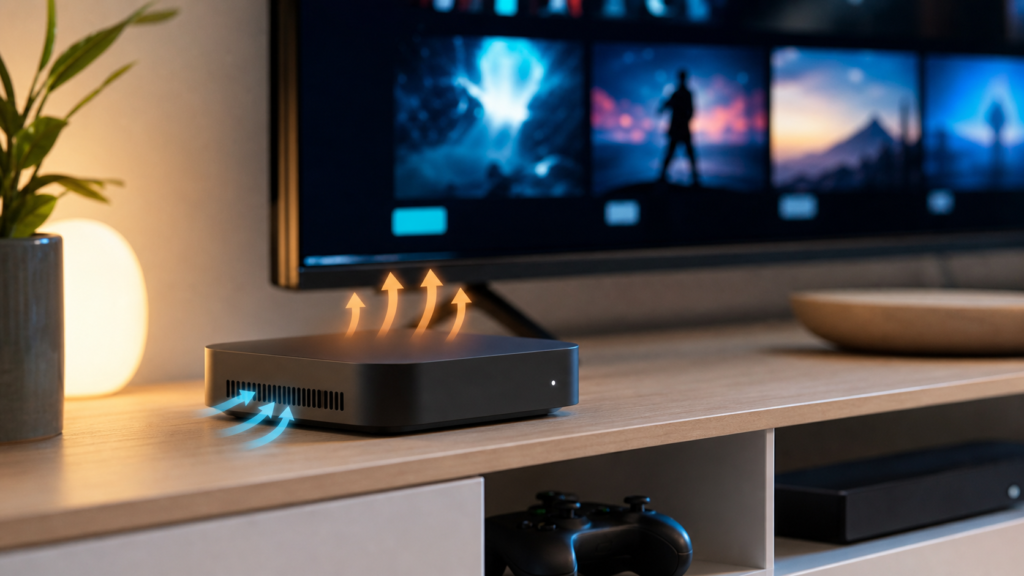
Quick answer: If an IPTV device feels unusually warm or becomes unstable during streaming, improve airflow, move it away from heat sources, check that vents are not covered, and test whether the problem follows the device or the location. Do not place a box inside a closed cabinet, stack hot electronics directly on top of it, or use a fan or power accessory that is not designed for the device. Overheating is a hardware and placement concern, not something to “fix” by repeatedly changing playlist credentials.
Streaming devices work in a small space with a processor, network radio, storage, and power components active at the same time. Warmth alone does not prove a fault; many devices feel warm during normal use. The useful warning signs are repeated restarts, app closures, a sudden loss of responsiveness, or a problem that appears after the device has been running for a while and improves after it cools. This guide helps you separate placement issues from playlist, network, and software issues.
How to recognize possible IPTV device overheating
Pay attention to the timing and pattern. Does the device become unstable only after a long session? Does it recover after a safe cool-down? Are the vents blocked by a shelf, fabric, dust, or another device? Does the TV remain on while the streaming box restarts? These observations are more useful than guessing a temperature number, because device designs and normal operating ranges differ.
Also check whether the same app behaves normally on another compatible device. If the issue occurs everywhere, look at the player, playlist, or network. If it follows one physical device, inspect placement, power, system updates, and hardware condition. Our IPTV devices guide explains the practical differences between common device types.
Before moving or cleaning the device
Record the current setup
Write down the device type, power adapter, HDMI connection, placement, player, and the action that triggers the issue. Do not photograph a screen that exposes a username, password, private playlist URL, or activation details. A clear record lets support understand whether the issue is tied to heat, power, or playback.
Use authorized equipment and content
Keep the device, player, and content source within the terms that apply to your location. Review the IPTV pricing and subscription information before adding a second device or changing a plan. Hardware stability and content authorization are separate questions; one does not prove the other.
How to troubleshoot an overheating IPTV device
Step 1: Give the device open airflow
Place the streaming box on a hard, stable surface with space around its vents. Do not cover it with a cloth, place it on soft bedding, or push it tightly against the back of a cabinet. Keep it away from direct sunlight, heaters, and other devices that release heat. Make one placement change and observe whether the behavior improves during the same kind of viewing session.
Step 2: Separate it from other heat sources
Do not stack the streaming device on a receiver, console, router, or other equipment that becomes warm. If the device sits behind the TV or inside a narrow shelf, move it where the power connection and vents are visible. Wireless performance can also change with placement, so note whether a network symptom appears after moving it.
Step 3: Inspect vents without opening the housing
Look for visible dust or obstructions around the outside. Follow the device maker’s cleaning guidance and use a gentle method. Do not insert objects into vents, spray liquid, or open the housing if you are not qualified and the device is still covered by a warranty. If the device smells unusual, shows damage, or becomes too hot to handle safely, disconnect it from power and seek qualified assistance.
Step 4: Check the power path
Use the correct power adapter and a secure outlet. Avoid mixing adapters simply because the plug fits. A power problem can look like overheating when the device restarts or loses stability under load. Inspect the cable for visible damage and stop using damaged equipment. Do not make electrical repairs yourself.
Step 5: Test a short session after a safe cool-down
After the device is off and safely cool, test a short session with a permitted item. Do not rapidly power-cycle it or place it in a freezer or against an unapproved cooling source. Note whether the same issue returns at the same stage. A repeatable time pattern supports a hardware or placement investigation; a problem that appears immediately may have another cause.
Step 6: Check software and app behavior separately
Update the operating system and player only through trusted, documented sources. Review storage and background apps if the device provides those settings. If the player closes, use the IPTV buffering guide and the app troubleshooting steps separately. Do not assume every crash is caused by heat.
Common placement mistakes
- Keeping the box inside a closed cabinet with no airflow.
- Placing it on top of another warm electronic device.
- Covering vents with a decorative object or cloth.
- Using a replacement power adapter without checking its specifications.
- Cleaning inside the device without qualified guidance.
- Continuing to use equipment that smells burnt or shows physical damage.
When overheating is probably not the main cause
If the app fails immediately after launch, the playlist does not load on several devices, or every item buffers from the beginning, investigate software, account, playlist, or network behavior. If the TV itself loses signal, check the HDMI path and power to the display. A device can be warm while the actual problem is an invalid configuration.
When to contact IPTV support
Contact support when a compatible player becomes unstable only on one device, when the problem returns after improving airflow, or when you need help identifying a safe player and device combination. Use the IPTV support hub and the official WhatsApp or Telegram buttons. Share the device, placement, player, timing, and non-sensitive steps tested. Never post passwords or private playlist URLs.
FAQ
Does a warm IPTV box always mean it is overheating?
No. Warmth can be normal. Look for repeated restarts, app closures, unresponsiveness, or a pattern that improves after a safe cool-down.
Can I put an IPTV device inside a cabinet?
Only if the cabinet provides adequate airflow according to the device guidance. A closed or crowded space can trap heat and make troubleshooting harder.
Should I use a small fan?
Use only accessories appropriate for the device and environment. First improve placement and airflow without adding an unverified accessory.
What should I tell support?
Tell support the device, placement, player, timing, and visible symptoms. Do not send passwords or private playlist URLs.
Final checklist
Record the pattern, move the device into open airflow, separate it from heat sources, inspect the exterior safely, verify the power path, and test after a safe cool-down. Then separate hardware symptoms from app, playlist, and network symptoms. For compatibility guidance, review the IPTV service information and contact official support.


