
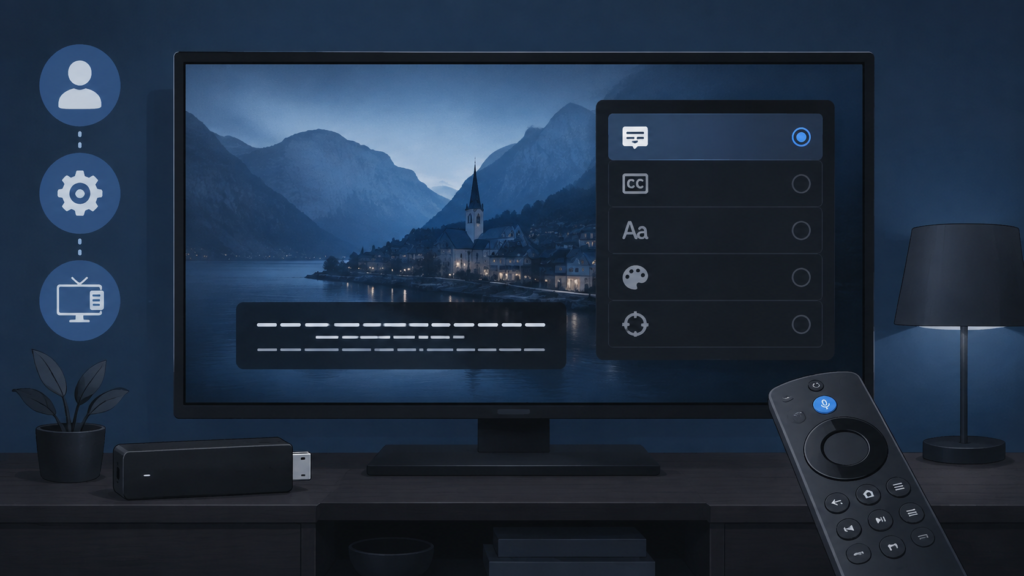
Quick answer: When subtitles stay visible in an IPTV player on Firestick after you turn them off, the player may have retained a subtitle track, the remote focus may be on a different menu, or the app may restore its previous playback preference. Test the subtitle control on another channel, close the subtitle panel completely, and reopen playback before changing account settings. Do not assume the stream itself is damaged.
IPTV Subtitles Stuck On on Firestick: Safe Checks
Subtitles can be helpful for accessibility and quiet viewing, but a persistent subtitle layer becomes distracting when the viewer has disabled it. The problem can appear as text that returns after every channel change, subtitles that remain after pressing off, or a subtitle menu that shows disabled while text remains on screen. These symptoms can have different causes: a player preference, a cached video surface, a selected subtitle track, or a remote focus problem.
Separate subtitle settings from the video stream
Start by checking whether the text is part of the app player or part of the source programme. Change to another channel briefly and observe whether the same text style remains. If it disappears on another channel, the original programme may contain captions in the video itself; a player toggle cannot remove text that is already encoded into the picture. If the text follows you across channels, continue with player and device checks.
Step 1: Use the player subtitle menu deliberately
Open normal playback controls, choose subtitles or captions, and select Off or None. Move the remote focus to the selected option and press the centre button once. Then press back to close the menu and wait for the control overlay to disappear. A common mistake is changing the highlighted option without committing it, or leaving the menu open while assuming the setting has been saved.
Check language and track selection
If the menu lists multiple languages, confirm that the highlighted row is Off rather than a language track. Some players show a checkmark for the last active track and require a second selection to disable it. If subtitles return only when a new channel begins, look for a setting called remember preference, default captions, or subtitle track. The exact label varies by app, so record the visible wording instead of guessing.
Step 2: Close and rebuild playback
Exit to the channel list, open another channel, and return to the original. If the text remains, close the IPTV app from Firestick app settings and reopen it. This can clear a stuck video surface without deleting the local setup. Avoid clearing storage or reinstalling until you know the account details and are ready to configure the app again.
The setup guide contains general Firestick steps, and the IPTV service page gives service information. These checks focus on the playback interface and do not require sending private credentials.
Step 3: Check Firestick accessibility and display settings
Review Firestick accessibility settings for captions, closed captions, and text display. If a system caption option is enabled, it may affect supported media apps independently of the IPTV player. Change one setting at a time, return to playback, and test a short segment. Also check whether a connected television or sound system has its own caption feature.
Step 4: Compare channels and playback modes
Try live playback and a guide-launched playback route if both are available. If captions remain only when launching from the EPG, the guide may be passing a remembered player preference. If they remain only on one channel, the content may contain embedded text or use a different track format. Note which route reproduces the issue before contacting support.
Subtitle troubleshooting checklist
- Test whether the same text follows you to another channel.
- Open the player subtitle menu and select Off or None.
- Confirm the choice and close the menu.
- Check whether a language track is still selected.
- Exit and reopen playback without clearing storage.
- Review Firestick captions and accessibility settings.
- Compare live, guide-launched, and alternative playback routes.
- Record the channel, device, app version, and exact symptom.
FAQ
Can subtitles be part of the picture?
Yes. Embedded text is encoded into the video image and cannot be removed by a player subtitle switch.
Why do subtitles return after changing channels?
The app may remember a default track or restore the previous playback preference when a new video surface starts.
How can I contact support safely?
Share the device, app version, channel behaviour, and redacted screenshots. Do not send passwords or payment details. The official Telegram group and the website WhatsApp button are available.
Conclusion
Persistent IPTV subtitles on Firestick are best isolated by testing another channel, confirming the Off selection, rebuilding playback, checking system captions, and comparing playback routes. This distinguishes embedded text from a player preference or device setting. Visit the services page or home page for navigation.
How to tell a player track from embedded captions
Pause the video and look at the text while the picture is paused. If the text is part of the paused image and has the same position and style on every frame, it may be embedded in the video. If it changes when you open the subtitle menu, moves with a player layer, or disappears when playback controls are hidden, it is more likely a selectable track. This simple observation prevents repeated changes to a setting that cannot affect the source picture.
Try one short test with subtitles off, close the menu, and wait for the player overlay to disappear. Then move to a second channel. If the text returns only on the second channel, note the channel behaviour rather than changing the account. If it returns everywhere, compare the Firestick accessibility caption setting with the app preference. Make one change at a time and restore the previous setting if it does not help.
After a Firestick update or app update, a player may restore its last subtitle preference. Record when the behaviour began and whether it follows an update or restart. This timeline is useful to support and avoids asking users to disclose sensitive account information.
Keep captions changes reversible
If the subtitle menu has a default setting, change it once and test a second channel. Avoid changing several language tracks in succession because it becomes difficult to know which choice was committed. When subtitles are disabled successfully, close the player and reopen it to verify that the preference persists. If the captions return only after a full restart, record that lifecycle boundary for support.
A redacted screenshot can show the player menu and the visible caption layer without showing a username, token, or private URL. This gives support enough context to understand whether the issue is a selectable track or embedded text.
Test one channel after the change and note whether captions return when you leave and re-enter playback. If the text returns only after a restart, keep that result separate from a channel-specific caption track. This controlled observation helps support choose the next safe check without asking for private access information.
