
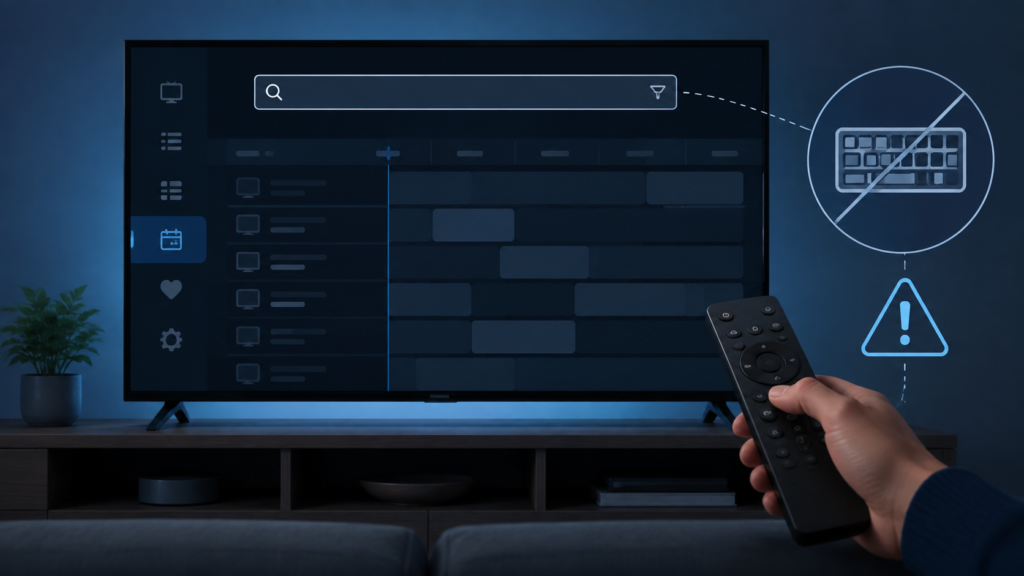
Quick answer: If the keyboard does not open when you search an IPTV electronic programme guide on Android TV, the app may not have focus, the system input method may be paused, or the search field may be hidden behind a player panel. First test the Android TV search keyboard in another app, then return focus to the EPG field, reopen the guide, and check the app and device state. Do not delete the app or expose account credentials before these controlled checks.
IPTV EPG Search Keyboard Not Opening on Android TV: Safe Checks
EPG search is useful when a guide contains many channels and programme rows. A common frustration occurs when the search icon opens, but pressing select does not display the on-screen keyboard. Sometimes the field accepts focus without a visible keyboard; in other cases the search panel opens while the remote remains focused on the guide behind it. These are interface and input-path issues that can often be isolated without changing service details.
First identify the failure
Observe what happens after you select search. Does a search box appear? Is there a blinking cursor? Can you move between letters with the remote? Does the keyboard appear briefly and disappear? If the box itself is missing, the guide panel may not have loaded correctly. If the box appears but no keyboard does, test the Android TV input system separately. Write down the app version and device model before changing several settings.
Step 1: Test system input outside the IPTV app
Open a harmless system search field or another installed app with a text box. Select the field and check whether the Android TV keyboard appears. If it does not appear anywhere, the issue is likely the device input method, remote pairing, accessibility state, or a temporary Android TV process. Restart the device normally and test again. If the keyboard works elsewhere, keep the device settings unchanged and focus on the EPG search panel.
Check the remote and focus
Press back once to close any mini-player, details panel, or category drawer. Open the EPG again, select search, and press the centre button only once. Rapid clicks can move focus back to the grid while the search field is opening. Use the directional keys to confirm that the cursor is inside the field. If an external Bluetooth keyboard is connected, test the on-screen keyboard with that device disconnected temporarily, because two input paths can compete for focus.
Step 2: Reopen the EPG search panel
Exit the guide to the channel list and open it again. Change to a different category, return to the original category, and select search after the rows have finished loading. This asks the app to rebuild the EPG interface rather than reusing a stuck panel. If the keyboard appears after reopening, the original state was local to the guide view.
Keep the test controlled. Do not switch accounts, change passwords, or clear application storage at this stage. The IPTV setup guide provides general Android TV checks, while the IPTV service overview explains the normal service context.
Step 3: Check Android TV input and accessibility settings
Open device settings and confirm that an on-screen keyboard or input method is enabled. Check whether a physical keyboard is selected as the default, whether screen magnification is active, and whether an accessibility service changes focus behaviour. Avoid changing several accessibility options at once. Make one reversible adjustment, return to the EPG, and test the field.
Step 4: Refresh the app without erasing setup
Close the IPTV app and reopen it. On Android TV, force stop can clear a temporary interface process; it does not automatically mean that account data should be deleted. If the problem returns after a device restart, compare the same EPG search on another supported device. If the keyboard works there, the next investigation should concentrate on the Android TV app version, input method, display scaling, or remote focus.
Search keyboard checklist
- Record whether the search box and cursor are visible.
- Test the Android TV keyboard in another app.
- Close mini-player, details, and category panels.
- Select the search field once and verify remote focus.
- Reopen the EPG after rows finish loading.
- Check input method, physical keyboard, and accessibility settings.
- Restart or force stop the app before clearing storage.
- Compare one other supported device and note the result.
FAQ
Why does the keyboard work in system search but not the EPG?
The device input service may be healthy while the IPTV app loses focus or fails to request the keyboard from its search panel.
Should I clear app data?
Not first. Clearing data can remove local setup and create a new configuration task. Use reversible focus, reopen, and input checks first.
What should I tell support?
Share the device model, Android TV version, app version, whether another app opens the keyboard, and the exact EPG steps. Hide passwords and private URLs. Use the official Telegram support group or the WhatsApp button on the site.
Conclusion
An IPTV EPG search keyboard that will not open on Android TV is usually an input-focus, device-keyboard, or temporary app-state problem. Test the keyboard elsewhere, restore focus, reopen the guide, review input settings, and compare a second device before deleting setup data. For service navigation, visit the services page or TVMemberLink home page.
When the keyboard still will not appear
If the keyboard works in system search but not in the IPTV guide, repeat the test after a normal device restart and note whether the search field receives focus. Check whether the app is running in a restricted profile or a compatibility mode. A search panel embedded inside a guide may use a different input request than the Android TV home screen. This explains why one text field can work while another remains visually empty.
Keep the report reproducible. Record the selected guide category, whether the cursor is visible, whether pressing a letter on a physical keyboard changes the field, and whether the search panel works after opening a different category. These observations help separate a remote-focus issue from a keyboard service issue. Do not send passwords, tokens, or private URLs in screenshots. A redacted screen and device context are enough for an initial investigation.
If the app has an update available, check its release information before installing. After any update, repeat the same one-field test rather than assuming the change fixed the issue. If the keyboard fails only in one app version, include that version in the support report and use the normal setup path if the application offers a supported alternative.
Keep the keyboard test controlled
When you compare the IPTV guide with another app, use the same remote and the same device state. This avoids blaming the service for a keyboard process that is paused across the television. If the system keyboard appears only after pressing back twice, note that focus path. If a physical keyboard enters text while the on-screen keyboard remains hidden, the text field may be active and only the visual keyboard layer is failing. Report that distinction without sharing the text you typed.
After the search field works, clear the test text and return to the guide. A successful keyboard test does not require an account reset. Keep the app configuration intact until the next step is clear.
