
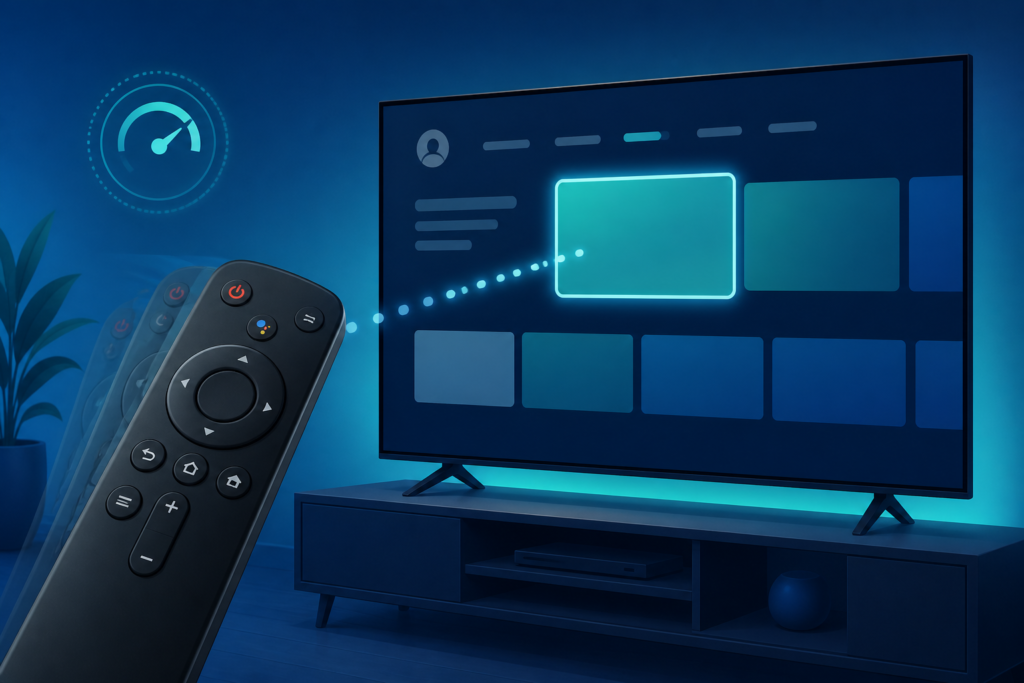
Quick answer: If an IPTV remote feels delayed, skips navigation, or responds only after several presses, test the batteries, remote path, device performance, and application focus in that order. A slow remote can be caused by low battery power, an obstructed infrared path, Bluetooth pairing trouble, a busy streaming box, or an app that is still loading. Do not assume the player or service is responsible before testing the remote in the device’s main menu.
This guide covers Smart TVs, Android TV boxes, and Fire TV-style devices. It focuses on practical, reversible checks and avoids asking anyone to expose private account details. The key diagnostic is simple: if the remote is slow everywhere, investigate the remote or device; if it is slow only inside one app, investigate the application and current playback state.
Use a single, deliberate button press during testing. Rapidly repeating a command can make a responsive device appear delayed because several actions enter the queue together. Wait for the selection highlight to move before pressing again, especially while a guide, player, or program is loading.
What remote delay looks like
Remote problems are not all the same. A button may do nothing, one press may produce two movements, the cursor may lag behind, or the device may react normally in the home screen but slowly inside the IPTV player. Bluetooth remotes can lose pairing or become affected by interference. Infrared remotes require a clear path to the television’s sensor. A streaming box can also delay input while it is busy opening a program, refreshing guide data, or recovering from a network interruption.
Step 1: Test the main device menu
Press directional buttons in the device home screen or settings menu. If navigation is delayed there, the problem is not limited to IPTV playback. If the home screen is responsive but the player is slow, close and reopen the player, then check whether another application behaves normally.
Watch for repeated input after you release a button. This can indicate a stuck key rather than a network or app issue. Gently clean around the buttons with a dry method recommended for the remote. Do not spray liquid into the remote or open it unless the manufacturer provides safe instructions.
Step 2: Replace or recharge batteries
Use fresh batteries of the correct type or fully recharge the remote according to its design. Weak power can reduce range and create intermittent responses. Replace both batteries together rather than mixing old and new cells. Confirm the battery contacts are clean and seated correctly.
After replacement, test the same menu from the usual viewing position. A remote that works only when held close to the TV may still have a sensor, pairing, or obstruction issue. Keep the result of the distance test in your notes.
Step 3: Check infrared line of sight
For infrared remotes, make sure the front of the remote points toward the TV sensor. Remove objects that block the sensor, including soundbar panels, decorations, or a cabinet door. Bright lighting and reflective surfaces can sometimes complicate testing, so compare the remote in normal room conditions with a clear path.
If the streaming device is hidden behind the television, its own infrared receiver may not see the remote. Move it temporarily to an open position when safe. Do not cover ventilation openings while repositioning the box.
Step 4: Re-pair Bluetooth or wireless remotes
Bluetooth and wireless remotes normally have a pairing procedure in the device settings. Review the manufacturer’s instructions, remove the old pairing only when necessary, and pair again from a short distance. Avoid repeatedly pressing pairing buttons without waiting for the on-screen confirmation.
Test the remote after pairing in the home menu, then inside the IPTV player. If it disconnects again, check whether other Bluetooth devices are active nearby and whether the streaming box has a system update. Do not assume that every generic remote is compatible with every player.
Step 5: Check device load and storage
A streaming box may delay input while it is starting a heavy application, refreshing a guide, or running out of free storage. Wait for the current operation to finish, then close unused applications. Review storage and remove only files or apps you recognize. Restart from the system menu after saving important settings.
Check the device temperature and airflow. A box placed in a tight cabinet or on top of another hot device may become less responsive over time. Use safe placement and follow the manufacturer’s ventilation guidance.
Step 6: Separate remote delay from network delay
Sometimes the remote moves through menus immediately, but a program takes time to open. That is application or network latency rather than remote input delay. Press a button once and observe whether the selection highlight moves. If the highlight moves but playback waits, inspect the connection, player, and selected program instead of replacing the remote.
Open a normal device menu and another legitimate app. If all menus and apps respond slowly, investigate device load, storage, updates, or hardware. If only one player is affected, force-stop it, clear cache, and reopen it before making larger changes.
Device-specific checks
- Smart TV: test the remote in TV settings, check the sensor path, replace batteries, and perform the manufacturer’s full restart procedure.
- Android TV box: test both the box home screen and TV input controls, then review Bluetooth pairing and device storage.
- Fire TV-style device: restart from the device menu, review controller pairing, and test whether the delay follows one application.
- External soundbar or receiver: make sure the remote is not controlling a different device than the one currently focused.
Support path and safe reporting
Review the IPTV service guide, the services page, and the homepage. If support is needed, use WhatsApp or the official Telegram support group. Report the device type, remote type, whether the home menu is slow, battery result, and whether another app responds normally. Never send account passwords, tokens, private URLs, or payment details.
FAQ
Why is the remote slow only in IPTV?
The player may be busy loading, refreshing data, or recovering from a playback state. Check whether the selection highlight moves immediately and compare another app.
Can low batteries cause repeated presses?
Yes. Weak batteries can reduce range and create intermittent input. Replace or recharge them before deeper changes.
Should I reset the TV or streaming box?
Use a normal restart first. Factory reset is a last resort because it removes settings and may require the authorized setup process again.
Why does the remote work close to the TV but not across the room?
Distance, line of sight, sensor obstruction, pairing, or battery power may be involved. Test with a clear path and fresh batteries.
Conclusion
Diagnose remote navigation delay by testing the home menu, batteries, sensor path, wireless pairing, device load, and application behavior. One controlled test at a time reveals whether the problem belongs to the remote, device, network, or IPTV player. Keep reports non-sensitive and use the official support path when further help is needed.


