
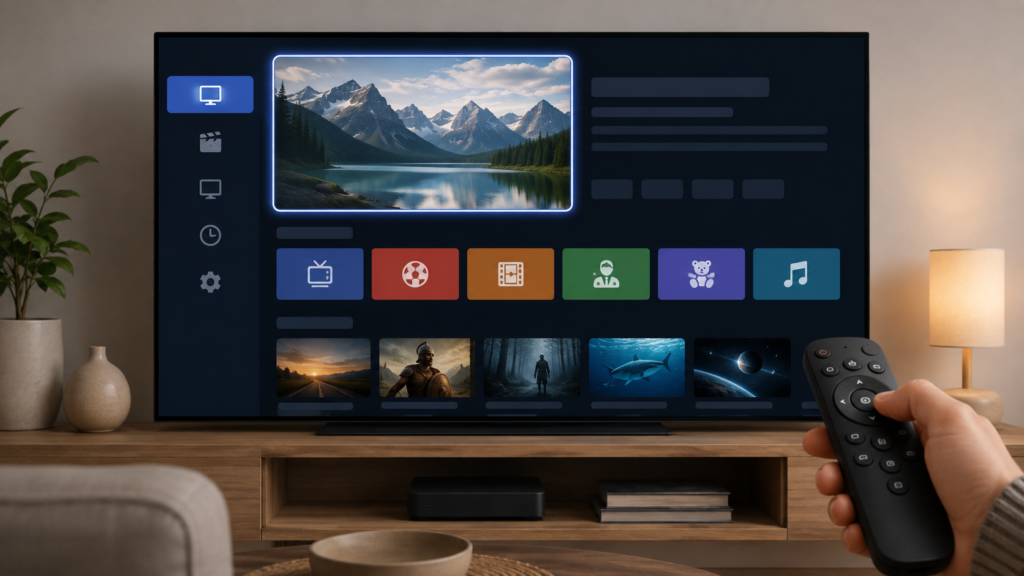
Quick answer: If a mouse pointer or cursor does not appear inside an IPTV player on an Android TV box, first check whether the pointer works in Android TV settings and another supported application. Then compare remote focus, pointer mode, player support, and one documented input method. Use one test at a time and do not expose passwords or private service links.
IPTV Player Mouse Pointer Not Showing on Android TV Box: Safe Checks
Some Android TV players are designed for directional remote navigation, while others support a visible pointer or mouse. A pointer that works on the home screen may be hidden inside a player because the application uses focus navigation instead. The symptom can also involve a disabled pointer mode, an unpaired input, or a player-specific interface. This guide uses safe comparisons rather than assuming that every player supports a cursor.
Define the input symptom
Record whether the pointer is invisible but clicks still work, whether the remote moves focus, or whether no input reaches the player. Note the screen where it disappears: channel list, guide, settings, or full screen. These paths can use different controls.
Do not move several remotes or Bluetooth devices in and out of pairing while testing. Use the normal Android TV menus and record the result. Redact usernames, activation codes, and private URLs from screenshots.
Step 1: Test the Android TV home screen
Return to the Android TV home screen and test the available pointer, touchpad, or mouse input. Open one ordinary application with a field or menu that documents pointer support. If the pointer fails everywhere, investigate the input device and system mode. If it works outside IPTV, focus on player support and focus behavior.
Use one click or one directional movement and wait. Repeated commands can create confusing focus changes.
Step 2: Check remote and pointer mode
Review the box manufacturer’s documented input settings. Some remotes provide a pointer mode only after a specific supported action; others are directional only. Check batteries and pairing status through normal menus. Do not assume a missing pointer is a hardware failure after one screen.
If a physical mouse is used, connect it through a documented USB or Bluetooth path and test one system menu. Keep the original remote available as a comparison.
Step 3: Check player focus navigation
Open the IPTV player and use directional keys to locate the active focus border or highlight. A player that has no pointer may still provide complete remote navigation. Test the channel list, guide, and settings separately. If focus works but the pointer does not, record that distinction.
Do not press Home, Back, OK, and pointer buttons rapidly. A queued command can close a menu or move focus before the pointer test finishes.
Step 4: Review player documentation
Check the player’s documented input requirements and Android TV compatibility. A mobile application may support touch or a cursor while its TV interface expects a remote. A similar application name does not prove identical features.
If a documented pointer option exists, enable it once, return to the same screen, and test. Restore the original value if the result is unrelated.
Step 5: Restart and update safely
Exit the player normally, return to Android TV home, and reopen it once. Test the same screen and input. Record whether the pointer appears after restart or whether only remote focus works.
Record the box model, Android TV version, and player version. Install updates only through official paths and repeat the same comparison. Avoid modified applications and factory resets.
Step 6: Consider local state
If the player documents a cache-clear or reset option, understand what it removes before using it. A reset may delete favorites and setup choices. Preserve the original input behavior and change one setting at a time.
Checklist
- Describe where the pointer disappears.
- Test Android TV home navigation.
- Test one other supported application.
- Check input mode and pairing.
- Confirm visible player focus.
- Compare channel list and guide.
- Read player input requirements.
- Restart normally once.
- Record versions.
- Keep credentials private.
When to request help
Review the Android TV box setup guidance, IPTV service page, and services page. Use the official Telegram support channel with model, input device, screen, focus behavior, and safe checks. Never send passwords or private URLs.
FAQ
Does every IPTV player support a mouse pointer?
No. Some TV players are built for directional remote focus. Check documented compatibility.
Why does the pointer work on Home?
The player may use remote focus navigation instead of a pointer. Compare its controls and screen behavior.
Should I reset the box?
No. Test system input, player focus, and documented settings first.
What should support receive?
Share model, input type, screen, focus result, and versions. Keep credentials private.
Conclusion
An IPTV pointer problem on Android TV should be isolated across system input, pairing, player focus, documented support, software, and local state. Use one controlled test at a time. Start with the TVMemberLink home page.
Before requesting help, record whether the pointer is absent only in the IPTV player or also in Android TV menus. Note the input device, visible focus, player view, and version. Keep the original remote and system settings available for comparison, and never share passwords, activation codes, or private service URLs.
Use one controlled input test after any documented change. If the pointer is unsupported by the player, directional focus may be the correct supported method rather than a fault.
Before requesting help, record whether the pointer is absent only in the IPTV player or also in Android TV menus. Note the input device, visible focus, player view, and version. Keep the original remote and system settings available for comparison, and never share passwords, activation codes, or private service URLs.
Use one controlled input test after any documented change. If the pointer is unsupported by the player, directional focus may be the correct supported method rather than a fault.
If the pointer works in system menus but disappears inside the player, check whether the player is designed for directional remote navigation. A visible focus border can be enough to select a channel even when no cursor is shown. Compare the guide, channel list, and settings view, and record which controls respond.
When using a physical mouse as a comparison, keep the original remote paired and test only one screen. If the mouse works on Home but not in IPTV, do not conclude that the mouse is defective. Review the player’s documented Android TV input support before changing applications.
After any safe change, return to the same screen and repeat the same movement. A support report should include the box model, input type, view, focus result, and player version, without exposing account information.
Before requesting help, record whether the pointer is absent only in the IPTV player or also in Android TV menus. Note the input device, visible focus, player view, and version. Keep the original remote and system settings available for comparison, and never share passwords, activation codes, or private service URLs.
Use one controlled input test after any documented change. If the pointer is unsupported by the player, directional focus may be the correct supported method rather than a fault.
If the pointer works in system menus but disappears inside the player, check whether the player is designed for directional remote navigation. A visible focus border can be enough to select a channel even when no cursor is shown. Compare the guide, channel list, and settings view, and record which controls respond.
When using a physical mouse as a comparison, keep the original remote paired and test only one screen. If the mouse works on Home but not in IPTV, do not conclude that the mouse is defective. Review the player’s documented Android TV input support before changing applications.
After any safe change, return to the same screen and repeat the same movement. A support report should include the box model, input type, view, focus result, and player version, without exposing account information.
Keep a before-and-after note for the pointer and focus state, then stop changing inputs until the result is clear. This helps support identify whether the issue belongs to the system or the player.
