
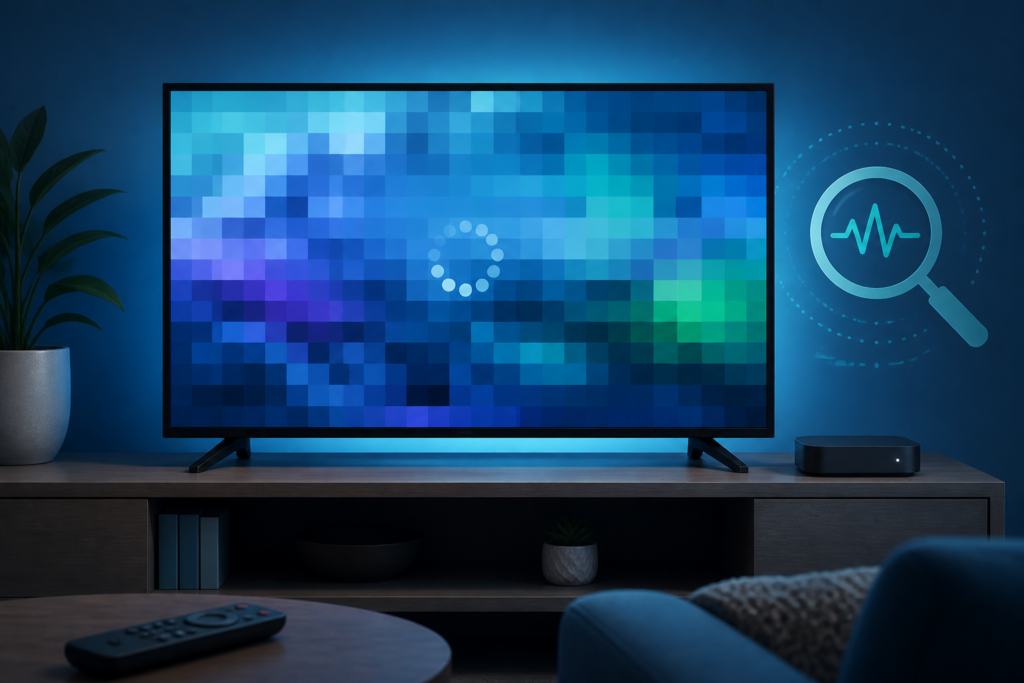
Quick answer: If IPTV picture quality becomes pixelated, blocky, or full of square artifacts, first determine whether the problem affects one program or every stream. Then check the device connection, player output settings, television picture mode, and device temperature. Pixelation usually means the video is not being rendered cleanly, but the cause can be an unstable connection, a decoder workload, an output mismatch, or stream-specific data.
This guide is for Smart TVs, Android TV boxes, Fire TV-style devices, and other supported IPTV players. It focuses on safe tests that preserve your authorized setup. Do not start by changing every picture option or reinstalling the app. A controlled comparison gives you better evidence and prevents unnecessary configuration loss.
Keep the test environment consistent whenever possible. Use the same television input, the same program, and the same viewing distance while comparing results. If you move the device, change the cable, or switch networks, write that change down. Clear notes help distinguish a genuine improvement from a temporary change caused by restarting playback.
What pixelated IPTV video can indicate
Pixelation appears as large blocks, broken edges, mosaic-like areas, or a picture that briefly loses detail. The visual symptom alone does not identify the cause. A network that delivers video unevenly may produce temporary block artifacts. A device that is overloaded may show a similar result while menus remain responsive. A television output mismatch can make a clean source appear soft or incorrectly scaled.
- One program only: test another program before changing the device.
- Every program: inspect the connection, player, decoder, and display path.
- Only after the device warms up: check ventilation and safe placement.
- Only on an external display: test the TV speakers and direct HDMI path separately.
Step 1: Compare programs and applications
Write down the program and time when the artifacts appear. Open another program in the same player. If the second program is clear, the first stream may be delivering different video data or may be experiencing a source-specific issue. If every program is affected, continue with device and network checks.
Next open another legitimate streaming application. This comparison is useful because it shows whether the television and connection can render video generally. If another app is also blocky, focus on the device, router, display cable, or television. If other apps are clear, review the IPTV player and its output settings.
Step 2: Check connection stability
Open the device network settings and confirm that it is connected to the intended private network. A device can remain associated with Wi-Fi while the actual route is unstable. Test the same location with a phone or laptop, then try moving the streaming device temporarily closer to the router. If Ethernet is available, use a known-good cable as a comparison.
Do not judge stability from a single speed test. Video playback is sensitive to interruptions, packet loss, and repeated reconnects, not just a high peak number. Note whether artifacts appear when other household devices are busy. If a controlled Ethernet test improves the picture, investigate wireless placement, interference, mesh roaming, or band selection.
Step 3: Review player video settings
Open the player’s playback or video settings and review hardware acceleration, decoder choice, frame-rate options, and output resolution if those controls are available. Not every player exposes the same settings, so do not copy advice meant for a different app. If a recent setting change preceded the problem, return that setting to its previous value.
Test a standard output resolution supported by both the device and television. Avoid forcing a high output mode simply because it sounds better. The correct setting depends on the source, player, television, cable, and decoder. Make one change, restart playback, and compare the same program.
Step 4: Check HDMI and TV picture mode
Reseat the HDMI cable at both ends and test another compatible port if available. Confirm that the TV input is not applying an unusual zoom or overscan mode. Use a normal picture preset for testing and disable aggressive motion or sharpness enhancements temporarily. These enhancements do not repair corrupted video data and can make block edges more obvious.
If the issue disappears through the TV’s internal display but returns through a soundbar or receiver path, test the direct device-to-TV connection. External equipment can introduce handshake or format negotiation problems. Restore the original arrangement after the comparison and keep a note of which path was clear.
Step 5: Check storage, updates, and temperature
A player may behave poorly when the device has very little free storage or when temporary files are damaged. Review storage in the device settings and remove only apps or files you recognize. Clear the IPTV app cache before clearing all app data. Clearing data may remove your authorized configuration and require setup again.
Check that the streaming box has airflow around its vents. Do not place it under another hot device or inside a closed cabinet during testing. If the pixelation appears only after extended playback and improves after cooling, treat temperature as an important clue. Never cover ventilation openings or use unsafe cooling methods.
Safe restart sequence
Close the player, force-stop it when supported, and restart the streaming device from its system menu. For a network test, restart the gateway and router first, wait for normal connectivity, and then start the player. Install updates only from the manufacturer or official app store. Avoid modified applications that promise to improve picture quality or unlock content.
When to contact support
Review the IPTV service guide, the services page, and the homepage for supported setup information. A useful report includes the device family, player name, connection type, whether other apps are clear, whether another program is affected, and whether the issue follows the HDMI path.
Use the existing WhatsApp button or the official Telegram support group. Never post passwords, private playlist URLs, access tokens, or payment information. Support can begin with symptoms and non-sensitive device details.
FAQ
Why is only one IPTV program pixelated?
The selected stream may be delivering different video data or experiencing a source-specific problem. Compare another program before changing the device.
Can Wi-Fi cause blocky video even when it is connected?
Yes. Association with a router does not guarantee stable delivery. Compare Ethernet, device placement, and another application.
Should I force the highest resolution?
No. Use a mode supported by both the device and TV, and test one change at a time.
Will clearing app data fix pixelation?
It may repair damaged configuration, but it cannot fix a weak connection, overheating, or a source-specific stream issue. Clear cache first.
Conclusion
Diagnose pixelated IPTV video by comparing programs, applications, connection paths, player output, HDMI settings, storage, and temperature. The safest approach is controlled testing with the original settings recorded. If the issue remains, share non-sensitive diagnostic details through the official support route.


