
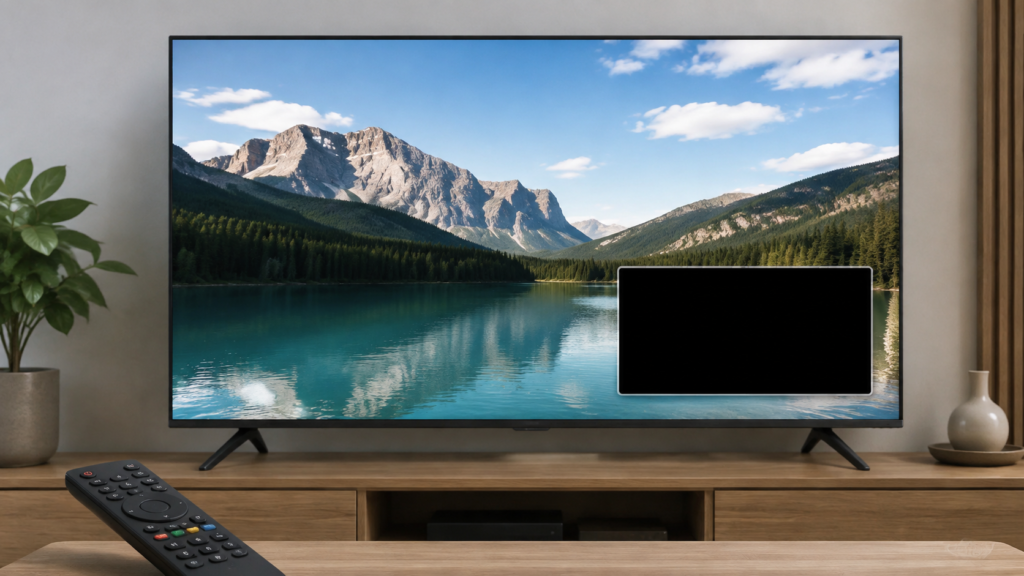
Quick answer: If an IPTV player shows a black picture in picture-in-picture mode on a Smart TV, first confirm whether normal full-screen playback works, then compare a second item and the television’s documented multitasking support. Check player focus, display mode, and software versions before clearing data. Record the exact transition and keep private account information out of screenshots.
IPTV Picture-in-Picture Black Screen on Smart TV: Safe Checks
Picture-in-picture, or PiP, is handled partly by the television operating system and partly by the application. A player may open normally in full screen but show a black PiP window because the app, content mode, or TV platform does not support that combination. The same symptom can also result from a temporary player state or an unsupported display path. This guide focuses on controlled comparisons rather than making assumptions about a service or device.
Define the black-screen behavior
Note whether audio continues, whether the PiP frame has controls, and whether the main screen remains visible. Record the action that opened PiP, such as pressing a home button or using a player menu. A black PiP window with working full screen is different from a black screen everywhere.
Do not repeatedly toggle PiP. Rapid transitions can leave the player and television competing for focus. Press once, wait, and record the result. Redact account names and private URLs from any screenshot.
Step 1: Test normal playback
Exit PiP through the normal television or player control and open the same item in full screen. If full-screen picture and sound work, record that comparison. If full screen is also black, continue with the broader player and display checks rather than treating PiP as the only problem.
Open one other approved item and compare full screen once. Avoid rapidly changing channels. If only one item fails in PiP, note the selective behavior without claiming a provider-wide fault.
Step 2: Check television PiP support
Review the Smart TV manufacturer’s documented PiP or multitasking requirements. Some televisions restrict PiP by input type, application, resolution, or source. A feature shown in a television menu may not be available to every streaming application.
Test PiP with one ordinary supported application if the television documents that capability. If the second application also shows black, investigate the TV platform. If only the IPTV player is affected, focus on player compatibility and state.
Step 3: Check player focus and controls
When PiP is active, look for a visible focus border or control overlay. The remote may be controlling the main screen while the PiP surface is not active. Use one documented control to select the PiP window, then wait for a response.
Do not press Back, Home, OK, and PiP repeatedly. Queued commands can close one surface while another remains black. Record which screen receives focus and whether audio changes.
Step 4: Review display and audio path
Check the television’s documented picture mode and output path without changing several options together. If a soundbar, receiver, or Bluetooth device is active, note whether audio remains available when the PiP picture is black. Audio routing does not prove the cause, but it gives a useful boundary.
Restore the preferred display and audio settings after a comparison. Do not change region, resolution, and application settings simultaneously.
Step 5: Restart and update safely
Exit the player normally, return to the Smart TV home screen, and reopen it once. Test the same item in full screen before trying PiP again. If the result changes after a normal restart, record that timing.
Record the TV model, operating-system version, and player version. Install updates only through official platform paths, then repeat the same controlled transition. Avoid modified applications and a factory reset.
Step 6: Consider compatibility and local state
Read the player’s documented support information for PiP or background playback. A phone or tablet version may support a feature that a TV version does not. Do not infer compatibility from a similarly named app.
Use a documented cache-clear or reset only after understanding which preferences it removes. A reset can delete favorites and setup choices and is not a first response to one PiP black screen.
Checklist
- Describe the PiP transition.
- Check whether audio continues.
- Test the same item full screen.
- Compare one other item.
- Review TV PiP requirements.
- Test one ordinary supported app.
- Check focus and controls.
- Record display and audio paths.
- Restart normally once.
- Keep private data redacted.
When to request help
Review the Smart TV setup guidance, IPTV service page, and services page. Use the official Telegram support channel with model, player, PiP sequence, full-screen result, audio result, and versions. Never send passwords or private URLs.
FAQ
Why is full screen normal but PiP black?
PiP may use a separate TV and player compatibility path. Check documented support and compare another app.
Should I toggle PiP repeatedly?
No. Use one transition and wait to avoid queued commands.
Does working audio identify the cause?
It only provides a boundary. Record whether the picture, audio, or controls are affected.
What should support receive?
Share model, player, transition, comparison, and versions. Keep credentials private.
Conclusion
An IPTV PiP black screen on Smart TV should be isolated across full-screen playback, TV support, player focus, display routing, software, and compatibility. Use one controlled test at a time. Start with the TVMemberLink home page.
For a useful support report, note whether the PiP frame is black immediately or becomes black after a transition, whether sound continues, and whether another supported app behaves the same way. Keep the television output, player view, and item stable during the first comparison. Do not change several display settings together or publish account details.
If a normal restart changes the result, record that timing. If PiP is not documented as supported for the player or TV model, report the limitation rather than bypassing the platform with an unverified application.
For a useful support report, note whether the PiP frame is black immediately or becomes black after a transition, whether sound continues, and whether another supported app behaves the same way. Keep the television output, player view, and item stable during the first comparison. Do not change several display settings together or publish account details.
If a normal restart changes the result, record that timing. If PiP is not documented as supported for the player or TV model, report the limitation rather than bypassing the platform with an unverified application.
When comparing PiP with another application, keep the same television input and output path. If only the IPTV player produces a black window, record the player version and whether full-screen playback remains normal. If every application shows the same symptom, report the television behavior separately. A support request should contain observations, not passwords or private account links.
After one controlled restart, repeat the same transition. If the black frame returns only after standby, note that timing. Do not promise that a platform feature will work for every player or content mode.
For a useful support report, note whether the PiP frame is black immediately or becomes black after a transition, whether sound continues, and whether another supported app behaves the same way. Keep the television output, player view, and item stable during the first comparison. Do not change several display settings together or publish account details.
If a normal restart changes the result, record that timing. If PiP is not documented as supported for the player or TV model, report the limitation rather than bypassing the platform with an unverified application.
When comparing PiP with another application, keep the same television input and output path. If only the IPTV player produces a black window, record the player version and whether full-screen playback remains normal. If every application shows the same symptom, report the television behavior separately. A support request should contain observations, not passwords or private account links.
After one controlled restart, repeat the same transition. If the black frame returns only after standby, note that timing. Do not promise that a platform feature will work for every player or content mode.
Keep one before-and-after note for the PiP window, including the visible focus and audio result. This is enough to guide the next safe check.
