
Quick answer: If an IPTV player becomes silent after you switch audio output on an Android TV box, test the television speakers, the original output, and one ordinary application. Check mute, volume, Bluetooth, soundbar input, and the player’s documented audio route. Change one setting at a time, restart normally once, and keep passwords and private account details out of support messages.
IPTV No Sound After Switching Audio Output on Android TV Box: Safe Checks
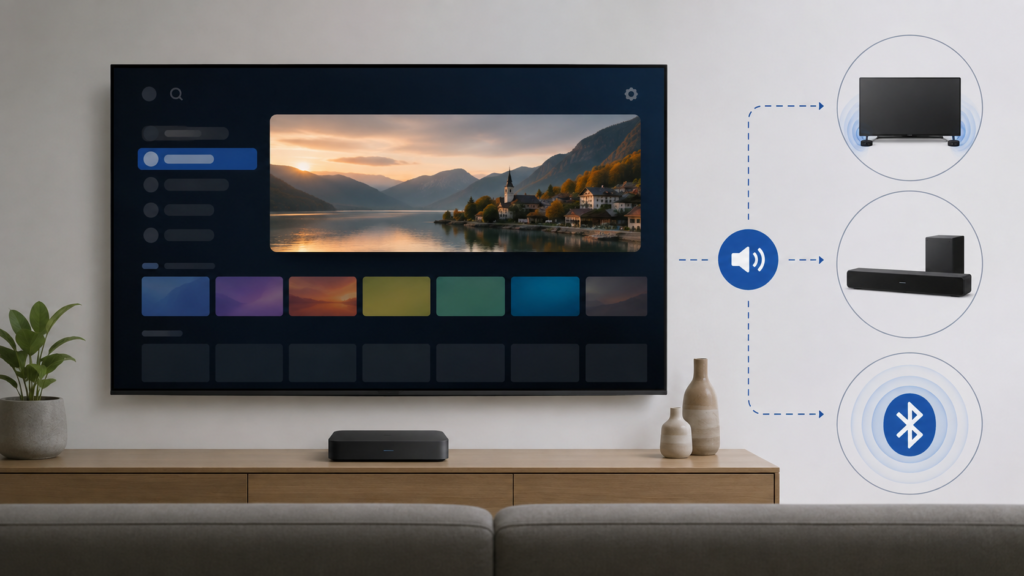
Android TV boxes can route sound through television speakers, HDMI equipment, Bluetooth headphones, or other supported outputs. Switching paths while a player is running can leave the player and output device using different states. The safest diagnosis compares one output at a time and identifies whether silence affects one player or every application.
Describe the audio change
Record the original output, the new output, whether picture continues, and whether the volume indicator changes. Note whether sound disappeared immediately after the switch or only after reopening playback. A silent IPTV player with sound in another application is different from a silent Android TV system.
Do not repeatedly change outputs while playback is running. Each transition can create a new handshake state. Press the normal output control once, wait, and observe. Redact account information in screenshots.
Step 1: Test system audio
Leave the player and play a short clip in another supported application. If that application is also silent, check the Android TV output menu, mute state, and connected equipment. If it has sound, return to the IPTV player and compare its own audio controls.
Test the television speakers or the documented default HDMI output as a baseline. Record which path works rather than assuming the player is at fault.
Step 2: Check mute and volume
Use the television and Android TV remotes to check mute and volume once. Look for a mute symbol or a volume indicator. If a soundbar or receiver is connected, confirm its input through the manufacturer’s normal control.
Do not change television volume, soundbar input, Bluetooth pairing, and player audio tracks together. Restore the preferred path after the narrow comparison.
Step 3: Review Bluetooth and HDMI state
If Bluetooth headphones or a speaker was used, check whether the device remains connected. If HDMI audio is used, check the cable and the receiving device’s selected input through documented menus. A picture can continue while sound is routed elsewhere.
When practical, compare the television speakers without permanently changing the household setup. A return of sound on speakers is useful evidence about the output path, not a complete diagnosis.
Step 4: Check the player control
Open the IPTV player’s documented audio menu and check mute, volume, and audio-track options. Some players maintain a separate local volume state. Restore only an obviously incorrect option and test one item.
Compare a second approved item without rapid switching. If one item is silent and another has sound, record the selective result. Do not infer a provider-wide issue from one item.
Step 5: Restart and update safely
Exit the player normally, return to Android TV home, and reopen it once using the chosen output. Test the same item. If audio returns after restarting, record the timing.
Record box, system, and player versions. Apply official updates through normal menus and repeat the same output test. Avoid modified applications or factory resets.
Step 6: Consider local state
Use cache-clear or reset options only when documented and after understanding what they remove. A reset may delete favorites and setup choices. Preserve the original output route and audio settings first.
Checklist
- Record original and new output.
- Check whether picture continues.
- Test another application.
- Check mute and volume.
- Review Bluetooth and HDMI state.
- Test speakers as a comparison.
- Check player audio controls.
- Compare one other item.
- Restart normally once.
- Keep credentials private.
When to request help
Review the Android TV box setup guidance, IPTV service page, and services page. Use the official Telegram support channel with model, outputs, app comparison, player version, and exact transition. Never send passwords or private URLs.
FAQ
Why does another app have sound?
The Android TV output may work while the IPTV player retains a separate audio state. Compare its controls and one item.
Should I re-pair Bluetooth immediately?
Not first. Record the connection state and test the television speakers or documented default path.
Can HDMI equipment cause silence?
It can be relevant. Check the receiver input and output path without changing several settings together.
What should support receive?
Share model, output paths, transition, app comparison, and versions. Keep credentials private.
Conclusion
IPTV silence after switching audio output on Android TV should be isolated across mute, volume, Bluetooth, HDMI, player controls, software, and output comparisons. Use one controlled test at a time. Start with the TVMemberLink home page.
For a useful support report, describe the original output, the new output, the exact player screen, and whether another application has sound. Test one documented output path at a time and restore the preferred household setting afterward. Do not send passwords, tokens, payment details, or private service URLs.
If sound returns through one output but not another, record that boundary. If a restart changes the result, note the timing and repeat the same item test rather than changing several audio options together.
For a useful support report, describe the original output, the new output, the exact player screen, and whether another application has sound. Test one documented output path at a time and restore the preferred household setting afterward. Do not send passwords, tokens, payment details, or private service URLs.
If sound returns through one output but not another, record that boundary. If a restart changes the result, note the timing and repeat the same item test rather than changing several audio options together.
When testing another application, keep the Android TV output and receiving device unchanged. If only IPTV is silent, record the player version and whether the sound returns after a normal reopen. If all applications are silent, focus on the output path. A support request should contain the transition and comparison, not private credentials.
After one controlled restart, repeat the same output selection. If sound returns only after restart, record that timing and restore the preferred household route after the test.
For a useful support report, describe the original output, the new output, the exact player screen, and whether another application has sound. Test one documented output path at a time and restore the preferred household setting afterward. Do not send passwords, tokens, payment details, or private service URLs.
If sound returns through one output but not another, record that boundary. If a restart changes the result, note the timing and repeat the same item test rather than changing several audio options together.
When testing another application, keep the Android TV output and receiving device unchanged. If only IPTV is silent, record the player version and whether the sound returns after a normal reopen. If all applications are silent, focus on the output path. A support request should contain the transition and comparison, not private credentials.
After one controlled restart, repeat the same output selection. If sound returns only after restart, record that timing and restore the preferred household route after the test.
Keep one before-and-after note for the output path, including the visible mute state and application comparison. This is enough to guide the next safe check.
