
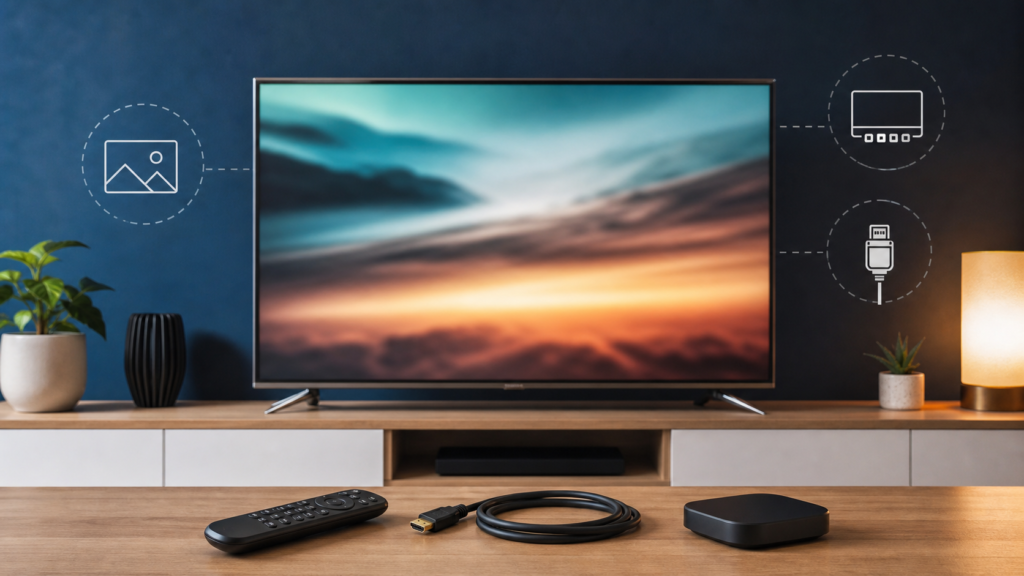
Quick answer: If IPTV picture quality looks blurry on a Smart TV, first determine whether the blur affects the TV’s menus, one program, or every stream. Check the TV input, cable path, player picture settings, source quality, and network stability in that order. Avoid forcing a higher resolution setting than the source or device can handle. A careful comparison with a known clear source prevents you from changing the wrong part of the setup.
“Blurry” can mean several things: soft detail, blocky compression, a low-resolution stream stretched across a large screen, motion blur, or an incorrectly configured input. A Smart TV can display a sharp menu while an individual stream remains soft, which points away from the TV panel itself. On the other hand, if the home screen and every input look wrong, investigate the television, cable, and picture mode before the IPTV player.
Identify the type of IPTV picture problem
Soft detail on every channel
If every permitted stream looks soft but menus are sharp, compare two different items in the same player. If both look similar, the source quality, player output, or display scaling may be involved. Do not assume a subscription label alone determines the actual resolution of every stream.
Blocky or smeared motion
Blocky artifacts during movement can appear when a stream is compressed, when playback cannot keep up, or when the network is unstable. Watch whether the image recovers after a pause or whether the same scene remains soft. The IPTV buffering guide can help you compare quality symptoms with network symptoms.
Blur only after changing inputs
If the picture becomes soft after connecting a streaming box or switching HDMI ports, check the input selection, cable connection, and TV input settings. Use the same input and cable for a controlled test if possible. A cable should be connected securely at both ends; replace it only after confirming that the problem follows the cable or connection.
Before changing Smart TV picture settings
Record the TV model, player name, device type, input used, and the content item tested. Do not use a screenshot that reveals account credentials. Confirm that the content source is authorized and review the service’s device guidance. The IPTV devices guide explains why different players and display paths can produce different behavior.
Use a known comparison source on the same TV, such as a built-in app or a local test video you are allowed to view. If the comparison source is sharp but IPTV is soft, focus on the player, source, or output settings. If both sources are soft, inspect the TV picture mode, input, and cable path.
How to troubleshoot blurry IPTV on a Smart TV
Step 1: Check the TV input and cable path
Confirm that the TV is using the intended HDMI input and that the external device is powered correctly. Reseat the cable without forcing the connector. If another compatible cable or input is available, perform one controlled swap. Avoid changing several cables, picture modes, and apps at once because you will not know what fixed the issue.
Step 2: Compare menus, playback, and another source
Open the device menu, the IPTV player menu, and another permitted source. Menus are normally rendered differently from video streams, so a sharp menu does not prove that every stream is high quality. Note exactly where the softness starts. This simple comparison gives support more useful information than saying only “the TV is blurry.”
Step 3: Review player output settings
Look for output resolution, display mode, picture scaling, decoder, or hardware acceleration options in the player or device. Use the recommended or automatic setting when you are unsure. Forcing a resolution can create scaling problems, and the highest visible number is not automatically the best choice for every source. Change one setting and test the same item again.
Step 4: Check the TV picture mode
Some TVs offer picture modes designed for cinema, sports, standard viewing, or low latency. These may change sharpening, motion processing, contrast, and noise reduction. If the image became soft after a recent change, return to the previous mode or use the TV’s standard mode for comparison. Do not assume a dramatic sharpening filter represents more detail; it can create halos around edges.
Step 5: Test network stability without inventing speed targets
A stream can look soft when playback quality adapts to changing conditions. Test another permitted item and observe whether clarity changes during the same period. If the image improves after a pause or becomes blocky during busy network use, investigate Wi-Fi placement, congestion, and the device connection. Use real measurements from your own network rather than treating a generic speed figure as a guarantee.
Step 6: Check the source before changing the subscription
If one item is consistently soft while other items are clear, the source or item may be different. Do not conclude that the whole service or TV is defective based on one stream. Record the item, time, device, and player, then ask support what information they need. Never publish the account login or private playlist URL.
Common mistakes that make picture quality harder to diagnose
- Forcing the highest output resolution without checking the source and device.
- Changing the TV mode, cable, player, and Wi-Fi at the same time.
- Confusing a soft source with a damaged TV panel.
- Using a public screenshot that exposes account details.
- Promising that a plan or device guarantees a specific picture quality without testing the full setup.
When to contact support
Contact support when the Smart TV and player are compatible but one or more items remain unexpectedly soft, when the picture changes after a playlist refresh, or when the player’s output menu is unclear. Use the IPTV support hub and the site’s official WhatsApp or Telegram buttons. Share the TV type, external device if used, player, input, and comparison result. Support can work faster when the problem is described as “one item soft” or “all streams soft” rather than only “bad quality.”
FAQ
Why are IPTV menus sharp but the video blurry?
Menus and video streams are rendered differently. The source, player output, scaling, or network can affect video while the interface remains sharp.
Should I force 4K output?
Not automatically. Use the recommended or automatic output setting unless the device and source are known to support another setting.
Can Wi-Fi make IPTV look blurry?
Unstable conditions can cause adaptation, buffering, or blocky motion. Compare multiple items and test the network separately before changing the TV.
What details should I send support?
Send the TV type, player, input, device, item tested, and whether other sources are clear. Do not send passwords or private playlist URLs.
Final checklist
Classify the blur, compare a known source, check the input and cable, review player output, test the TV picture mode, and then investigate network stability or one specific source. Keep the diagnosis evidence-based and protect account details. For compatible setup guidance, review the IPTV service information and contact official support.


