
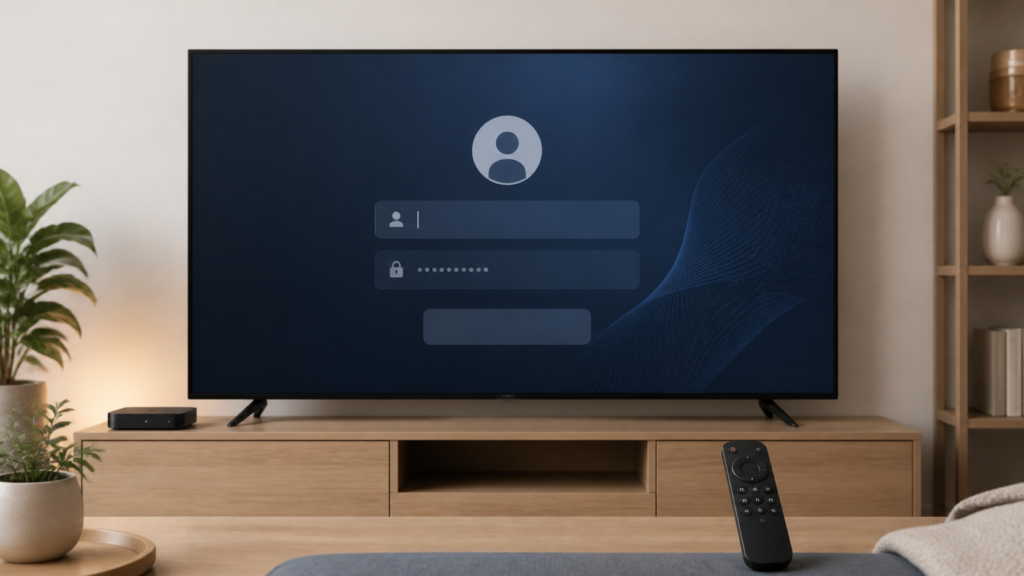
Quick answer: If the keyboard does not appear when you need to enter IPTV details on an Android TV box, first test a normal search or settings field, then check focus, remote input mode, the active keyboard, and the player’s login screen. Restart the player once and use only documented input options. This separates a system keyboard problem from a player-specific form issue without exposing passwords or changing account settings.
IPTV Login Keyboard Not Appearing on Android TV Box: Safe Checks
Entering a username, service address, or other setup detail on a television is different from typing on a phone. An Android TV box may use an on-screen keyboard, a paired remote, voice input, or an attached USB or Bluetooth keyboard. If the keyboard does not appear in an IPTV player, the problem can be focus, input method, application state, permissions, compatibility, or a temporary system process. This guide provides a controlled troubleshooting path using observable results.
Describe the exact failure
Start by identifying whether a text field is visible and selected. Does the cursor appear? Does pressing OK focus the field but produce no keyboard? Does the keyboard appear in Android TV search? Does the player show a loading spinner, close the form, or remain unchanged? These details create a useful boundary.
Do not paste private credentials into a public support message. If a screenshot is needed, redact the field and all account identifiers. The purpose of the first test is to learn whether input works generally, not to submit private data repeatedly.
Step 1: Test a system text field
Leave the IPTV player and open a normal Android TV search field or settings field that accepts text. Press OK once and wait. If the keyboard appears there, the system input method is probably available and the player form needs a closer look. If no keyboard appears anywhere, continue with the device input method and keyboard settings.
Test one other ordinary application with a search field. A system-wide result is more useful than several tests inside one player. Record the application, field, and response. Avoid changing keyboard language, layout, and accessibility settings at the same time.
Step 2: Check focus in the IPTV form
Use the directional keys to move deliberately to the username or address field. Look for a border, cursor, or highlight. Some players require a second OK press after a field receives focus. Press once, wait, and observe whether the field becomes active.
If the field is not visibly focused, the keyboard may be working but has not been requested. Compare the next field or a visible button. If the keyboard appears for one field but not another, record the field-specific behavior instead of resetting the entire app.
Step 3: Review the active input method
Open the Android TV box’s documented keyboard or input-method settings. Confirm that an available on-screen keyboard is selected and enabled. Do not install an unknown keyboard simply because a web guide recommends it. If a physical keyboard is paired, compare it with the remote, but avoid changing several Bluetooth devices at once.
Check whether voice input or a pointer mode has changed the expected remote behavior. These options can be useful alternatives, but only use features supported by the box and player. Record whether text can be entered in a system field before trying the IPTV form again.
Step 4: Restart the player normally
Exit the player using its normal close or Back path, return to the Android TV home screen, and open it once. Do not repeatedly launch and close the application while it is loading. Test the same field and note whether focus, keyboard display, and text entry behave differently.
If the issue happens after standby, record that timing. If it occurs after a fresh launch, record that instead. A timing pattern helps distinguish a temporary input process from a player-specific form state.
Step 5: Check software and compatibility
Record the Android TV box model, system version, and player version. Check for updates through official platform menus. If an update is available, install it through the normal path, then repeat the exact same text-field test. Do not install a modified APK as a troubleshooting step.
Confirm that the player supports the Android TV box and the particular input method. A phone application may display a different form and keyboard behavior from a television application. Do not infer compatibility from a similarly named app.
Step 6: Consider local data carefully
If the player documents a cache-clear option, understand what it removes before using it. Clearing data may remove saved preferences or setup information. Record the original form behavior first, change one local setting, and test again. A factory reset is not an appropriate first response to a missing on-screen keyboard.
Practical checklist
- Confirm that the text field is visible.
- Test Android TV search.
- Test one other ordinary text field.
- Check visible focus in the player.
- Press OK once and wait.
- Review the selected input method.
- Compare remote and supported physical input.
- Restart the player normally.
- Record box and player versions.
- Keep credentials redacted.
When to request help
Review the Android TV box setup guidance, the IPTV service page, and the services page. Use the official Telegram support channel with the box model, player version, affected field, system-field result, input method, and restart result. Never send passwords, tokens, or private service URLs.
FAQ
Why does the keyboard work in search but not IPTV?
The player may not be giving focus to its text field or may use a different form implementation. Compare fields and record the exact screen.
Should I install another keyboard?
Not first. Check the documented Android TV input method and test a system field before changing software.
Can I use a physical keyboard?
Only if the box and player support it. Use it as a controlled comparison and keep the remote setup unchanged initially.
What should support receive?
Share device and player versions, field behavior, system-field result, input method, and safe checks. Keep credentials private.
Conclusion
An IPTV login keyboard problem on an Android TV box should be isolated across system input, focus, input method, player state, software, and compatibility. Use one controlled test at a time. Start with the TVMemberLink home page.
Before asking for help, write down a repeatable path from the Android TV home screen to the field. Include whether the keyboard opened in system search, whether a cursor appeared in the player, and whether the issue happened after standby or after a fresh launch. This avoids exposing the actual username or service address while still giving support a useful technical boundary.
If a physical keyboard is tested, disconnect it after the comparison if it is not the normal setup. Keep the original remote and input method state available so the result can be reproduced. Do not perform a factory reset simply because one player form does not call the keyboard.
