
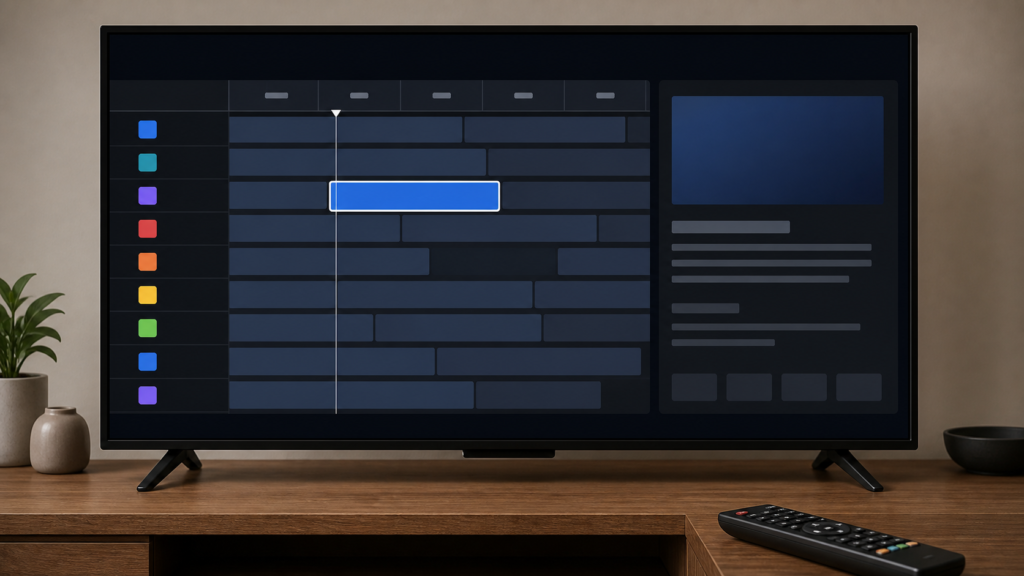
Quick answer: If IPTV EPG program details do not open after selecting an event, first confirm the row is focused, wait for the guide to finish loading, and compare a second event or guide view. Check whether playback still opens from the channel list, then restart the player once and record the exact response. Avoid repeated presses and do not delete guide data before preserving the original behavior.
IPTV EPG Program Details Not Opening: Safe Guide Checks
An electronic program guide can expose a channel row, a program title, a description panel, and an action such as play or record. A selection may appear highlighted while its detail panel does not open. The cause can be focus, a delayed guide view, a player-specific layout, missing metadata, or local application state. This guide separates those possibilities through controlled checks rather than unsupported assumptions about content availability.
Define what “not opening” means
Record whether the highlight moves but the details panel stays unchanged, whether the guide closes, whether a spinner remains visible, or whether the row has no title to select. Also check whether pressing a normal playback control from the channel list opens the same channel. These are different symptoms and should be reported separately.
Press the selection key once and wait. Repeated OK and Back commands can queue actions and make a delayed detail panel look random. Use the same event and guide view for the first comparison whenever possible.
Step 1: Confirm visible focus
Move to a program row with the directional keys and look for a border, color, cursor, or other focus indicator. A row that is merely visible is not always selected. If the focus is hard to see, compare a nearby row with clearer contrast.
Test one other guide event in the same category. If one event opens details while another does not, record the selective behavior. If no event opens details, continue with guide view and player-state checks.
Step 2: Compare guide views
If the player documents grid, list, timeline, or compact views, compare the same event in one alternative view. A compact view may not expose a detail panel even though a timeline view does. Do not treat a missing panel in one layout as proof that guide data is absent.
Check any documented details, information, or enter control. Use one control at a time and return to the original view after testing. Record which control was used and whether a panel, overlay, or new screen appeared.
Step 3: Check event timing
Compare a current event with a later event and, if available, a past event. Some guide interfaces populate details at different times. Note whether the issue affects one time range or the entire guide. Verify the device’s date, time, and time zone through normal system settings without changing several clock options together.
If the guide rows appear but descriptions are blank, distinguish that from a detail panel that does not open. A player may show title-only metadata in one category. Save the exact visible labels before refreshing.
Step 4: Check playback separately
Leave the guide normally and open the channel through the player’s standard list. If playback opens, the selection path works outside the detail panel. If playback also fails, record that as a separate symptom and check the channel list and player state.
Compare one second approved channel without rapidly switching. A controlled comparison helps determine whether the behavior is tied to one event, category, or guide interface. Do not infer a service-wide problem from a single event.
Step 5: Reopen and refresh once
Exit the guide, return to playback or the player home screen, and open it once more. Select the same event and wait. If the detail panel opens after reopening, record that persistence result. If it remains unavailable, use one documented guide refresh and wait for completion.
Repeated refreshes can make timing difficult to interpret and may remove useful local evidence. Avoid clearing application data until you understand whether it removes favorites, guide preferences, or setup information.
Step 6: Compare software and device
Record the device model, player version, and system software. Check for official updates and test the same event afterward. When practical, compare the same approved setup in another supported player or device. A different result identifies a useful boundary but does not prove a single cause.
Practical checklist
- Describe the exact detail-panel behavior.
- Confirm visible row focus.
- Press once and wait.
- Test a second event.
- Compare one documented guide view.
- Check current and later event timing.
- Verify device clock safely.
- Open the channel from the normal list.
- Reopen the guide once.
- Record versions and protect credentials.
When to request help
Review the IPTV setup guidance, the IPTV service page, and the services page. Contact the official Telegram support channel with device, player, guide view, event examples, clock state, refresh result, and playback comparison. Keep passwords and private URLs hidden.
FAQ
Why is a row highlighted but details do not open?
The player may require a documented details control or may handle that view differently. Compare another event and guide layout.
Should I press OK repeatedly?
No. One press followed by a normal wait produces a more reliable observation.
Why does playback work from the channel list?
The channel action and guide details panel can be separate interface paths. Record the difference instead of resetting everything.
What should support receive?
Share device, player, view, event examples, clock state, and comparison results. Keep credentials private.
Conclusion
An IPTV EPG program-details problem should be isolated across focus, guide layout, event timing, metadata, playback, refresh, software, and device comparison. Use one controlled check at a time. Start with the TVMemberLink home page.
For a useful support record, list the event title in redacted form or describe its position, identify the guide view, and state whether the channel opens from the normal list. Note whether a second event behaves the same way. This separates a detail-panel issue from a channel or guide-data issue without requiring private playlist information.
Keep the first test stable: use one device, one player, one view, and one selection method. If you later update software or clear local data, record that change and repeat the same event comparison. Avoid claiming a universal player limitation based on a single screen.
A short before-and-after note is usually enough: identify the guide category, state which control was pressed, wait for the normal response, and describe whether a panel appeared. If the interface shows an error, copy only the error wording and remove any account identifiers. This preserves privacy while improving the quality of the troubleshooting handoff.
When comparing a second player, keep the device, time range, category, and selection method as similar as possible. A different layout can expose different metadata and should be treated as a comparison, not a guaranteed solution.
Record the result before making another change.
