
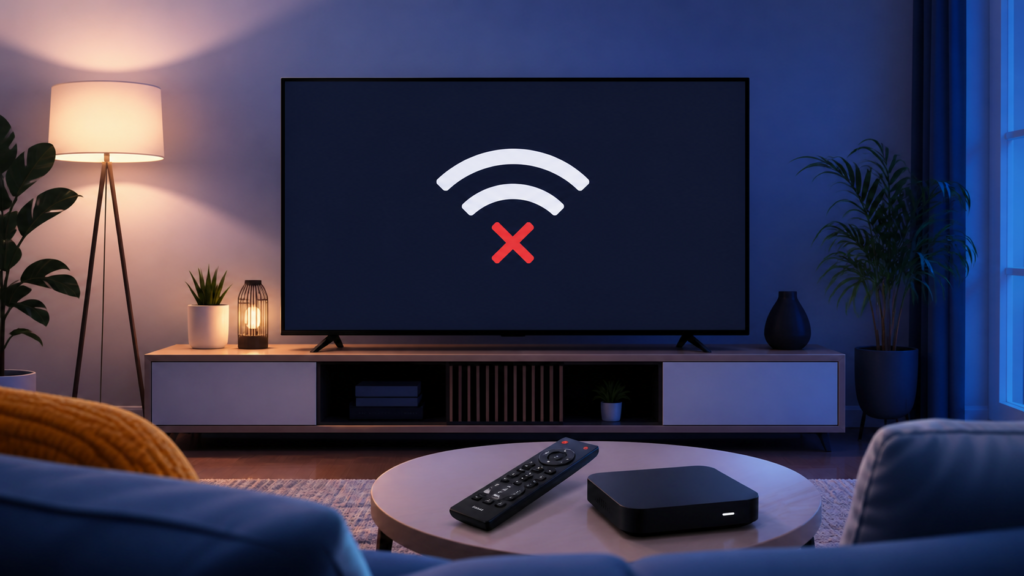
Quick answer: When an IPTV device says it is disconnected from the network, the fastest solution is to separate a Wi-Fi problem from an app, router, or service problem. Check the device connection status, reconnect to the correct network, restart the network path in the right order, and test another app before changing IPTV settings. This guide explains a careful process for Android TV boxes, Fire TV-style devices, Smart TVs, and wired streaming players.
A network message does not automatically mean that your IPTV subscription or player configuration is wrong. The message may appear because the device has joined a different Wi-Fi band, received an incomplete local address, lost DNS access, or has weak signal quality. Work through the checks below one at a time so you can identify the actual cause rather than repeatedly reinstalling the player.
What “network disconnected” usually means
Streaming devices need more than a visible Wi-Fi name. They need a valid connection to the local router, a usable IP address, DNS resolution, and a route to the internet. A device can therefore show a Wi-Fi icon while an app still reports that it is offline. This is why testing the device settings and a second streaming app is useful.
There are four common layers to check:
- Device layer: Wi-Fi is disabled, airplane mode is active, the Ethernet cable is loose, or the device has stored an old network profile.
- Router layer: the router is restarting, DHCP addresses are exhausted, or a guest network isolates the device.
- Signal layer: distance, walls, interference, or a crowded 2.4 GHz/5 GHz environment causes repeated drops.
- Application layer: other apps work, but the IPTV player has stale cache, an expired session, or a malformed playlist.
Step 1: Confirm whether the whole device is offline
Open the device’s network settings instead of starting inside the IPTV app. Confirm the exact Wi-Fi name or Ethernet status. If the device shows “connected without internet,” do not spend time changing playlist fields yet. Open a normal browser or a mainstream video app and load a simple page. If several apps fail, continue with the network checks. If only one IPTV app fails, the network may already be healthy.
Check another device in the same room. A phone connected to the same Wi-Fi is a useful comparison, but it is not a perfect test because phones often use different radios and move between access points more effectively. The comparison still tells you whether the router is broadly available.
Step 2: Reconnect the correct network profile
In Network settings, select the saved network and choose Forget or Remove. Then scan again and join the intended private network. Carefully enter the password and wait until the device reports an IP address. Avoid repeatedly pressing Connect while the router is still negotiating; that can create confusing partial states.
If your router broadcasts separate 2.4 GHz and 5 GHz names, test the band that best fits the room. 5 GHz can be faster at short range, while 2.4 GHz often travels farther through walls. The best choice depends on the building, router placement, and interference. Keep the device and router in the same approximate location while comparing stability.
Step 3: Restart the connection in a controlled order
Power off the streaming device. Unplug the router and any separate modem or fiber gateway. Wait briefly, reconnect the modem or gateway first, allow its normal connection lights to settle, then reconnect the router. Finally start the streaming device. This order gives the router a chance to obtain an upstream connection before the player requests network access.
Do not factory reset the box as an early troubleshooting step. A reset can remove legitimate application settings, accessibility preferences, and device-level configuration without fixing a weak signal or router issue. Record any custom settings before making larger changes.
Step 4: Test Ethernet when available
A temporary Ethernet test is one of the clearest ways to separate Wi-Fi interference from a broader connection issue. Use a known-good cable and connect the device directly to the router. If the IPTV player becomes stable on Ethernet, focus on access-point placement, band selection, mesh roaming, and interference. If it remains offline, investigate the router, DNS, account session, or player configuration instead.
After testing, remove the cable only after disabling or reviewing the wired connection state. Some devices prioritize Ethernet and may not automatically return to Wi-Fi immediately.
Step 5: Check date, time, updates, and app cache
Incorrect device time can interfere with secure connections and login sessions. Set date and time to automatic where the device provides that option. Install normal system updates from the device manufacturer, and update the IPTV player only through its legitimate supported channel. Avoid random APK files or unofficial “speed booster” utilities; these can create security and reliability problems.
If other apps work but the IPTV player does not, clear the player cache first. Cache clearing is less disruptive than clearing all data. If you must clear data, make sure you have the authorized service details available and never post passwords, tokens, or private URLs in a public support chat. Re-enter only the information supplied through your legitimate account process.
Step 6: Check DNS and router restrictions carefully
Some routers apply parental controls, device limits, ad-blocking profiles, VPN policies, or guest-network isolation. Temporarily review the device profile in the router dashboard. Do not disable security features permanently. If you change a setting for testing, write down the original value and restore it after the test.
DNS changes should not be the first action. If the router’s default DNS is failing, a reputable alternative may help, but the correct choice depends on your location and network provider. A support technician can help compare results without requesting your private login credentials.
Device-specific checklist
Android TV or an Android TV box
Open Settings, Network & Internet, select the saved connection, and reconnect. Review the IP address and signal level if shown. Then use Apps to force-stop the player and clear its cache. Restart the device from the system menu rather than only turning off the television panel.
Fire TV-style device
Open Network, select the current network, and use the on-screen reconnect option. Restart the device from My Fire TV or the power menu. If the network is visible but unstable, test the box closer to the router and compare it with another application.
Smart TV
Use the television’s built-in Network menu and confirm whether it is connected by Wi-Fi or cable. A television panel may remain on while its network adapter is stuck, so use the complete restart option supported by the manufacturer. Check the TV app store for normal updates.
When to review the IPTV setup
If browsing and other streaming apps work consistently, the network-disconnected message may be local to the player. Review the device setup instructions in our IPTV service guide and the broader service overview. Use the homepage to confirm the supported contact path and product information. A useful support report includes the device type, wired or wireless connection, approximate time of the error, and whether other apps work. It should not include passwords or private access tokens.
FAQ
Why does IPTV say disconnected when Wi-Fi looks connected?
The device may have Wi-Fi association but no working internet route, DNS resolution, or application session. Test another app and inspect the network settings before changing IPTV credentials.
Should I restart the router every time?
A controlled restart can clear a temporary DHCP or connection state, but repeated restarts are not a long-term fix. If the problem returns, check signal quality, router logs, and device placement.
Is Ethernet always better than Wi-Fi?
Ethernet is often a useful stability test, but quality depends on the cable, router port, and home network. Use it to identify whether wireless conditions are involved.
Will reinstalling the IPTV app fix a disconnected device?
Only when the rest of the device is online and the app itself is damaged or misconfigured. Reinstalling cannot repair a weak Wi-Fi signal or an unavailable router.
Conclusion
Resolve a disconnected IPTV device by testing from the outside in: device connection, router, signal, and finally the player. Reconnect the correct network, restart equipment in order, try Ethernet, check time and updates, and protect private account information. If you still need help, contact the official support channel with non-sensitive diagnostic details so the issue can be narrowed down safely.


