
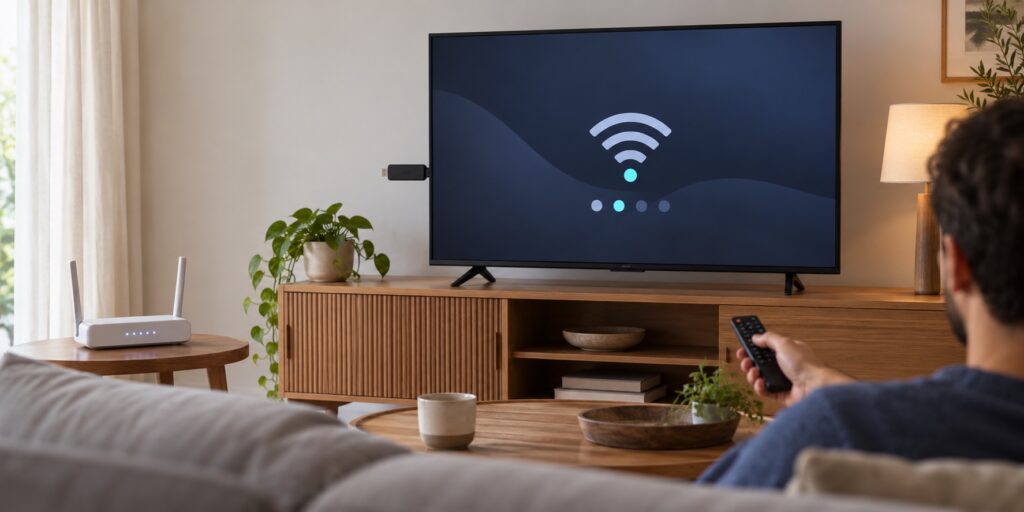
Quick answer: To run a Firestick WiFi speed test that helps explain a playback problem, measure the connection on the Fire TV device itself, in the same room and setup where you watch. If your model offers the built-in Network Status speed test, use it first; Amazon notes that the speed-test option is available only on some compatible devices. Repeat the measurement under comparable conditions, record the result and whether other devices are using the network, then compare with one other app. A phone test beside the router is not a measurement of the Firestick’s Wi-Fi link.
This guide is for Fire TV Stick owners who are seeing buffering, long starts, picture changes, or inconsistent playback and want a useful connection check before changing router, app, or account settings. A speed test is a clue about one path to one test endpoint at one moment. It does not verify a specific IPTV service, prove a stream is available, or guarantee uninterrupted playback.
In this guide
What a Firestick WiFi speed test can—and cannot—tell you
A Firestick WiFi speed test estimates how quickly data can reach the device from a test service. The built-in Network Status screen can also show whether the Fire TV is connected to the router and whether the router has an internet connection. Those are related checks, but they answer different questions: a device can be associated with Wi-Fi while its connection to the internet is unavailable, or the internet can be up while the device has a weak or inconsistent local wireless link.
Amazon describes the Network Status tool as a way to view the Fire TV-to-router connection, the router-to-internet connection, recommendations, and—on some compatible Fire TV models—a network download-speed result or “Run Speed Test” option. The exact options can differ by model and software version, so follow the labels shown on your screen rather than assuming every Firestick has an identical test menu. See Amazon’s current Fire TV Network Status Tool guide for the supported status checks.
The result is not the same as your internet plan’s advertised maximum, a test run on a laptop, or a direct measurement of a particular video stream. A test uses its own server, protocol, route, and time window. Cloudflare’s explanation of speed-test metrics distinguishes download throughput from latency measured while data is moving and from baseline latency; that distinction is useful when a download number looks healthy but an application still behaves inconsistently.
For a practical diagnosis, treat the Fire TV result as one observation. Pair it with where the device is installed, which Wi-Fi network it uses, whether another app behaves normally, and whether the same symptom happens at different times. Those comparisons narrow the cause without pretending a single number proves more than it does.
How to run the built-in Fire TV speed test
On compatible models, start at the Fire TV home screen and open Settings → Network. Highlight the connected Wi-Fi network and open its status or diagnostics screen. Amazon’s support instructions say that pressing the remote’s Play/Pause button from the Network screen can open Network Status on supported software; some compatible devices expose a separate Run Speed Test option. The precise interaction may vary. If the menu is different, use the device’s on-screen Network Diagnostics option or the manufacturer’s support instructions for your model.
- Confirm the highlighted network name is the Wi-Fi network the Firestick normally uses. Avoid switching networks just to obtain a larger result.
- Check whether the status screen says the Fire TV is connected to the router and whether the internet connection is active.
- If a speed-test button is present, run it once and record the displayed download value, unit, time, and any connection recommendation.
- Exit the result screen normally. Do not reset network settings, change DNS, or forget the network just because one result is lower than expected.
If your Fire TV model does not show a built-in speed-test option, that does not mean the device is broken. Amazon explicitly limits some Network Status features to compatible models. You can use a reputable test application or browser on the same Firestick if supported, but record that it is a different test method. A browser-based test may use a different route or have browser-specific limits, so compare its repeated results with each other rather than treating them as interchangeable with a built-in reading.
For Amazon’s connectivity sequence when the Fire TV cannot connect or video buffers, review its Wi-Fi troubleshooting guidance. It recommends checking network status before restarting devices or changing the saved wireless connection. Use the steps applicable to your model; do not jump to a factory reset as a first-line speed-test response.
Prepare a repeatable test before changing anything
A useful test controls the conditions that can change the result. First, leave the Firestick in its normal viewing position. The television, cabinet, wall, nearby electronics, and distance from the router can affect the wireless path. Moving the router next to the test device might produce a different number, but it would no longer represent the connection used during ordinary viewing.
Next, pause large downloads, cloud backups, game updates, and other high-volume activity if you can do so without interrupting someone else. Make a note of active video calls or other household streaming. The goal is not to make the home network artificially empty; it is to know whether the test is measuring a busy household or a relatively quiet one. If playback trouble mainly happens during busy periods, a quiet-time result alone cannot describe that situation.
Keep the connection method constant. If the Firestick usually uses Wi-Fi, do not compare a wired result as though it were the same test. If a VPN or network filtering app is normally enabled, record its state and do not quietly toggle it between samples. A VPN can change the route between the device and test endpoint, so a changed result after switching it only tells you that the test path changed; it does not establish why a particular provider stream behaved differently.
Also record the Fire TV model family, approximate router location, band or network name if you know it, and whether the stick is plugged directly behind the television. These notes help explain differences later. You do not need to expose a Wi-Fi password, router admin page, private playlist URL, account identifier, or public IP address to make the comparison useful.
Repeat the test without turning it into a guessing game
Run three readings using the same Fire TV test method, with about one minute between tests. This is a simple comparison protocol, not a promise that three samples represent every hour of the day. Record each result rather than keeping only the best one. If the numbers are close, the connection may be behaving consistently during that short test window. If they vary widely, note concurrent network activity and repeat later when conditions are calmer.
Do not run several test apps simultaneously. They compete for the same connection and can alter one another’s results. Avoid repeatedly restarting the router between individual samples. First collect a baseline; then make one controlled change and repeat the same sequence. If you change location, Wi-Fi band, adapter, or VPN state, write down that change so the next number has context.
If the Fire TV tool shows signal or connection details, record those separately from download throughput. A strong-looking signal does not guarantee a clean route to the internet, and a high download result does not prove the connection will remain steady throughout an entire viewing session. In a speed test, download capacity and latency under load are different measures; Cloudflare’s documentation explains that active-download latency reflects round-trip time while data is being transferred, whereas unloaded latency is measured without significant transfer. The distinctions matter more than chasing a single headline number.
How to interpret the Firestick internet speed test result
Start with three comparisons: Firestick versus another device in the same room, Firestick versus the router’s location, and normal playback versus another legitimate app. Do not compare a phone on mobile data with a Firestick on Wi-Fi; that changes both the device and the network path. If you use a phone as a comparison, connect it to the same home Wi-Fi and place it near the Firestick, then treat the difference as directional evidence rather than a controlled device benchmark.
- Low or failed result on the Firestick, while nearby devices are also slow: investigate the home connection, router, or current network conditions before changing an IPTV player.
- Firestick result is noticeably lower than a nearby device on the same Wi-Fi: inspect the stick’s placement, saved network, software state, and test method. One comparison cannot identify the exact cause by itself.
- Firestick speed is steady, but only one application has trouble: test the app’s own loading and playback steps. The issue may be app-specific, service-side, format-related, or limited to a particular item; the speed test does not distinguish those by itself.
- Playback is fine at quiet times but unstable when the home is busy: repeat the test during the conditions when the problem appears and record which devices are active.
Mbps means megabits per second; MB/s means megabytes per second. They are not identical units, and apps may label values differently. Avoid comparing a result from one screen with another without checking the unit. Also avoid universal “minimum speed for IPTV” claims unless they are tied to the exact app, video format, number of concurrent streams, and provider documentation. A headline threshold can hide those variables.
Most importantly, a Firestick WiFi speed test does not test a subscription, confirm channel authorization, measure the performance of every content server, or verify that a channel is currently available. It tests a limited path to a test destination. If other apps and websites work but one title fails, record that scope and ask the relevant service provider to confirm the listing or account status privately.
Safe Wi-Fi checks when the Firestick result is low or unstable
Check placement before replacing equipment
Firesticks are often installed behind a television or inside a cabinet. For one controlled comparison, improve open space around the device using only the manufacturer-supplied or compatible HDMI extension accessory if your model supports it. Keep the stick away from enclosed metal cabinets and avoid placing the router behind furniture. Amazon’s support guidance similarly suggests moving the Fire TV and router closer when possible. Make one placement change, repeat the same test, and keep the better configuration only if normal household use improves.
Compare Wi-Fi bands carefully
Routers may broadcast separate 2.4 GHz and 5 GHz network names, or combine bands under one name. Which band performs better depends on distance, walls, interference, router configuration, and device capability. Do not assume that the network with “5G” in its name is always better or that every Fire TV model supports every newer band. If you test another band, note its network name and restore the normal setting if the result is worse or the device becomes less stable.
Recheck router and internet status
If multiple devices lose internet access, check for a local outage and the modem/router status before changing the Firestick. If you choose to restart network hardware, follow the router or ISP instructions and allow it to reconnect fully before testing again. Amazon’s published troubleshooting sequence separates restarting the Fire TV from restarting modem and router; its exact wait instructions are on the official support page. Avoid repeatedly power-cycling equipment while other people depend on it.
Compare Wi-Fi with Ethernet only as a separate test
If your specific Fire TV model and a compatible adapter support wired networking, an Ethernet comparison can help identify whether wireless conditions matter. Check the manufacturer’s compatibility information before buying an adapter. Keep the same test service and viewing position where practical, and label the result as “wired.” A wired result can be useful evidence, but it does not prove that the wireless router is defective or that a separate app’s content path will perform identically. Our guide to Wi-Fi versus Ethernet for IPTV explains how to make that comparison without mixing the two connection types.
When the speed looks fine but IPTV still buffers
Separate network-wide symptoms from one-app symptoms. Open a familiar, legitimate video app and use it normally for a short observation. If that app works while one player does not, note whether the problem affects every channel or title, one category, or one time window. Do not infer from that test that either the app or service is definitely at fault; it simply narrows the scope for the next check.
Close the affected player normally, reopen it, and wait for its list or guide to finish loading before testing again. Check whether the TV software and player are supported and up to date through their official update paths. If the same device has recent Wi-Fi drops, use the separate streaming-device Wi-Fi drop checklist rather than repeating speed tests alone. If the device cannot connect to a network at all, start with IPTV device Wi-Fi connection checks.
For recurring buffering, compare symptoms across devices, connection types, and times. Our IPTV buffering diagnosis checklist helps organize those observations. If the question is how a supported setup works rather than why a connection varies, review the device setup finder and the current IPTV service information. Neither page can confirm a result for your router or a third-party app.
Use this Firestick Wi-Fi speed-test worksheet
Copy this short template into a note. Use approximate descriptions where exact technical values are not visible. Do not include passwords, full playlist links, account codes, or private IP details in a public message.
| Check | Record |
|---|---|
| Date and time | Local time and whether the household network was busy |
| Device | Fire TV model family and software version, if visible |
| Connection | Wi-Fi or Ethernet; network name can be shortened or omitted |
| Test method | Built-in Network Status, browser, or named test app |
| Readings | Three download values with their displayed units |
| Symptom | Buffering, slow start, app login, one title, or all apps |
| Comparison | Same Wi-Fi on a nearby device, another app, or a later time |
| One change | Placement, band, router restart, or wired test—and what changed |
A blank or missing result is still useful information. Write “no Run Speed Test option” or “test did not start” rather than inventing a value. Record the exact status message if shown, but remove email addresses, device identifiers, Wi-Fi names, and other private details before sharing a screenshot.
When reviewing the notes, look for repeatable patterns rather than a perfect score. Did the same Firestick test behave differently when the household network was busy? Did changing only its placement affect all apps or just one? Did a wired comparison alter the symptom? The answers guide the next safe action. If results vary randomly, collect another comparable sample before buying hardware or changing service details.
Common speed-test mistakes to avoid
- Testing the phone instead of the Firestick: the phone has a different radio, antenna position, operating system, and connection route.
- Testing beside the router when the TV is across the home: this measures a better location, not the normal viewing position.
- Keeping only the highest result: a peak value does not describe consistency.
- Running several tests at once: they compete for the connection and make the comparison less useful.
- Changing multiple settings at once: if the symptom changes, you will not know which change mattered.
- Confusing “connected to Wi-Fi” with “internet is working”: the Fire TV Network Status screen treats the local router connection and internet connection as separate checks.
- Assuming a speed result proves a stream is available: content access, account status, device compatibility, and test-server performance are separate questions.
- Sending private connection data to a public group: never post passwords, tokens, full playlist URLs, or account screenshots.
Frequently asked questions
Does every Firestick have a built-in Wi-Fi speed test?
No. Amazon says some compatible Fire TV devices include a download-speed result or a Run Speed Test option in Network Status. If your model does not show it, use its available Network Diagnostics or a supported test app on the same device. Do not assume a missing button means the Wi-Fi hardware has failed.
Why is my Firestick speed lower than my phone’s?
The devices can have different Wi-Fi hardware, antenna placement, software, test applications, and routes to the test server. Test both on the same home Wi-Fi, near the Firestick, within a short time window, and avoid other large downloads. Treat a difference as a clue to investigate, not proof of a defective stick or router.
Can a fast Firestick test still buffer?
Yes. A speed test samples a connection to a test endpoint at a particular moment. Playback can also depend on changing network conditions, the route to a content server, the application, the specific title, and device state. Compare another app, another title, a different time, and the same test method before drawing a conclusion.
Should I switch to 5 GHz Wi-Fi?
Not automatically. Band performance depends on the distance, walls, interference, router settings, and Fire TV capabilities. If you compare bands, change only that setting, repeat the same test at the normal viewing location, and restore the original network if reliability gets worse. Follow your router and device documentation.
Should I send the speed-test screenshot to support?
You can share a cropped, redacted screenshot if it helps show a status message or displayed reading. Hide account names, email addresses, device identifiers, Wi-Fi names, public IP details, passwords, tokens, and playlist URLs. A timestamp, test method, and short symptom description are usually more useful than a full settings-screen capture.
Conclusion: measure the Firestick where you actually watch
A Firestick WiFi speed test is most useful when it is run on the Fire TV itself, in its normal position, with the method and household conditions recorded. Use the built-in Network Status tool if your compatible model offers it, repeat comparable readings, and compare the symptom across another app or time. A result can point toward a local Wi-Fi or internet issue, but it cannot certify an IPTV service, account, title, or stream. Start with one measured change at a time and keep credentials private.
If you need help choosing a supported setup, review our service plans or send a short, redacted description through the existing WhatsApp support link. You can also visit the official TVMemberLink Telegram group. Do not post a password, token, payment detail, or full playlist URL in a public message.
Sources and update note
- Amazon: What is the Fire TV Network Status Tool?
- Amazon: Can’t Connect Your Fire TV Device to Wi-Fi
- Cloudflare: Speed-test metrics and latency definitions
Reviewed October 1, 2026. Fire TV menu labels and feature availability vary by model and software version; use the current on-device instructions and manufacturer documentation for your exact model.
