
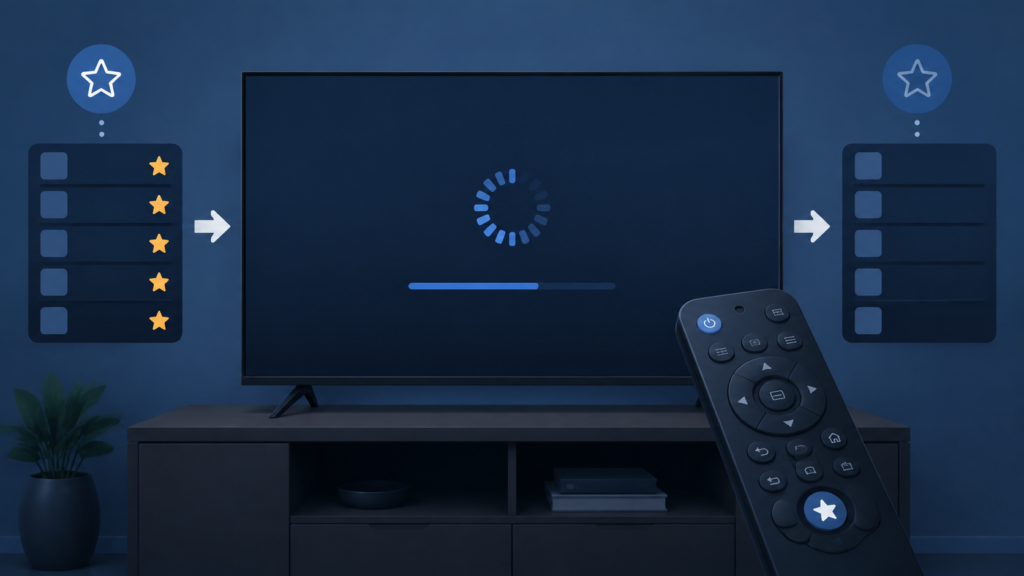
Quick answer: If IPTV favorites reset after a Smart TV reboots, the list may not have been saved to the active profile, the app may be using temporary guest state, or the television may be closing the app before it writes changes. First add one test channel, confirm the save or favourite indicator, close the app normally, and reopen it before rebooting. Avoid repeatedly rebuilding a long list until the small test survives.
IPTV Favorites Reset After Reboot on Smart TV: Safe Checks
A favourites list is meant to make a large channel collection easier to navigate. When the list disappears after a television restart, the issue can look like a service or account failure. In many cases, the channels are still available in the main list and only the local preference has been lost. The important distinction is whether favourites disappear immediately after leaving the app, after a normal TV power cycle, or only after a full reboot or software update.
Define when the list is lost
Add one easy-to-identify channel as a test favourite. Confirm that the star, heart, or saved indicator changes. Leave the favourites screen and return to it. Then close the app normally and reopen it. If the test survives, perform one television restart. This sequence shows where the saved state disappears. Do not add dozens of channels until this test is understood.
Step 1: Confirm the active profile
Some apps keep preferences per profile. A reboot can reopen the default profile instead of the profile used to create the list. Check the profile name before opening favourites. If the app has a guest, demo, or temporary mode, switch to the intended profile and repeat the one-channel test. Keep the account and profile details private; support does not need a password to understand the saving symptom.
Check that the save action completed
When adding a favourite, wait for the indicator or confirmation to appear. Some interfaces require a long press, a star button, or a separate save action. If you leave the channel immediately, the app may not write the preference. Return to the same channel and check the indicator before closing the player.
Step 2: Close the app normally
Navigate back to the app’s channel list or home screen and allow the interface to settle. If the television has an exit command, use it once. Avoid cutting power immediately after adding a favourite because a Smart TV may still be writing local state. Reopen the app and check the test item. If it survives a normal close but not a reboot, the next focus is app storage, TV power management, or a software lifecycle issue.
Use the IPTV setup guide for general Smart TV setup checks, and see the IPTV service overview for service context. Do not reset the service simply because a local list has disappeared.
Step 3: Review storage and app updates
Check whether the television is low on storage or whether the IPTV app updated recently. An update may change profile handling or clear an old preference format. Review the app’s permissions and storage information without selecting clear data. If the TV offers a repair or cache option, use the least destructive option first and repeat the one-channel test.
Step 4: Compare power cycles and profiles
Compare a normal app close, television standby, and full reboot one at a time. Some Smart TVs keep an app suspended in standby while a full reboot clears its temporary state. If favourites survive standby but vanish after a full reboot, record that exact pattern. If a second profile or another supported device retains the list, the issue is likely local to the first profile or TV app installation.
Favorites checklist
- Add one test channel and confirm its saved indicator.
- Leave and reopen the favourites view.
- Verify the active profile is the intended one.
- Close the app normally and test again.
- Check storage, app updates, and least-destructive cache options.
- Compare standby and full reboot separately.
- Test one other profile or supported device if available.
- Record the Smart TV model, app version, profile, and failure point.
FAQ
Are the channels gone if favorites reset?
Not necessarily. A local preference list can disappear while the main channel list remains available.
Should I reinstall immediately?
No. First determine whether the list is lost when leaving the app, closing it, or rebooting the television. Reinstalling can remove useful setup information.
What should I send support?
Share the TV model, app version, active profile type, test sequence, and whether the main list still works. Redact private details and never send passwords. Use the official Telegram support group or the site’s WhatsApp button.
Conclusion
Favorites resetting after a Smart TV reboot is best diagnosed with one test channel and a controlled sequence of close, standby, and full reboot actions. Verify the active profile, save confirmation, storage state, and app version before rebuilding the entire list. Visit the services page or TVMemberLink home page for navigation.
Use a single-item persistence test
A one-channel test is safer than rebuilding a complete favourites list. Add the item, verify its indicator, leave the screen, close the app, and reopen it. If it remains, test standby. If it disappears only after a full reboot, record that exact boundary. This sequence shows whether the app writes preferences at selection time, at normal exit, or during a background save operation.
Check whether the television is signed into a different household or app profile after restarting. Some Smart TVs restore the last-used application but not the last-used profile. If the main channel list remains available, the service data is probably not the part that changed. Focus on local preference storage, profile selection, and the app lifecycle.
Do not repeatedly reinstall while investigating. A reinstall may make the list appear empty simply because it is a new local installation. If a repair or cache option exists, choose the least destructive option, run the one-item test again, and keep a note of the result. Share only redacted screenshots and never send passwords or payment details.
Document the reboot boundary
Write down whether the list disappears after app close, standby, or a full power cycle. These are different events on a Smart TV. If favourites survive in the app but vanish after a full reboot, the preference may be stored temporarily or under a different profile. If they disappear immediately after leaving the screen, the save action may not have completed. This small timeline is more useful than recreating the list repeatedly.
Once the cause is isolated, rebuild the list gradually and verify a few items after each normal close. Keep private service details out of screenshots and support messages.
Test one saved item after the next normal close before adding more favourites to confirm the preference is stable. If the item survives close but not reboot, keep the TV model and exact power-cycle sequence in your report. A precise boundary makes local storage and profile troubleshooting much faster.
