
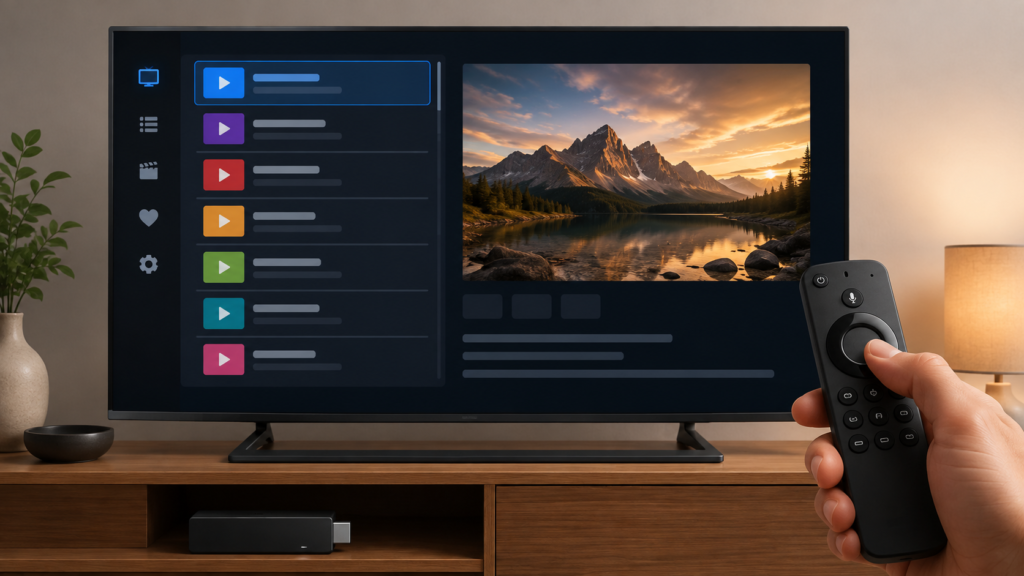
Quick answer: If an IPTV player returns to the channel list when you try to open full screen on a Firestick, test whether the same item plays in a preview or normal window, check the player’s documented full-screen control, and compare one other item. Review remote focus, display mode, and app state before clearing data. Press once and wait rather than repeating commands.
IPTV Player Returns to List When Opening Full Screen on Firestick: Safe Checks
A full-screen action may be handled by the player, the Fire TV interface, or an input state shared by both. If the player returns to the list instead of expanding playback, the cause can be focus, a button command, a delayed screen, a display mode, or a player-specific state. This guide focuses on safe, observable checks and does not assume a provider-wide fault.
Describe the exact sequence
Note whether the item starts in a preview, windowed player, or guide view. Record which control you use, whether picture or sound begins, and whether the list appears immediately or after a delay. A return caused by Back is different from a return caused by a full-screen icon.
Use one press and wait. Repeated Back, OK, and directional commands can queue input and make the result look random. Keep credentials and private service URLs out of screenshots.
Step 1: Test Fire TV navigation
Use the remote on the Fire TV home screen and in another application. Test directional keys and Back once. If navigation fails everywhere, investigate the remote, batteries, and pairing. If it works elsewhere, focus on the player screen.
Do not unpair the remote as a first response. Record whether a supported alternate control, such as an on-screen button, produces a different result.
Step 2: Confirm player focus
Open the player and look for a focus border or cursor on the full-screen control. Move to the control deliberately and press OK once. If the focus is on a list row or Back control instead, the player may be receiving a different command.
Compare the player’s menu, preview, and full-screen views if documented. If full screen works from one view but not another, record that boundary and avoid resetting the whole app.
Step 3: Compare another item
Open one other approved item and repeat the same action. If only one item returns to the list, note the item-specific behavior. If every item does it, continue with player state and display settings.
Wait for playback to begin before trying the full-screen control. A player still loading may close its preview or rebuild the list. Do not rapidly change items.
Step 4: Review display mode
Check the player’s documented window, preview, and full-screen options. Review Fire TV display settings only through normal menus. Change one mode at a time and return to the same player screen.
Do not infer a television compatibility issue from one transition. Record the Firestick model, display connection, and visible response.
Step 5: Restart and update safely
Exit the player normally, return to Fire TV home, and reopen it once. Test the same item and control. If the issue changes after restart, record that result.
Record Fire TV and player versions before installing official updates. Follow standard platform paths and repeat the same test. Avoid modified applications and factory resets.
Step 6: Consider local state
If the player documents a cache-clear or reset action, read what it removes before using it. A reset can remove favorites, setup choices, and local display preferences. Preserve the original sequence first and change one variable at a time.
Checklist
- Describe the full-screen sequence.
- Test remote navigation elsewhere.
- Confirm visible player focus.
- Press once and wait.
- Compare one other item.
- Check documented display controls.
- Record Firestick and player versions.
- Restart the player normally.
- Use one safe update if needed.
- Keep credentials private.
When to request help
Review the Firestick setup guidance, IPTV service page, and services page. Use the official Telegram support channel with model, player, view, control, item comparison, and restart result. Never send passwords, tokens, or private URLs.
FAQ
Why does full screen return to the list?
The player may be receiving Back or a focus command, or the preview may still be loading. Check focus and timing.
Should I press the button repeatedly?
No. Press once and wait for the normal response.
Why does another item work?
The issue may be tied to one player state or item transition. Record the selective behavior.
What should support receive?
Share model, player, view, control, timing, item comparison, and versions. Keep credentials private.
Conclusion
An IPTV player returning to the list when opening full screen on Firestick should be isolated across remote input, focus, loading, display mode, item comparison, software, and local state. Use one controlled test at a time. Start with the TVMemberLink home page.
Before requesting help, describe one complete sequence from starting playback to attempting full screen and returning to the list. Include the view, control, timing, and whether another item behaves the same way. Keep passwords, tokens, payment details, and private URLs out of screenshots.
Use the same Firestick and player for the first comparison. If an update or restart is later performed, record that change and repeat the same item test so the result remains clear.
Before requesting help, describe one complete sequence from starting playback to attempting full screen and returning to the list. Include the view, control, timing, and whether another item behaves the same way. Keep passwords, tokens, payment details, and private URLs out of screenshots.
Use the same Firestick and player for the first comparison. If an update or restart is later performed, record that change and repeat the same item test so the result remains clear.
Compare the full-screen control with one documented player action such as opening the player menu. If the menu works but full screen returns to the list, record the focused control and timing. If every player command returns to the list, test Fire TV navigation outside the application before changing local data.
After one normal restart, repeat the same item and control. Note whether the item begins playback, whether sound is present, and whether the transition fails immediately or after loading. This makes the support report specific without exposing private access information.
Before requesting help, describe one complete sequence from starting playback to attempting full screen and returning to the list. Include the view, control, timing, and whether another item behaves the same way. Keep passwords, tokens, payment details, and private URLs out of screenshots.
Use the same Firestick and player for the first comparison. If an update or restart is later performed, record that change and repeat the same item test so the result remains clear.
Compare the full-screen control with one documented player action such as opening the player menu. If the menu works but full screen returns to the list, record the focused control and timing. If every player command returns to the list, test Fire TV navigation outside the application before changing local data.
After one normal restart, repeat the same item and control. Note whether the item begins playback, whether sound is present, and whether the transition fails immediately or after loading. This makes the support report specific without exposing private access information.
When another item opens full screen normally, record that selective result. When every item returns to the list, compare the player menu and Fire TV home screen. Keep the original application state until the sequence is understood and avoid sharing private account details.
