
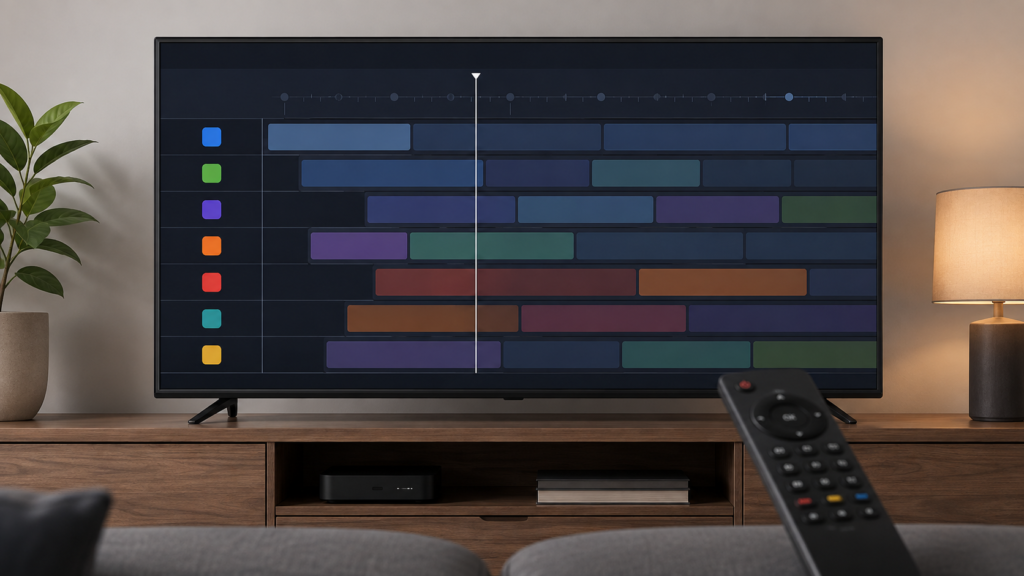
Quick answer: If the IPTV EPG timeline stops scrolling on an Android TV box, first test whether directional keys work elsewhere, wait for the guide to finish loading, and compare a list view or another time range. Check focus, guide density, device resources, and one normal reopen. Avoid pressing keys repeatedly or clearing local data before recording where scrolling stops.
IPTV EPG Timeline Stops Scrolling on Android TV Box: Safe Checks
An EPG timeline can contain many horizontal or vertical elements, and a player may respond differently while rows are loading. A scroll that stops can be caused by focus, a view-specific limit, queued remote input, device resources, or a player state. This guide uses observable comparisons rather than assuming a network or content-wide failure.
Describe where scrolling stops
Record whether the guide stops at a particular time, category, row, or screen edge. Note whether the focus indicator moves, whether the guide shows a loading symbol, and whether the timeline can be moved back. A fixed boundary is different from a completely unresponsive control.
Press one directional key and wait. Rapid repeated input can queue commands and make the interface appear frozen. Keep passwords and private list information out of screenshots.
Step 1: Test system navigation
Leave the player and use directional keys on the Android TV home screen or in another application. If scrolling fails everywhere, investigate the remote or system focus. If it fails only in the EPG, concentrate on the guide view and player state.
Test one other scrollable screen. Record whether focus indicators move normally. Do not unpair the remote as a first response.
Step 2: Confirm guide focus
Return to the EPG and identify the active row, date header, or timeline panel. Some layouts require moving focus into the timeline before directional keys scroll it. Look for a border, highlight, or cursor.
Use one documented control to change focus and then press a direction once. If the row moves but the time axis does not, record that distinction. Compare a second category only after the first result is clear.
Step 3: Wait for loading
Watch for changing row counts, delayed descriptions, or a progress indicator. A dense guide can take longer to populate. Wait for its normal completion before testing another scroll.
If the timeline stops at the same edge every time, note the boundary. If it stops only while rows are loading, record the timing. Avoid leaving and re-entering repeatedly.
Step 4: Compare list and timeline views
If the player documents list, grid, compact, or timeline views, compare one event in an alternative view. A list view may scroll vertically while a timeline expects horizontal navigation. Different controls may be intentional.
Restore the original view after testing and record which view responds. Do not change sorting, date, and category settings together.
Step 5: Check device state
Record the Android TV box model, system version, player version, and available storage. Close unrelated recent applications through normal system controls. A device under resource pressure may respond slowly, but do not claim that it is the cause without comparing the same guide after a controlled restart.
Restart the box normally once, open the same guide view, and test the same boundary. If the result changes, record it. Avoid a factory reset.
Step 6: Compare a supported setup
When practical, compare the same approved guide in another supported player or device. Use a similar category and time range. A different result identifies a useful interface boundary but does not prove that one player is universally better.
Checklist
- Record where scrolling stops.
- Test directional keys outside the player.
- Confirm visible guide focus.
- Press one key and wait.
- Check loading indicators.
- Compare one guide view.
- Record time and category.
- Review device state.
- Restart normally once.
- Keep credentials private.
When to request help
Review the Android TV box setup guidance, IPTV service page, and services page. Use the official Telegram support channel with device, player, view, boundary, focus, restart, and comparison results. Keep private access data hidden.
FAQ
Why does EPG scrolling stop at one edge?
The view may have a documented boundary or may still be loading. Record the edge and timing.
Should I press the direction repeatedly?
No. Use one key press and wait to avoid queued input.
Why does list view work?
List and timeline views may use different focus and scrolling controls.
What should support receive?
Share model, player, view, boundary, focus, loading state, and safe checks. Keep credentials private.
Conclusion
An IPTV EPG timeline that stops scrolling on an Android TV box should be isolated across remote input, focus, loading, view type, time range, device state, and supported-player comparison. Use one controlled check at a time. Start with the TVMemberLink home page.
For a clear report, note the timeline position, focus indicator, loading state, guide view, and whether the same event is visible in list view. Use one directional press and wait during each comparison. Keep the device and player unchanged until the original boundary is recorded.
If an update or restart changes the behavior, record it as a separate event. Avoid installing modified applications or repeatedly changing dates and categories, because that makes the scrolling symptom harder to reproduce.
For a clear report, note the timeline position, focus indicator, loading state, guide view, and whether the same event is visible in list view. Use one directional press and wait during each comparison. Keep the device and player unchanged until the original boundary is recorded.
If an update or restart changes the behavior, record it as a separate event. Avoid installing modified applications or repeatedly changing dates and categories, because that makes the scrolling symptom harder to reproduce.
Compare the timeline with a list view using the same event and approximate time range. If the list scrolls but the timeline stops, report the view-specific behavior. If all screens stop responding, test the Android TV home screen and one other application before changing the remote setup.
After the first controlled restart, repeat the same scroll boundary once. Record whether focus moved, whether rows loaded, and whether the time axis changed. Avoid repeated key presses, because queued commands can make a responsive guide appear frozen later.
For a clear report, note the timeline position, focus indicator, loading state, guide view, and whether the same event is visible in list view. Use one directional press and wait during each comparison. Keep the device and player unchanged until the original boundary is recorded.
If an update or restart changes the behavior, record it as a separate event. Avoid installing modified applications or repeatedly changing dates and categories, because that makes the scrolling symptom harder to reproduce.
Compare the timeline with a list view using the same event and approximate time range. If the list scrolls but the timeline stops, report the view-specific behavior. If all screens stop responding, test the Android TV home screen and one other application before changing the remote setup.
After the first controlled restart, repeat the same scroll boundary once. Record whether focus moved, whether rows loaded, and whether the time axis changed. Avoid repeated key presses, because queued commands can make a responsive guide appear frozen later.
When scrolling works in another view, keep the original timeline settings available and report the difference. When it stops in every view, compare system navigation and device responsiveness. A small, repeatable test is more useful than a long sequence of random changes.
