
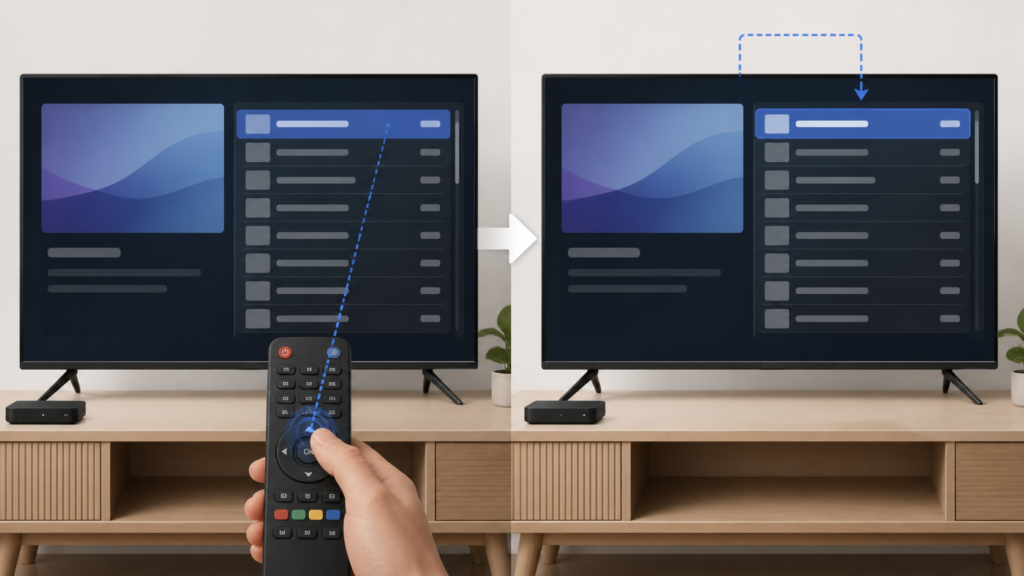
Quick answer: If an IPTV channel list jumps back to the first row after you select a channel, compare whether the jump happens in the full list, guide, or favorites. Test one selection, wait for playback, and reopen the same view once. Check focus, list loading, sorting, and device resources before clearing data. Record the exact sequence and keep credentials private.
IPTV Channel List Jumps to the Top After Selection: Safe Checks
A channel list returning to its first row can be confusing, especially when the selected channel opens normally and the user returns to browse. The behavior may be a deliberate list refresh, a focus reset, a sort change, or a player interface state. It can also appear when repeated remote input is queued while a list is loading. This guide uses controlled comparisons to determine where the jump occurs.
Describe the jump precisely
Note whether the list jumps immediately after pressing OK, after playback starts, when returning with Back, or after a guide refresh. Check whether the same channel opens successfully. Also note whether the list returns to the top of the same category or to the first category in the entire player.
Use one remote command at a time. Pressing OK, Back, and directional keys repeatedly can create a different sequence from the one intended. Wait for the list or player to respond before the next test.
Step 1: Test a small comparison
Open the list and select a channel near the middle. Wait for playback, then return to the list once. Record the first visible row and whether the previous selection remains highlighted. Repeat with one nearby channel only if necessary. A controlled pair is more useful than rapidly testing many channels.
Compare the result with the first row. If only middle selections cause a reset, note that. If every selection returns to the top, the player may be rebuilding the list or restoring a default focus position. This is an observation, not proof of a single cause.
Step 2: Compare list views
If the player provides categories, guide, favorites, or a compact list, test one alternative view. Check whether the jump appears in every view or only the full channel list. A favorites view may preserve local focus differently from a provider category.
Review documented sorting, pinning, and category controls. Change one setting only when its effect is clear, and record the original value. Do not rename, delete, or reorder source categories as an early troubleshooting step.
Step 3: Check loading and focus
Wait for the list to finish loading before selecting a channel. A visible spinner or changing row count suggests the interface is still building its view. When the list is stable, confirm that the intended row has a border, color, or other focus indicator.
If the jump happens only while the guide or list is loading, record the timing. If it happens after playback returns, record that separate path. A delayed response can make a selection look like a reset even when the player is still processing the original command.
Step 4: Check sorting and local preferences
Open the player’s documented sorting options and note whether the list is alphabetical, recent, numeric, or provider order. A refresh can restore a default order or apply a new sort. Do not assume the top row represents a failure if the order itself has changed.
If the player offers a documented remember-focus option, check it without changing unrelated preferences. Test once and restore the original value if needed. Avoid clearing data before recording favorites, list order, and setup details that may be removed.
Step 5: Restart and compare
Exit the player normally, reopen it, and test the same middle-row selection. If the behavior changes after restart, record the result. If it returns immediately, note the exact view and category.
When practical, compare another supported player or device using the same approved setup. A different result shows that the behavior may depend on application focus or local state. It does not establish that one player is universally better.
Step 6: Review versions and resources
Record device model, player version, and system software. Check storage and recent-app state through documented menus. If an official update is available, use the normal platform path and repeat the same selection test.
Do not install an unknown modified application or repeatedly reset the device. Those actions make the original symptom harder to reproduce and may remove local preferences.
Practical checklist
- State when the jump occurs.
- Select one middle-row channel.
- Wait for playback to open.
- Return once and record focus.
- Compare the first row.
- Test one alternative view.
- Check loading and sorting state.
- Review documented focus preferences.
- Restart the player normally.
- Record versions and protect credentials.
When to request help
Review the IPTV service page, the IPTV setup guidance, and the services page. Use the official Telegram support channel with device, player, category, selected row, return behavior, sorting state, and comparison result. Never send passwords, activation codes, or private URLs.
FAQ
Why does the list return to the first row?
The player may rebuild the list, restore default focus, or apply a sorting rule after playback. Compare views and timing.
Does this mean the channel failed?
Not necessarily. Check whether playback opened normally and record the list behavior separately.
Should I clear application data?
Not first. Record list order, favorites, and setup information before using any documented reset.
What should support receive?
Share the device, player, view, category, selected row, timing, sorting state, and restart result. Keep credentials private.
Conclusion
An IPTV channel list that jumps to the top after selection should be isolated across focus, loading, sorting, list views, playback return, local state, and software versions. Use one controlled comparison at a time. Start with the TVMemberLink home page.
Before requesting assistance, write down one complete sequence from opening the list to returning from playback. Include the category, approximate row position, whether playback opened, and whether the list returned to the same category or the global first row. This provides useful evidence without sharing private URLs or account details.
If a documented focus-memory option is unavailable, the reset may be normal player behavior rather than a fault. Use favorites or a supported pin feature only when the player explains how it works. Preserve the original list state before testing local resets.
Use the same category and approximate row position for each comparison. If the player rebuilds its list after returning from playback, note how long the rebuild takes and whether the list order changes. Do not repeatedly reload the source or alter account settings while the original behavior is still being identified.
A second supported player can be useful, but keep the comparison narrow and record its version. Different sorting rules may be intentional, so describe the visible behavior instead of promising that every player will remember the same focus position.
Record the result before making another change.
