
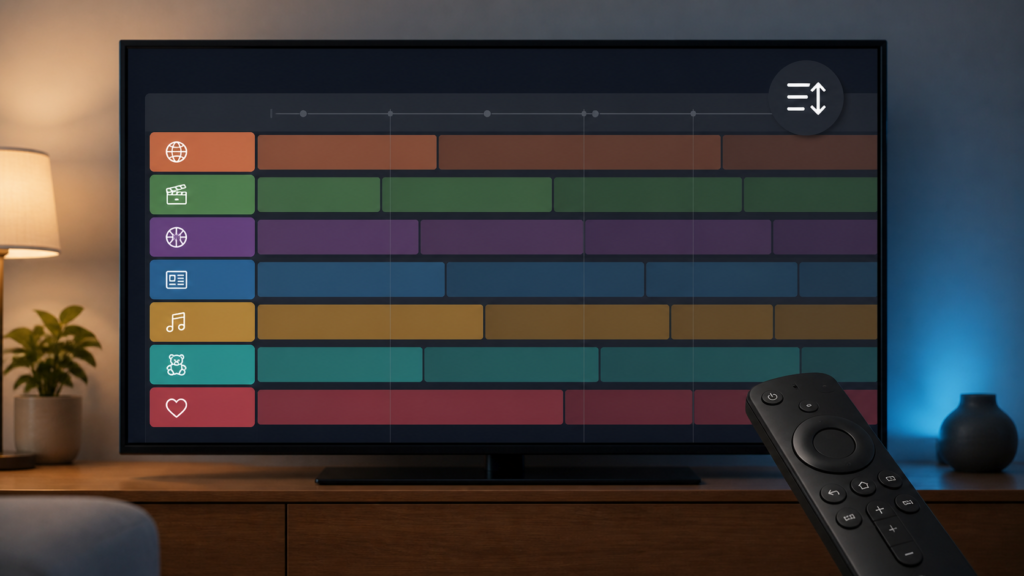
Quick answer: If IPTV EPG categories appear in the wrong order, first determine whether the player is sorting groups, the guide is preserving a previous order, or the source supplies its own category sequence. Compare the same list after one normal reopen, check sorting controls, and avoid repeatedly refreshing or deleting the playlist.
IPTV EPG Category Order Wrong: Guide and Player Checks
An IPTV EPG category order problem can make a guide harder to navigate even when programme times and titles load correctly. The order may be controlled by the player, a saved preference, a list or group name, or the metadata supplied to the guide. A controlled comparison helps identify which layer displays the order without exposing private playlist information.
Describe what is out of order
Record whether the issue affects category names, channel order inside a category, the guide grid, or a favorites view. A category list that is alphabetic is different from one that follows an unexpected source order. Note the first few visible labels without copying private URLs or credentials.
- Categories are alphabetic instead of custom order.
- Only one category appears in an unexpected position.
- The order changes after a guide refresh.
- The guide and player list use different sequences.
- The order resets after closing the application.
Do not infer that the guide is missing simply because the order changed. First confirm that categories and programme data are present.
Step 1: Compare guide, channel list, and favorites
Open the guide category view, the player channel list, and favorites if available. If only one view is out of order, focus on that view’s sorting or display preference. If all views use the same order, the player or list metadata may be controlling the sequence.
Close and reopen the guide once using the normal player controls. Record whether the order remains, changes, or resets. Avoid repeated refreshes while testing because the result may reflect several different guide states.
Step 2: Check player sorting options
Review documented options such as alphabetical sorting, custom order, recently used, group order, or source order. Record the original selection, make one controlled change, and return to the same category screen. If no sorting control exists, report that the player interface did not expose one.
Do not change language, region, time zone, and sorting together. Those settings can affect how the guide is displayed, but several changes make the result impossible to interpret. Restore the preferred order after the comparison.
Step 3: Compare category names and metadata
Check whether the visible category labels contain leading spaces, numbers, symbols, or different capitalization. Some players sort the displayed label rather than a hidden category identifier. Record the visible behavior without claiming that a particular metadata format caused it.
Compare one category with a second category and note whether the change is global or selective. If one group moves while others remain stable, report that narrow behavior. If every group changes after refresh, focus on the player’s saved order and refresh process.
Step 4: Review refresh and local state
If the player documents a guide refresh, perform one normal refresh and wait for completion. Do not press refresh repeatedly. After it completes, reopen the same category and compare the order with the original note.
Check available storage and application version before clearing local data. A cache or reset action can remove saved favorites and preferences. Use it only when documented and only after the original category order is recorded.
Step 5: Compare another player or device
When practical, compare the same approved setup in another supported player or device. If the order differs, compare sorting options, player versions, and local preferences. If the same order appears everywhere, report the shared display behavior rather than changing device settings repeatedly.
This comparison does not prove which component owns the order. A safe report includes device, player, guide view, category examples, sorting control, refresh result, and whether the order persisted after reopening. Never include passwords or private playlist URLs.
Step 6: Organize only with documented controls
If the player offers documented category hiding, pinning, or favorites organization, use one control at a time. Record the original order and verify whether the change affects only the local view. Do not rename or delete source categories unless the player instructions clearly describe the effect.
If a category order cannot be changed, state that limitation plainly. A support conversation can then focus on the visible order rather than promising a control that the player does not expose.
Practical troubleshooting checklist
- Identify the affected view.
- Compare guide, channel list, and favorites.
- Reopen the guide once normally.
- Check one documented sorting control.
- Compare global and selective behavior.
- Perform one normal guide refresh.
- Compare another supported player or device.
- Report labels without private list data.
When to request help
Review the IPTV service page and services page. The official Telegram support group is available. Share device, player, affected view, category examples, sorting state, refresh result, and exact error. Keep credentials private.
FAQ
Why does the guide order reset after reopening?
The player may not preserve a temporary sorting choice. Record the setting and persistence result before clearing local data.
Why is only one category in the wrong position?
The visible label or group metadata may be handled differently. Compare a second category and report the selective behavior.
Should I delete and reload the playlist?
Not first. Check sorting, reopen behavior, and one documented guide refresh before removing saved data.
What should support receive?
Device, player, guide view, category examples, sorting state, refresh result, and persistence behavior are useful. Hide credentials.
Conclusion
An IPTV EPG category order problem should be isolated across guide view, player sorting, labels, metadata, refresh, local state, and device comparison. Use one documented control at a time. Start with the TVMemberLink home page.
Keep a short troubleshooting record with the device model, player, guide view, visible category labels, and refresh time. Compare the same view after one change. Avoid editing provider data or importing unverified lists while diagnosing the order, because that can remove evidence about the original state.
If the guide remains usable but the order is different, treat it as an organization preference first. If categories are missing, corrupted, or stale, contact support through the official Telegram support channel. Do not send passwords, payment details, or private account credentials.
Before asking for assistance, capture a simple before-and-after comparison: list three category names in their displayed order, reopen the guide, refresh once if documented, and list the same three names again. This is more actionable than saying that the guide looks wrong. Also note whether favorites and the full channel list share the same order, because separate views may intentionally use separate sorting rules.
Do not promise a fixed order when the player does not expose a sorting control. The correct next step may be to use a documented favorite or pin feature, select another guide view, or report a metadata issue for investigation. Keep the setup unchanged until the behavior has been recorded.
