
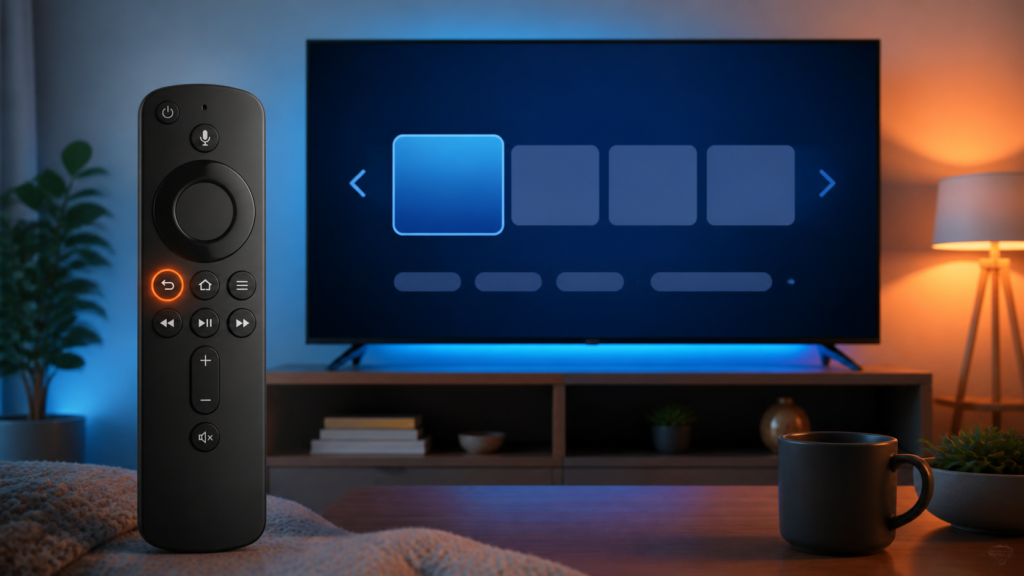
Quick answer: If the Firestick remote Back button does not work in an IPTV player, first test Back on the Fire TV home screen and another application. Then check whether the player is waiting for a menu, whether one alternate exit control works, and whether batteries, pairing, accessibility, or a player update affect the response.
Firestick IPTV Remote Back Button Not Working: Safe Checks
A Firestick IPTV remote Back button that does not work can make it difficult to leave a guide, close a player panel, or return to the previous screen. The problem may belong to the remote, the Fire TV interface, the application’s current focus, or a menu that is still loading. Test the same button across screens before changing the player setup.
Identify the exact response
Press Back once inside the IPTV player and observe whether nothing happens, a panel closes, the player returns to a previous view, or the application exits. Then test Back on the Fire TV home screen and in one other supported application. Do not press the key repeatedly during the first observation.
- Back fails everywhere on Fire TV.
- Back works on the home screen but not in IPTV.
- Back closes one panel but not the guide.
- The key responds only after a delay.
- Another navigation key works normally.
These patterns are different. Record the screen, visible focus, and result before changing pairing or application data.
Step 1: Check the player’s current focus
Move the highlight to a visible menu item using one navigation key, then press Back once. Some player screens require focus to be inside the guide, search, or settings panel before a Back command has an obvious result. Wait for the screen to finish loading before judging the key.
If an on-screen close, home, or menu control is available, use it once as a comparison. If the alternate control works while Back does not, focus on the remote command path rather than reinstalling the IPTV app.
Step 2: Compare Fire TV and another application
Test Back on the Fire TV home screen and a separate supported application. If it fails everywhere, inspect batteries, remote mode, pairing, and the Fire TV response. If it fails only in the IPTV player, compare the player’s menus, full-screen state, guide, and search views.
Do not switch between several applications rapidly. Use one screen at a time so a delayed response is not confused with an application transition. Record whether the Fire TV home screen remains responsive while the IPTV player is open.
Step 3: Check batteries and pairing state
Replace or recharge batteries using the documented Firestick procedure. Test Back once on the home screen afterward. If the remote uses a wireless pairing state, review the Fire TV remote settings without removing other accessories. Do not unpair and reset every remote before confirming the scope of the problem.
Check for a physically stuck Back key without opening the remote or using liquid. Compare a nearby navigation key. If only Back feels different, record that observation and consider the manufacturer’s support path.
Step 4: Review accessibility and input behavior
Review documented accessibility settings related to key repeat, shortcuts, or navigation. A setting can change how commands are interpreted, but do not assume it is the cause without a comparison. Change one setting only if the Fire TV documentation supports the test, then restore the original value.
If the Back command appears delayed, stop pressing and wait for one normal response. Queued input can make the next screen change look like a second command. Avoid repeated presses that make the result harder to reproduce.
Step 5: Check player updates and local state
Record the player version and Firestick software version before updating. Install updates through official platform paths. Test Back on the same player screen after the update and note whether the player preserved its preferences.
If the player documents a cache-clear or reset option, understand its effect before using it. A reset can remove local preferences and require setup again. Do not clear data for a remote-only symptom until the remote works or fails in other Fire TV screens.
Step 6: Use a safe comparison
When practical, compare the IPTV player with another compatible remote or another supported device. If another remote works in the same player, inspect the original remote’s battery, pairing, and button behavior. If both remotes fail only in one player, report the player screen and visible focus.
A safe support report includes Firestick model, remote type, player version, screen, button result, battery test, pairing state, and alternate-control result. Never include passwords, activation codes, or private account information.
Practical troubleshooting checklist
- Press Back once and record the exact screen.
- Test Back on Fire TV home.
- Compare another application.
- Use one alternate close control.
- Check batteries and physical button feel.
- Review documented pairing and accessibility settings.
- Record versions before updating.
- Report the response without credentials.
When to request help
Review the services page and IPTV service page. The official Telegram support group is available. Share Firestick model, remote type, screen, player version, battery result, and exact response. Keep private data hidden.
FAQ
Why does Back work on the home screen but not in IPTV?
The player may have a different focus or screen state. Compare guide, search, and full-screen views before resetting the app.
Should I unpair the remote?
Not first. Check batteries, the button, and Back behavior in other Fire TV screens.
Why does pressing Back repeatedly make it confusing?
Queued input and delayed screens can produce a later response. Use one press and wait during each test.
What should support receive?
Firestick model, remote type, screen, player version, battery result, and alternate-control result are useful. Keep credentials private.
Conclusion
A Firestick IPTV remote Back button problem should be isolated across player focus, Fire TV behavior, batteries, pairing, accessibility, updates, and safe comparison. Test one screen at a time. Start with the TVMemberLink home page.
Use a repeatable button test: press Back once, wait, and record the screen. Repeat in the player and guide. Test one change at a time so a restored button does not hide the cause. If Back works in system menus but not in one player, record the player screen and visible focus.
For support, share the Firestick model, remote type, player version, screen, battery result, and alternate-control result. Use the official Telegram support channel. Never post passwords, activation codes, payment information, or private account data.
Before requesting help, describe one reproducible sequence: open the player, enter the guide or full-screen view, press Back once, wait, and state the result. Mention whether an on-screen navigation control or another compatible input can leave the same screen. This helps separate a remote-input problem from a player focus problem.
Avoid repeatedly pressing Back, clearing all application data, or changing several accessibility settings together. Those actions can make delayed input appear random and can remove local preferences. Preserve the original state until the safe comparison is complete.
