
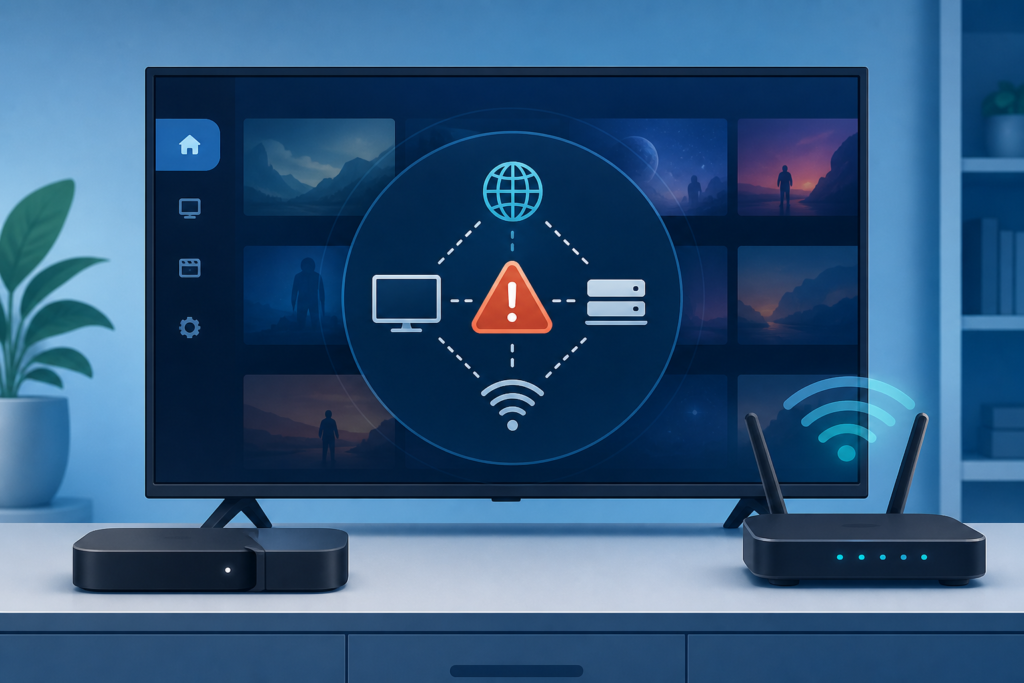
Quick answer: If only the IPTV app reports a network error while other apps work, check the device date and time, app session, cache, supported setup, and network restrictions before changing router DNS. Test another program and another legitimate application, then restart the player. A device can be online while one application has a stale session or cannot resolve its service route.
This guide covers Smart TVs, Android TV boxes, Fire TV-style devices, and supported IPTV players. It focuses on safe, reversible checks and does not ask you to expose account credentials. The error message should be treated as a symptom, not proof that the network or service account is invalid.
Why one app can show a network error
Applications use different sessions, DNS requests, permissions, and connection paths. A browser may work while an IPTV player has an expired session, incorrect device time, damaged cache, or a player-specific restriction. A VPN, parental-control profile, guest network, or device limit can also affect one app.
- Other apps fail too: check the device and router connection.
- Only IPTV fails: check the player session, cache, format, and restrictions.
- One program fails: test another program before resetting the app.
- Error after standby: close the player and restart the device normally.
Step 1: Compare apps and programs
Open another legitimate streaming app or a normal web page. If it also fails, inspect the device connection and router. If other apps work, stay focused on the IPTV player. Then test a second program in the same player. A single unavailable item should not be used as evidence that every account or network function is offline.
Record the exact error wording, approximate time, device type, player version, and whether the issue began after standby or an update. Do not include passwords, private playlist URLs, tokens, or payment details in notes shared publicly.
Step 2: Check date, time, and updates
Set the device date and time to automatic when supported. An incorrect clock can interfere with secure sessions and certificate validation. Check for player and system updates through official settings or app stores. After an update, review the player’s network and setup preferences.
Avoid modified players and unknown “network repair” utilities. They can change DNS, permissions, or privacy settings and make future diagnosis harder.
Step 3: Restart the player session
Close the IPTV app completely and force-stop it if the device provides that option. Restart the streaming device from its system menu, then reopen the player. For a network test, restart the gateway and router first, wait for normal connectivity, and then start the device.
Do not repeatedly re-enter credentials or re-import the same source. If the player requests authorized setup again, use the private account process and keep the details out of public chats.
Step 4: Clear cache before app data
Clear the app cache and test again. Cache clearing can remove damaged temporary files while preserving settings. Clearing all app data is more disruptive and may remove the authorized configuration. Use it only after recording the supported setup method privately.
Review free storage as well. A device that is nearly full may fail to update or save temporary network files. Remove only apps and files you recognize.
Step 5: Review network profiles and restrictions
Check whether the device is on a guest network, VPN, parental-control profile, or restricted device group. Review router policies without permanently disabling security features. If you change a setting for testing, record the original value and restore it after the comparison.
DNS changes should not be the first action. Use them only when evidence points to resolution trouble and follow the network provider or device documentation. Compare Ethernet when available, but change one variable at a time.
Step 6: Compare a supported player
If another supported player works on the same device and network, the first app may have a local session or compatibility issue. If every player fails, return to the network and device checks. Do not conclude that reinstalling several apps will fix a router or DNS problem.
Support and internal resources
Review the IPTV service guide, services, and homepage. Use WhatsApp or the official Telegram support group with device, player, error wording, app comparison, and tests completed. Never send passwords, private URLs, access tokens, or payment data.
FAQ
Why does another app work while IPTV shows a network error?
The IPTV player may have a stale session, cache, incorrect time, or app-specific restriction. Test the player separately before changing the whole network.
Should I change DNS immediately?
No. Check device time, app state, cache, restrictions, and another program first.
Will reinstalling the app fix the error?
Only when the issue is limited to damaged app files. Reinstallation cannot repair a router, VPN, or source-specific problem.
What should I send support?
Send device type, player version, error wording, time, and non-sensitive tests. Do not send credentials.
Conclusion
When only IPTV reports a network error, separate the app from the device and router. Compare apps and programs, correct time, restart safely, clear cache, review restrictions, and test one supported player. Keep the authorized setup private and report clear evidence through official support.
Before changing the router, confirm whether the device itself has a working connection. Open the network settings, note the active interface, and test another application. If the device reports a valid connection but the IPTV app fails, do not repeatedly reboot every household device. Focus on the app session and its supported configuration.
When an error appears after waking from standby, a force-stop and normal restart often provide a cleaner comparison than re-entering setup data. Wait for the device to reconnect before opening the player. If the error returns only after a particular program or guide action, record that trigger and test another program.
Keep the original network and player settings documented privately. A support report should explain what works, what fails, and which reversible tests were completed.
Check device storage, automatic time, and official updates before deleting data. A nearly full device or incorrect clock can make a single app appear offline. Keep changes reversible and restore any temporary router test after it is complete.
If the problem follows the player to another supported device, compare the program and setup format. If it stays on one device, inspect that device’s app state and restrictions.
Use one clean test path: normal device restart, correct network, fresh app launch, and one program comparison. If that sequence works, stop changing settings and observe whether the error returns after standby or a guide refresh. A repeatable trigger is valuable evidence and reduces the risk of unnecessary resets.
Do not post a full account screenshot when requesting help. Crop or describe the visible error and remove private details. Support can begin with device, player, timing, and application behavior.
After a successful test, keep the working route unchanged.
Record the final working app state for future comparison.


