
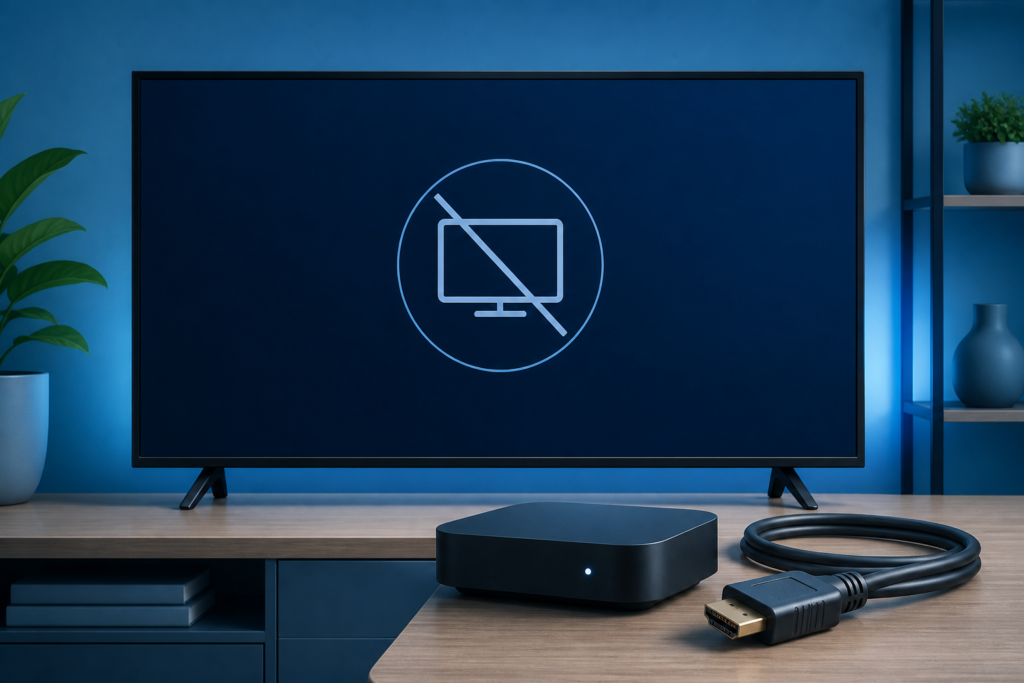
Quick answer: If an IPTV box or Smart TV shows “No Signal,” first confirm that the television is on the correct HDMI input, then reseat the cable, restart the device, and test a direct connection. A no-signal message usually occurs before the IPTV player can load, so changing playlist or login settings is unlikely to help. Work from the display path toward the app.
This guide covers Android TV boxes, Fire TV-style devices, Smart TVs, soundbars, and receivers. It uses reversible checks and keeps your authorized IPTV configuration intact. Do not factory reset the box or repeatedly reinstall the player until the TV can actually see the device output.
What “No Signal” means
The TV is reporting that it is not receiving a usable video input from the selected source. The box may be powered off, connected to another HDMI port, using a handshake mode the TV cannot display, or hidden behind a receiver that is not passing the signal. The IPTV service and player may be working normally but remain invisible until the display path is restored.
- Message appears immediately: check power, input, cable, and HDMI path.
- Picture appears then disappears: check handshake, resolution, cable, and temperature.
- TV menus work but the box is missing: select the correct input and test another port.
- Only receiver path fails: test the box directly on the TV.
Step 1: Confirm power and input
Check that the streaming box power indicator is active and that its adapter is firmly connected. Use the TV remote to select the exact HDMI input used by the box. HDMI labels can be confusing when several devices are installed, so cycle through inputs slowly and wait for each source to respond.
If the box is powered through a TV USB port, test the manufacturer’s supported power adapter instead. A USB port may not provide the intended power during startup. Do not use an unknown adapter with unsuitable voltage.
Step 2: Reseat and simplify HDMI
Turn off the TV and streaming device, reseat the HDMI cable at both ends, and try another compatible TV port. If a soundbar, receiver, splitter, or capture device is between the box and TV, remove that path temporarily and connect the box directly to the television. A direct test identifies whether external equipment is failing to pass the signal.
Use a known-good compatible cable when available. Do not replace every cable and change display settings at the same time. Record which cable and port produced each result.
Step 3: Restart the display chain
Power off the TV and box. Reconnect the TV power, start it, select the correct input, and then start the box. This gives the HDMI devices an opportunity to negotiate a common display mode. A normal restart is safer than a factory reset and does not remove app settings.
If the picture appears only after several power cycles, note the sequence. A repeatable startup pattern can indicate a cable, port, power, or handshake issue rather than an IPTV account problem.
Step 4: Check resolution and display mode
If the device appears on another TV, review its display resolution and refresh settings. Choose a mode supported by the original TV and avoid forcing an advanced HDR or refresh mode. The correct option depends on both devices and the cable path.
When possible, use automatic or standard output for testing. Change one option, restart the box, and compare. If the TV can display the boot screen but loses signal when the player opens, review the player’s video output and hardware decoding settings.
Step 5: Test external audio equipment separately
A soundbar or receiver may be set to another input or may not support the negotiated video format. Test TV speakers and a direct HDMI path first. Once the box is visible, reconnect the external equipment and select the correct input. Do not assume that audio equipment controls the IPTV player.
Step 6: Check heat, updates, and storage
If signal disappears after extended use, check the box’s ventilation and safe placement. Do not cover vents or place the unit on another hot device. Review official system updates and free storage only after the display path works. Unknown “signal fixer” apps and modified players are not safe troubleshooting tools.
Support and internal resources
Review the IPTV service guide, services, and homepage. Use WhatsApp or the official Telegram support group with device type, TV input, direct/receiver path, and cable result. Do not share passwords, private URLs, tokens, or payment information.
FAQ
Can IPTV credentials cause No Signal?
Usually no. A no-signal message occurs at the display connection before the player can authenticate. Check power, input, HDMI, and output mode first.
Why does direct HDMI work but a receiver does not?
The receiver or its selected input may not pass the negotiated format. Test the receiver separately and review its supported modes.
Should I factory reset the box?
No. Restore the display path and use a normal restart before considering a reset.
Why does the signal disappear after playback starts?
The player may switch output mode, or the box may be overheating. Review resolution, decoder, and ventilation.
Conclusion
Fix IPTV No Signal by confirming power and input, simplifying HDMI, restarting the display chain, checking output modes, testing external equipment, and reviewing heat and updates. Keep the player configuration intact until the TV can reliably see the device.
Keep the first successful display path documented. Note the TV input, box power method, HDMI port, and whether an intermediary receiver was used. If the picture later disappears, repeat the same path before trying a new setting. This creates a clear baseline and prevents account or playlist changes from being blamed for a display connection problem.
If the boot screen is visible but the IPTV player causes the message to return, compare the player’s output mode with the TV’s supported formats. Test a standard mode and restart playback. A display mode change should be made only after the box is visible and should be recorded for later restoration.
When the device remains invisible after direct HDMI, try the manufacturer’s supported recovery or display-reset procedure rather than an unknown online utility. Stop if a step could erase settings, and use official support with non-sensitive hardware details.
Check the display chain from the television toward the player, not from the app toward the account. A no-signal message is resolved at the input, cable, power, or output level first. Once the TV receives a stable picture, then review the player and authorized setup if playback itself has a separate problem.
Keep the device in a ventilated position during testing and do not hide it behind another hot component. If the signal changes with heat or movement, record that observation for support.
After the image returns, verify that the player opens normally before changing any account or playlist setting. This keeps the display repair separate from playback troubleshooting.
Use the same HDMI path for the final confirmation.


