
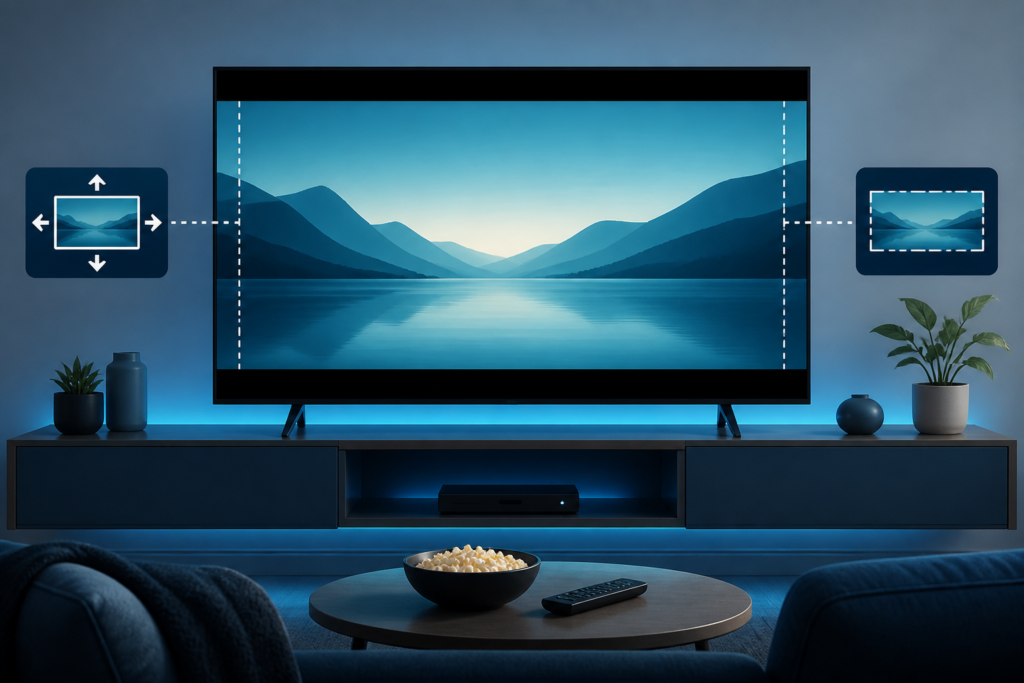
Quick answer: If an IPTV picture has black bars, looks stretched, or is cropped on a Smart TV, check the player’s aspect-ratio control, the television picture-size mode, and the output resolution in that order. Black bars can be normal when the source and screen shapes differ, while stretching or cropping usually points to a display setting. Compare another program before changing the entire device.
This guide covers Smart TVs, Android TV boxes, and other supported IPTV players. It focuses on reversible tests and explains why a setting matters. Do not force a zoom mode simply to fill every corner of the screen; doing so may remove subtitles, channel graphics, or the edges of the picture.
For a dependable comparison, keep the same input, program, and viewing position while testing. Take a quick note of whether faces look natural, whether subtitles remain fully visible, and whether the image edges are present. These observations are more useful than changing multiple presets and trying to remember which one looked different.
Black bars, stretching, and cropping are different
Black bars are empty areas added when a video’s shape does not match the screen. Stretching makes people or objects look unusually wide or tall. Cropping removes part of the image, often at the top, bottom, or sides. These symptoms can appear similar from a distance, so inspect the same program carefully.
- Bars on every program: review the TV picture-size mode and player output.
- Bars on selected programs: the source may use a different presentation shape.
- Stretched faces: select an original, auto, or screen-fit option.
- Missing edges: disable zoom or overscan and check safe-area settings.
Step 1: Compare the player and another app
Open the IPTV player and note whether the issue appears in menus as well as video. Then open another legitimate streaming application on the same TV. If both apps show the same cropping or stretching, focus on the television picture mode. If only IPTV is affected, inspect the player’s video controls and output settings.
Test a second program in the IPTV player. If one program has bars while another fills the screen correctly, the source presentation may differ. Do not use one program as proof that the whole device is misconfigured. Record the program and setting used for each comparison.
Step 2: Check the player’s aspect ratio
While playback is active, open the control bar and look for Aspect Ratio, Screen Mode, Zoom, Stretch, Original, Auto, or Fit. Names vary by player. Start with Auto, Original, or Fit to Screen and compare the same scene. Avoid switching through every option rapidly because the display may take time to apply a change.
If the player offers separate settings for live playback and recorded content, adjust only the mode related to the symptom. A change to one mode may not affect another. Keep the original value in your notes so it can be restored if the result is worse.
Step 3: Review the Smart TV picture-size setting
Open the television’s picture settings and find Picture Size, Screen Fit, Just Scan, Original, or a similar control. Select the manufacturer’s normal fit option for testing. Turn off Zoom, Wide Zoom, or aggressive overscan when the picture edges are missing. These names differ by manufacturer, so use the TV’s own documentation when the menu is unclear.
Do not change sharpness, contrast, brightness, and color at the same time. Those controls affect appearance but do not correct aspect ratio. Make one change, close the menu, and observe the same frame.
Step 4: Check output resolution and HDMI path
Review the streaming device’s display resolution and choose a mode supported by both the device and television. Forcing a mode can create handshake or scaling problems. If the device connects through a receiver or soundbar, test a direct connection to the TV temporarily. A direct test can identify whether external equipment is changing the negotiated format.
Reseat the HDMI cable and try another compatible input if the TV supports one. Label or record the original input so you can return to it. If only one external path crops the image, the television panel itself may not be responsible.
Step 5: Check accessibility and zoom settings
Some televisions and streaming boxes include accessibility magnification or large-display modes. Review these settings if menus and video both appear enlarged. A system-wide zoom can make subtitles or controls fall outside the visible area. Restore the normal view before changing player settings again.
Subtitle placement is a useful clue. If subtitles are cut off but faces look normal, look for overscan, zoom, or safe-area settings. If the whole picture is stretched, prioritize aspect ratio rather than subtitle settings.
Some players remember a zoom choice per program, while others apply it globally. After selecting the preferred mode, close the playback controls normally and reopen them to confirm the value. If it resets, treat that as a player setting-persistence issue rather than repeatedly changing the TV picture mode.
When a program contains important information near the edge, choose the mode that preserves the complete frame even if small bars remain. Preserving the source is usually more useful than filling every pixel with a crop or stretch.
Safe restart and update order
After changing one display setting, close the player and restart the streaming device from its system menu. Install TV and player updates only through official settings or app stores. Updates can reset picture preferences, so review them again if the symptom begins after an update. Avoid unknown modified apps that promise special display modes.
Support and internal resources
Review the IPTV service guide, the services page, and the homepage. If help is needed, use WhatsApp or the official Telegram support group. Share the device family, player name, TV picture mode, and whether another program or app is affected. Never share passwords, private playlist URLs, tokens, or payment information.
FAQ
Are black bars always a problem?
No. They can appear when the source shape does not match the TV screen. Check whether the picture is natural and whether another program behaves differently.
Why is the IPTV picture stretched?
A player or TV setting may be using Stretch or Wide mode. Test Auto, Original, or Screen Fit one at a time.
Why are the image edges missing?
Zoom or overscan may be cropping the picture. Review the TV picture-size setting and the player’s zoom mode.
Should I force a higher resolution?
No. Use a resolution supported by both the device and television. Resolution and aspect ratio are related but not identical.
Conclusion
Fix IPTV black bars, stretching, or cropping by comparing programs and apps, checking the player aspect ratio, reviewing TV picture size, testing output resolution and HDMI paths, and inspecting zoom settings. Keep changes reversible and report non-sensitive device details through the official support route.
Use the complete-frame result as your reference: natural proportions, visible edges, and readable subtitles. Once that baseline is restored, leave unrelated picture controls unchanged.


