
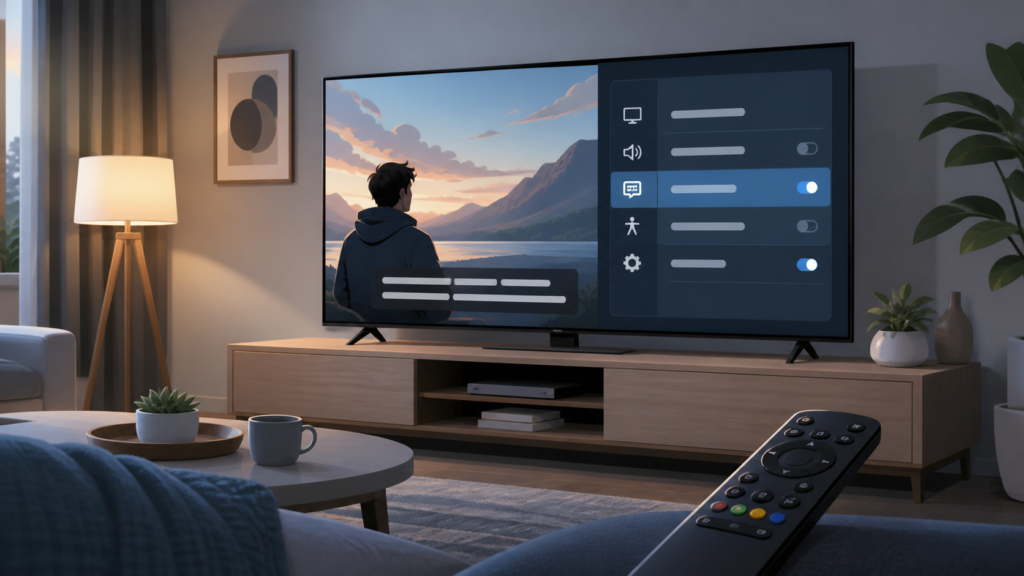
Quick answer: If an IPTV audio track will not change, open the player’s audio menu while the program is playing, confirm that more than one track is actually available, and choose the language or commentary option again. Then restart the player, verify device language settings, and test another program. A player cannot switch to an audio track that the selected stream does not provide.
Audio selection problems are easy to misdiagnose because the remote may change the television’s volume or sound mode instead of the stream’s language track. The steps below distinguish stream availability, player controls, device settings, and output equipment.
Audio track versus audio output
An audio track is the language or commentary stream supplied with a program. Audio output is how the device sends the selected sound to the TV speakers, soundbar, Bluetooth headset, or receiver. Changing PCM, passthrough, Dolby processing, or volume does not select a different language track. Start inside the player’s playback controls.
Some programs provide only one audio track. Others may provide language variants, descriptive audio, or commentary. Availability can change from one program to another and is not a guarantee that every stream supports the same options.
Step 1: Check the current program’s audio menu
Start playback and press OK, Select, or the equivalent button to reveal controls. Look for a speaker, audio, language, or gear icon. If the menu shows one option only, the stream may not contain another track. If it shows several options, select the intended track and allow a few seconds for the player to switch.
Use the audio menu rather than repeatedly pressing a shortcut key. Shortcut behavior differs across players and remotes. On some devices, the same keys adjust volume, open accessibility controls, or move through the channel list.
Step 2: Test another program
Open a second program where you expect a language choice to be available. If switching works there, the first stream likely has a single track or a track with incomplete metadata. If no program changes, focus on the player and device settings.
Write down the exact labels shown in the menu. A label such as “und,” “default,” or “track 1” may indicate that the source has not provided clear language metadata. It does not necessarily mean the audio is broken.
Step 3: Confirm the player and device language settings
Review the player’s preferred audio language if that option exists. Set it to the language you want and save the change. Some players apply the preference only when the next program starts, so stop and reopen the stream after saving.
Check the device’s general language and region settings only when necessary. A device preference may influence default selection, but it cannot create an unavailable track. Avoid changing region settings casually because they can affect app stores, date formats, and other device functions.
Step 4: Restart without losing configuration
Close the IPTV player and reopen it. If the audio menu is still stuck, restart the streaming device from its system menu. This refreshes the playback session and audio renderer. A power cycle may help when the player has resumed from standby with a stale decoder state.
Clear the app cache before clearing all app data. Clearing data can remove settings and require you to complete the authorized setup again. Keep private account information off screenshots and public support channels.
Step 5: Check output equipment separately
If the language label changes but the sound still seems wrong, inspect the output path. Temporarily test the TV’s built-in speakers instead of a soundbar or Bluetooth device. If the selected language is correct through the TV speakers, the issue may involve receiver input mode, Bluetooth profile, HDMI handshake, or audio processing.
Review PCM, passthrough, and surround options according to the capabilities of your equipment. Use a controlled test and record the original setting before changing it. Do not assume that a surround setting changes the program language; it changes how the selected track is decoded or delivered.
Step 6: Update supported software
Install normal updates through the device manufacturer or official app store. Updates can improve decoder compatibility, but they can also reset preferences. After an update, review the audio selection and output settings again. Avoid unofficial modified applications that promise extra tracks or bypass restrictions; they can create security and reliability risks.
It is also worth checking whether the problem follows the device or the program. If the same program selects correctly on another supported device, compare player versions and output settings. If the problem follows the program across devices, the stream metadata or available tracks are more likely to be the cause. This simple comparison can prevent unnecessary changes to a working home network.
When you test, change one variable at a time and return the setting to its original value if it has no effect. A short note of the program, selected track, device, and output method gives support a reproducible starting point. Do not rely on memory after several restarts, because player menus can display different defaults after a session is reopened.
When support is appropriate
Use the IPTV service guide for supported device information and the services page for the normal service context. You can also start from the homepage. A helpful report includes device type, player name and version, the exact audio menu labels, whether another program offers tracks, and whether TV speakers behave differently from an external sound system.
Use the existing WhatsApp contact button or the official Telegram support group. Do not send passwords, private playlist URLs, access tokens, or payment information in public messages. Support should be able to begin with the symptom and device details.
Device-specific checks
Android TV box
Open the playback overlay and select the speaker or language control. Review the player’s preferred audio language, then restart the box from Settings. Test TV speakers if an HDMI receiver is in the path.
Fire TV-style device
Use the playback menu rather than only the remote volume buttons. Review application preferences and restart from the device menu. Compare another program before clearing app data.
Smart TV
Check the app’s audio track selector and the television’s digital sound output menu separately. Test with internal speakers, then reconnect the soundbar or receiver after the track selection is confirmed.
FAQ
Why does the audio menu show only one language?
The selected stream may contain only one audio track, or its metadata may not describe additional tracks. Test another program to compare.
Why does changing audio track not change the sound?
The player may not have applied the selection yet, or the external audio chain may be processing the same output. Restart playback and test the TV speakers.
Does changing HDMI or Dolby settings change language?
No. Those settings affect output and decoding. Language selection happens in the player’s stream menu.
Should I clear all app data?
Use cache clearing and a restart first. Clearing all data can remove configuration and may require authorized setup information again.
Conclusion
Diagnose a stuck IPTV audio track by confirming stream availability, using the player’s audio menu, testing another program, reviewing language preferences, restarting safely, and separating track selection from output processing. Keep private credentials out of support messages and provide only the non-sensitive device details needed for a proper check.


