
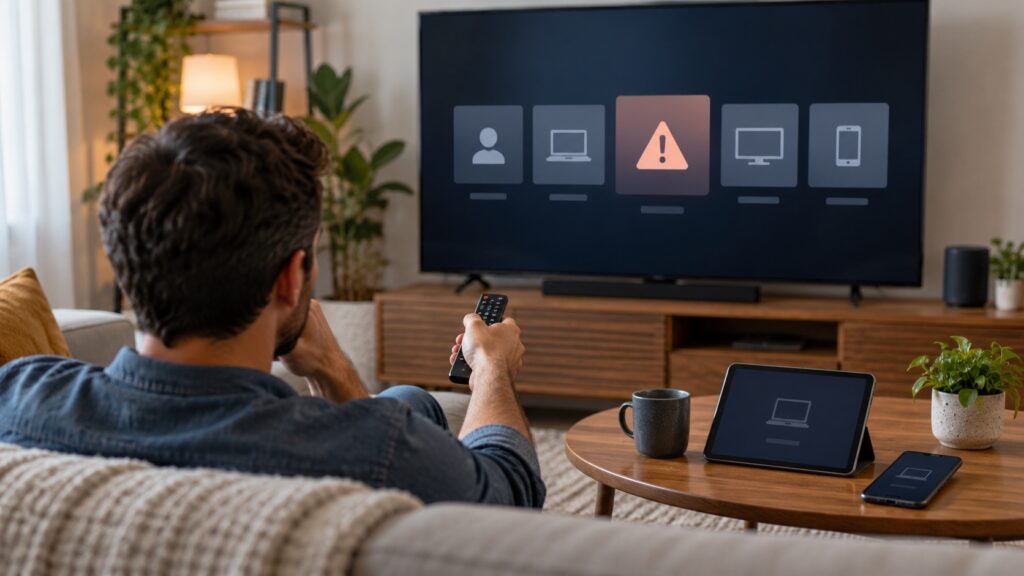
An IPTV “too many connections” error usually means the service could not start another stream under the account’s current connection rules, but the message alone does not prove why. Stop playback on other devices, test one authorized device at a time, and ask the provider to confirm the plan’s simultaneous-stream allowance and any stale session. Do not assume that installing an app on several devices means they can all stream at once.
This guide is for subscribers who see “too many connections,” “maximum connections reached,” or a similar message when opening a channel. Connection limits and session handling are provider- and plan-specific. The steps below help you gather useful evidence without guessing at the plan, sharing passwords, or trying to evade a limit.
Quick checklist
- Stop playback on other TVs, boxes, phones, and tablets that may be using the same account.
- Fully close the player on those devices instead of only returning to the home screen.
- Wait briefly, then retry once on the device that should be active.
- Confirm the exact number of simultaneous streams included in your current plan.
- If the error persists, send support the device, player, time, and redacted error—not your login or complete playlist URL.
Important distinction: a connection limit is not necessarily a limit on how many devices can have the app installed. A service may count active streams, registered devices, sessions, or a combination. Only the provider’s current terms can confirm how its account is configured.
What “too many IPTV connections” can mean
People use “device,” “connection,” and “stream” interchangeably, but they can describe different things. A device is the television, streaming box, or mobile device. A player session is an app communicating with a service. A stream is the content playback that the service delivers. A plan may limit one or more of these, and the provider’s system determines how it counts them.
Some services use an error message when a new playback request exceeds an account limit. Other services may show a generic authorization or playback error. A stale session, a second device still playing, or a plan mismatch are possible explanations, but they are not the only ones. A mistyped login, expired account, network interruption, or service-side incident can produce a superficially similar failure. Treat the wording as a clue, not a definitive diagnosis.
Major streaming services also set simultaneous-playback rules by product and subscription tier, but their specific numbers do not apply to IPTV services. For example, Netflix says its plan determines how many devices can watch at the same time, and YouTube documents plan-specific streaming limits. These are examples of provider-specific rules—not evidence of TVMemberLink or another IPTV plan’s allowance. Check your own current plan details instead.
Why a second screen can trigger an error
If a household starts playback on another television while one stream is already running, the provider may reject the new request if the account’s simultaneous allowance has been reached. This can happen even if the first viewer is in another room and the second television has used the player successfully before. Installing the player or entering account details on a device does not, by itself, confirm that the plan supports concurrent playback on every device.
Playback may also continue after someone thinks they have left the app. Pressing a remote’s home button can move the player into the background without clearly confirming that the stream ended. Behavior varies among apps and devices. For a clean test, use the player’s own stop or exit control where available, then close the app using the device’s normal app controls. Avoid force-stopping system components or deleting app data as a first response.
Some players support picture-in-picture, multi-view, or background playback. Depending on the service and player, these features may make more than one playback request. Do not assume how those requests are counted. Temporarily stop those features for a controlled test, and ask the provider how its plan treats them.
Step-by-step: troubleshoot an IPTV connection-limit message
Step 1: Record the exact message and the moment it appears
Note whether the message appears when opening the app, signing in, loading the channel list, or starting playback. These stages point to different possibilities. Record the date, local time and time zone, device model, operating-system version if available, player name/version, and whether the issue affects one device or several.
Do not include a password, full M3U URL, server address, token, payment details, or an unredacted screenshot in your notes. A complete playlist URL can contain account access information. If a screenshot helps, crop or cover any private identifiers before sending it through an approved private support route.
Step 2: Stop other authorized playback
Ask other household members to stop the service on devices that may be playing. Use the player’s stop or exit option, then close the app normally. Check secondary televisions, mobile devices, browsers, and any app that may be playing in the background. Do not assume that a device is inactive just because its screen is off.
For this test, do not change passwords, delete the playlist, reinstall the player, or switch several settings at once. First change only one variable: stop other playback. Then retry once on the intended device. A controlled test makes it easier to tell whether the issue follows concurrent playback or remains when only one device is active.
Step 3: Allow the provider’s session to clear, then retry once
Some services may take time to recognize that a stream has stopped. The delay depends on the provider’s session handling, network state, and player behavior. There is no universal IPTV wait time. Wait a short interval, make one retry, and note whether the error changes. Repeatedly restarting the stream can create more simultaneous requests or make the result harder to diagnose.
If the message disappears after other playback stops, that is evidence that concurrent use may have been involved. It still does not tell you the exact account limit or whether the first player closed cleanly. Ask the provider to confirm the allowance before promising that another viewer can watch at the same time.
Step 4: Verify the plan and account status with the provider
Check the current written plan details or contact the provider through its official channel. Ask clear questions: How many simultaneous streams are included? Is the limit based on active playback, registered devices, or another rule? Does the plan treat multi-view or background playback differently? Can support see an active session, and what is the approved way to close or reset it?
Do not infer the answer from a marketing page that describes a different package, a reseller’s offer, or another customer’s experience. Terms can vary by plan and may change. TVMemberLink’s service plan information and IPTV service overview are starting points for checking the current offer; confirm the details that apply to your specific account before relying on them.
Step 5: Separate a connection-limit issue from login or network trouble
If the error occurs before the app reaches playback, verify that you are using the correct setup method for that player. Some apps expect one playlist URL; others display separate fields. The login screen and the provider instructions should match. Our IPTV player format guide explains the difference between common setup methods without requiring you to publish your private values.
If ordinary internet access is unstable, resolve that separately. A weak connection can interrupt a session or make playback fail, but it does not prove that the account reached a stream limit. Compare whether other permitted apps work on the same device and network. Our Wi-Fi versus Ethernet guide covers basic device-network checks; change only one network variable at a time.
If the account appears active, only one device is playing, and the exact connection-limit message remains, ask support to check the account-side session. A provider may be able to distinguish a currently active session from a generic login failure. Do not ask a third-party app or unofficial website to inspect your account credentials.
How to tell whether it is a device limit or a simultaneous-stream limit
A device limit usually concerns which devices may be registered or authorized. A simultaneous-stream limit concerns playback happening at the same time. Some providers use both, and their terminology may not be consistent. Ask the provider to define the rule in writing instead of interpreting “connections” as a universal technical term.
A practical way to frame the question is: “Can I install the player on several devices but play on only one at a time, or does the account limit how many devices may be registered?” Then ask a separate question about concurrent viewing: “How many live streams can play simultaneously on this plan?” The answers may differ. Do not treat a successful login on two devices as proof that both can stream simultaneously.
If the plan allows multiple streams, ask whether there are conditions, such as a device-registration process or a household/network rule. Do not assume a provider’s policy is the same as Netflix, YouTube, or another platform. Those services publish their own terms, and their limits are not transferable to an IPTV subscription.
When the error appears even though nobody is watching
If all household playback has stopped, there are several safe checks before reinstalling anything. Confirm the date and time of the last stream, restart the player once through its normal menu, and retest on one device. If the device has a built-in app restart option, use the manufacturer’s documented method. Avoid clearing storage or deleting account details unless the provider or device documentation recommends that specific step.
Next, contact support and ask whether the account has an active session or a device registration that needs attention. Give support the non-sensitive facts and request an account-side check. Do not send the credentials in a public group, and do not let an unknown helper take remote control of your device. If support requires verification, use the approved private process and confirm who is receiving the information.
If the provider says no session is active, document that answer and ask what exact next test they recommend. If the error appears across multiple devices and networks, the issue may not be local to one TV. If it appears on one player only, compare the player version and setup method before changing the account. A short timeline of observations is more useful than repeatedly reinstalling apps without recording what changed.
Security and privacy: avoid risky “connection limit fixes”
Be cautious of sites or messages that offer to “unlock” extra connections by requesting your playlist, password, portal URL, or remote stream address. These values can grant access to an account. Do not paste them into a public checker, social post, support forum, or unknown app. Use only the provider’s official channel for account verification.
Do not try to evade a plan limit by rotating identities, sharing another person’s login, cloning a device identifier, or routing streams through an unauthorized restreaming service. Such workarounds can violate service terms, expose account data, or make it impossible for support to diagnose the original issue. If you need more simultaneous viewing, ask whether the provider offers a plan or add-on that explicitly supports it, and review the current terms before making a change.
For a concise support report, include:
- Order reference or account identifier through the provider’s approved private channel only.
- Device model, operating system, player name, and player version.
- Exact redacted error text and the step where it appeared.
- Approximate time and time zone of the test.
- Whether other devices were actively playing, and what happened after playback stopped.
- Whether the same device can reach other permitted internet services.
- The one or two troubleshooting steps already tried.
Common mistakes that make the diagnosis harder
- Assuming “one connection” means one installed device. Ask whether the provider means registered devices, active streams, or both.
- Retrying continuously. Repeated starts can obscure the timeline and may create extra session requests.
- Only pressing Home. The app may remain open or continue playback in the background; use its normal stop/exit control.
- Deleting the playlist first. That may remove setup information without clearing an account-side session.
- Changing Wi-Fi and credentials together. If the error changes, you will not know which change mattered.
- Comparing another provider’s allowance. Connection rules are plan-specific; another company’s limit is not evidence for yours.
- Posting a full error screenshot. Screens can reveal usernames, URLs, tokens, or other account details.
- Buying a different plan based on a guess. Confirm the exact limit and terms with the provider before paying for an upgrade.
Frequently asked questions
What does “too many connections” mean on IPTV?
It can indicate that the provider rejected a new playback request because of an account or plan rule, but the wording is not standardized. Stop other playback, retry once, and ask the provider to confirm the plan’s simultaneous-stream and device-registration rules.
Can I install IPTV on multiple devices but watch on one?
That depends on the service. Some providers distinguish installed or registered devices from streams playing at the same time; others may apply different limits. Check your current plan terms or ask support to explain the rule for your account.
Why does the error remain after I close the app?
The provider or player may not have cleared the session immediately, or another device may still be playing. Stop playback everywhere, wait briefly, and make one controlled retry. If the error remains, ask the provider to check the account-side session rather than repeatedly reinstalling the player.
Does IPTV multi-view use more than one connection?
It may, depending on the app and service, because multi-view can request multiple streams. The counting rule is provider-specific. Stop multi-view for a single-device test and ask the provider how that feature is treated on your plan.
Should I send support my M3U URL to prove the connection error?
No. A complete M3U URL may contain account access information. Send the device and player details, time, exact error with private values removed, and the test steps instead. Use the provider’s approved private verification method only if account lookup requires it.
Will restarting my router fix a maximum-connections error?
Usually, a router restart cannot confirm or change an account’s plan allowance. First test whether only one device is playing and verify the account rule. Check the network separately only if the device also has general internet problems.
Conclusion: confirm the rule before changing devices or plans
An IPTV “too many connections” error is a reason to check playback and plan rules—not to guess at the number of devices allowed. Stop other streams, close the player normally, wait briefly, retry once, and ask the provider to confirm whether the account limit covers active streams, registered devices, or both. If the message continues with one device active, provide a redacted support report and request an account-side session check.
For general setup questions, review the IPTV service overview and support centre. To ask about a current account or plan, use WhatsApp support or the official Telegram group. Do not include passwords, payment information, full playlist URLs, or tokens in the first message.
Sources: Netflix Help: account already in use; YouTube Help: streaming limits; DIRECTV Support: streaming-limit errors. These sources illustrate provider-specific rules for their own products and do not establish the limits of an IPTV plan.
