
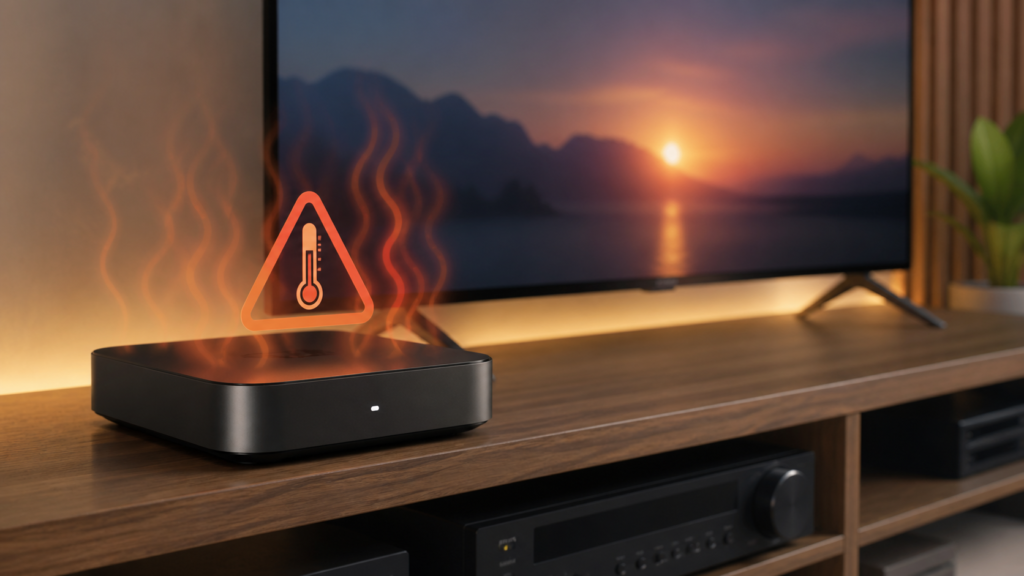
Quick answer: If an IPTV streaming device is overheating, stop stressing it, improve airflow, check the power and placement, and allow it to cool before testing again. Heat can accompany slow menus, app closures, picture problems, or unexpected restarts, but it does not prove a single cause. Do not cover vents, place the device on soft fabric, or continue repeated playback tests while it is hot.
Recognize heat-related symptoms
A warm device is not automatically unsafe, and different hardware has different operating conditions. More useful signs include unusually hot surfaces, slow menus, repeated app closures, visual glitches, network dropouts, or restarts that occur after the device has been running. Record when the symptom appears and whether it happens in the IPTV player, another permitted app, or the device menu.
Note the device model, location, power adapter, nearby equipment, and whether the problem occurs after standby or long use. Do not open the device or touch internal components as a first troubleshooting step. Keep account credentials and private access information out of support messages.
Improve airflow safely
Check placement
Place the streaming box on a hard, stable surface with clear space around its vents. Do not put it inside a tightly closed cabinet, under a cushion, on a bed, or beneath another heat-producing device. Keep cables from blocking ventilation openings. If the device is stacked with a receiver or console, separate the equipment for a controlled comparison.
Remove dust from external vents using the manufacturer’s documented method. Avoid forcing debris into the housing or spraying liquid into openings. Do not cover the box with decorative material while it is running. A simple placement change is reversible and can show whether surrounding airflow affects the symptom.
Check power and surroundings
Use the power adapter and cable intended for the device. Inspect for visible damage without opening the adapter. Keep the box away from direct sunlight, radiators, and other heat sources. If the device or adapter smells burnt, shows damage, or becomes dangerously hot, stop using it and seek qualified hardware guidance rather than continuing software tests.
Cool down before testing
Close the player normally and allow the device to cool in a ventilated location. Do not place a hot device in a refrigerator or apply moisture. Once it has returned to a normal condition, test the device briefly with the same action that previously failed. Record whether the problem returns quickly or only after extended use.
Close unused applications and review storage if the device is generally slow. Low storage and background tasks can create extra work, but they are separate from temperature and should be recorded separately. Do not install unknown “cooler” apps or modified players; they may add background activity and permissions.
Separate device heat from service symptoms
Test one other permitted app or the device menu while keeping the placement unchanged. If multiple apps and menus become slow, focus on the device environment. If only one player behaves differently, record the player version and exact stage. If the issue follows a particular display or power setup, report that comparison rather than guessing at the cause.
Check whether the device is performing a supported system update. Do not interrupt an update or remove power while it is running. Keep the device on its normal update path and avoid repeated factory resets. A reset can erase settings without repairing a physical cooling or power problem.
Checklist
- Stop repeated playback tests if the device is unusually hot.
- Record the symptom, duration, placement, and power setup.
- Move the device to a hard surface with clear airflow.
- Separate it from other heat-producing equipment.
- Inspect external vents and cables safely.
- Allow the device to cool before testing.
- Close unused apps and check storage warnings.
- Compare one other permitted app or device menu.
- Stop and seek hardware guidance if there is damage or a burning smell.
When to request help
The [IPTV service page](https://tvmemberlink.com/iptv-service/) and [services page](https://tvmemberlink.com/services/) provide service context. You can also use the official [Telegram support group](https://t.me/iptvresellertml). Share device model, placement, power setup, symptom timing, cooling result, and comparison app. Never send passwords or private tokens.
FAQ
Can overheating make an IPTV app close?
Heat can accompany slow or unstable device behavior, but app closure has other possible causes. Compare the device menu and another permitted app after cooling.
Should I put the streaming box in a refrigerator?
No. Moisture and thermal shock can damage electronics. Move it to a ventilated room-temperature location and follow hardware guidance.
Can a cleaner app reduce heat?
Unknown cleaner apps may add background activity and permissions. Use built-in app and storage controls instead.
When should I stop using the device?
Stop if there is visible damage, a burning smell, abnormal power behavior, or dangerously high heat. Seek qualified hardware guidance.
Conclusion
An overheating IPTV device should be treated as a hardware-environment concern first. Improve airflow, verify power and placement, allow cooling, and compare symptoms without repeatedly stressing the device. For general information, start with the [TVMemberLink home page](https://tvmemberlink.com/) and share only safe technical details.
Use safe, documented hardware guidance for every inspection.
A clear support note should distinguish heat from other symptoms: state whether the device cooled normally, whether menus were slow before playback, whether another app showed the same behavior, and whether improved airflow changed the result. This avoids treating a single restart as proof of a hardware diagnosis.
Do not continue a long viewing session just to reproduce a heat symptom. A short, controlled retest after the device cools is safer and gives more useful evidence than repeated stress. If the device repeatedly becomes unusually hot in a clear, ventilated location, stop using it and seek qualified hardware support.
Use manufacturer documentation for any fan, stand, power-supply, or cleaning recommendation. Do not improvise a power adapter or modify the enclosure. A visible heat symptom deserves careful hardware handling even when the immediate IPTV problem appears to disappear after a restart.
Keep the device accessible enough to inspect its vents and indicator lights. A closed cabinet can hide a recurring condition, while an open and stable placement makes the result easier to observe. Record the placement before and after the change.
Do not judge temperature by a single brief touch. Record recurring behavior such as a restart after extended playback, a slowdown inside the device menu, or a power adapter that becomes unusually hot. These observations are more useful than an unverified temperature number. If the device has manufacturer-provided diagnostics, use those instructions and keep any warning wording.
After improving airflow, test only long enough to see whether the original symptom returns. A cooling change that helps one day does not prove that all future failures are heat-related. Keep software, connection, and storage observations separate so the final support report remains clear.
