
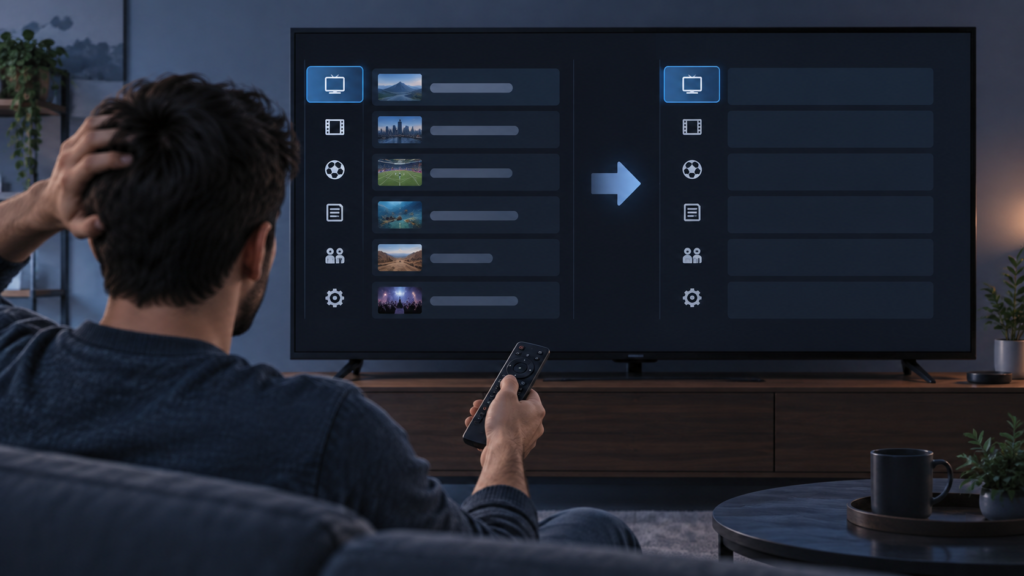
Quick answer: If an IPTV channel list becomes blank after changing category on Android TV, first return to the original category, clear any search or favourites filter, and reopen the list after it finishes loading. Compare one other category and one playback route before clearing app data. A blank filtered view does not automatically mean that channels or the account are unavailable.
IPTV Channel List Blank After Category Switch on Android TV: Safe Checks
Category navigation changes the list query and the screen state at the same time. A temporary blank view can occur when the app is still loading, a filter remains active, a category contains no visible items, or the interface has not redrawn after a quick remote action. The goal is to separate a local list state from a wider connection problem.
Define what is blank
Check whether the category heading, loading indicator, search field, and back control are visible. If the heading changes but rows do not, wait briefly. If the entire screen is empty, press back once and reopen the channel list. Note whether the original category still works. Avoid switching profiles or credentials while testing a navigation symptom.
Step 1: Remove filters and restore the list
Clear search text, favourites-only mode, hidden categories, and any language or content filter. Return to all channels or the default category if available. Use directional keys to confirm the focus is on the category selector rather than an invisible overlay. Then wait for rows to finish loading before selecting another category.
Test a small navigation sequence
Open category A, wait, select category B, wait, and return to A. Do not press category buttons repeatedly. If rows appear after the controlled sequence, the earlier blank state was likely a temporary interface or loading state.
Step 2: Reopen the app safely
Exit to the Android TV home screen and reopen the IPTV app. If the issue persists, force stop it once from system settings. Avoid clearing storage or reinstalling before you know the setup details. See the IPTV setup guide and IPTV service overview for context.
Step 3: Compare categories and playback
Test another category and open one visible channel. If playback works from search or favourites but the category list is blank, focus on the category filter and app state. If every list and playback route is blank, check the device connection and record the time.
Checklist
- Record the category that becomes blank.
- Clear search, favourites, and language filters.
- Return to the default or all-channels view.
- Wait between category selections.
- Reopen the app before clearing data.
- Compare another category and playback route.
- Record device and app version.
FAQ
Does a blank category mean the service is offline?
No. It may be a filter, loading, or local redraw issue.
Should I clear app storage?
Not first. Use reversible list and reopen checks.
What should I send support?
Share category, device, app version, and redacted evidence through the official Telegram group or WhatsApp button, never passwords.
Conclusion
Clear filters, restore the default view, wait between selections, and compare playback before resetting setup. Visit the services page or home page.
Make the test repeatable
Keep the original setting recorded before making a temporary change. For a blank category, record the filter and the point at which rows disappear. For small EPG text, compare standard and compact layouts while keeping the same television picture mode. For audio sync, compare default TV speakers with the external output and note the approximate offset. One variable at a time makes the result easier to understand.
When the problem returns, do not immediately rebuild the account or send private credentials. Share the device model, app version, affected view or channel, network or audio output when relevant, and the exact steps that reproduce the symptom. Redact passwords, tokens, private URLs, payment details, and personal information from screenshots.
A normal close and reopen is usually a safer first recovery than clearing storage. If a temporary test helps, repeat it after ordinary use to see whether the result persists. If it does not help, restore the previous value and continue with the next comparison. The goal is to protect a working setup while narrowing the cause.
Safe support handoff
Use the website WhatsApp button or the official Telegram support group. Explain what remains functional as well as what fails. For example, mention whether playback works when a category is blank, whether other Firestick apps show readable text, or whether audio sync is normal through another output. This evidence is more useful than an unverified claim about a service-wide outage.
Review the setup guide, IPTV service page, and services page for the next supported step. Return to the home page for navigation.
Use controlled comparisons
Repeat the smallest relevant test after a brief pause. A one-time delay during loading is different from a problem that returns every time a category changes, a guide opens, or the television wakes. Record the exact boundary instead of describing everything as a general service failure. This keeps the investigation focused and avoids unnecessary changes.
For channel navigation, test the default list, one category, and one visible channel. For guide readability, compare grid and list views while keeping the same screen-fit mode. For lip-sync, compare the television speakers with the soundbar or receiver and note whether the offset affects other apps. These comparisons show whether the cause belongs to the app, the display, the audio path, or the source.
Use normal recovery steps first: close an overlay, reopen the view, restart the application, or restart the device once. Do not clear app storage, reinstall, change credentials, or create extra profiles until the evidence points there and the setup details are safely available. A destructive reset can erase useful information and create a second problem.
When reporting, include the device model, app version, affected view or channel, approximate time, and what worked normally. Redact usernames, passwords, tokens, private URLs, payment information, and personal details from screenshots. Support can evaluate a clear symptom without receiving sensitive access information.
Next step
Use the website WhatsApp button or the official Telegram group for follow-up. Review the setup guide, IPTV service page, and services page for navigation. The home page provides the main entry point.
Keep evidence private and useful
Before contacting support, write a short sequence of actions and the result after each action. Say whether playback, the guide, navigation, or audio remains functional. Mention the exact device and app version, but remove credentials and private addresses from any screenshot. This evidence is enough to decide the next safe check.
Do not make several unrelated changes at once. If a temporary setting helps, repeat the same test after ordinary use and restore unrelated settings. If the symptom returns, use the same steps so the result can be compared. A measured report is more useful than repeated resets, and it protects the working parts of the setup.
Use the website WhatsApp button or the official Telegram support route for a private handoff. Review the setup and service pages for the appropriate next step, and do not promise a particular cause until the comparison supports it.
