
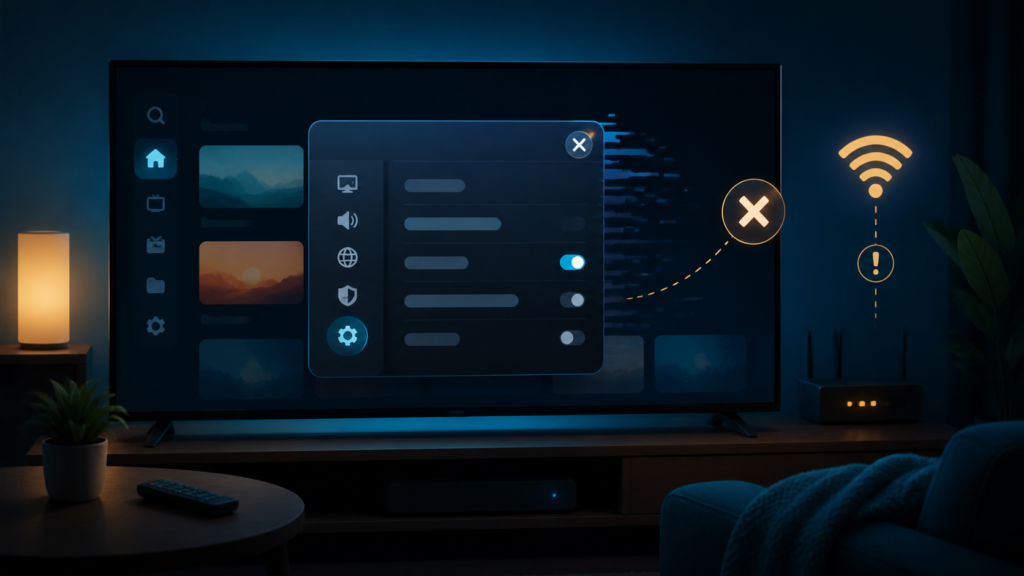
Quick answer: If an IPTV app crashes when opening settings, first note whether playback and the home screen still work. Then open one smaller settings section, compare another supported device, check storage and application updates, and use documented recovery steps without repeatedly clearing data or sharing credentials.
IPTV App Crashes When Opening Settings: Safe Player Checks
An IPTV app that crashes when opening settings may be encountering a specific menu, a damaged local preference, limited device storage, an application version issue, or a temporary player state. Playback can continue normally because the settings screen follows a different code path. A controlled comparison helps identify the boundary without changing the service account.
Identify the exact crash boundary
First open the player home screen and confirm whether ordinary navigation works. Then open the settings icon once and observe whether the app closes, returns to the home screen, freezes, or shows an error. These outcomes are different. Record the last visible menu label and whether audio or video was active.
- The app closes immediately after selecting settings.
- Only one settings category causes the crash.
- The screen freezes but the device remains responsive.
- The app returns to its home screen.
- Settings open after the player is restarted once.
Do not repeatedly open the same menu while diagnosing. Repeated attempts can remove the timing context and make it harder to tell whether the problem is consistent.
Step 1: Compare the player and device home screen
Exit playback using the documented back or home control, then test the device home screen and one other supported application. If the entire device is slow or unresponsive, focus on device state before the IPTV player. If only the IPTV settings menu fails, keep the investigation within the player and its local preferences.
Restart the player once using the platform’s normal close procedure. Reopen it and test the settings menu one time. If it works after the restart, record that result but do not call it a permanent fix. A temporary state can return after standby, playback, or another menu action.
Step 2: Test one settings section at a time
If the top-level settings screen opens, do not scroll rapidly through every option. Open one category, wait for it to render, and then return. Categories can load different controls, guide data, audio options, or display preferences. A crash limited to one category is more specific than a crash on the complete settings page.
Record the category name and the action that triggered the failure. Avoid guessing hidden menu paths or applying undocumented key combinations. Device interfaces vary, and an unsupported shortcut can create a second problem unrelated to the original crash.
Why a local preference can matter
Players often store choices for language, audio output, display mode, guide appearance, or startup behavior. If one stored preference is unreadable or incompatible with a current version, the related menu may fail while playback remains available. This is a possibility, not a diagnosis. Preserve the original state before attempting a documented reset.
Step 3: Check storage and application version
Review available device storage through the operating system’s normal settings. A nearly full device may have difficulty writing temporary data or updating local preferences. Do not delete personal files or unrelated applications simply to test the theory. Remove only known temporary data using documented controls.
Note the player version and device software version before making updates. Install updates through the platform’s official store or the manufacturer’s documented method. After an update, test the same settings category and record whether the behavior changed. An update can also reset preferences, so note the new state.
Step 4: Review device permissions and display mode
Check only permissions that the platform or player documentation identifies as relevant. Avoid granting unrelated access. If the settings menu opens an on-screen keyboard, guide panel, or display preview before crashing, note that visible transition. The trigger may be a particular interface element rather than the entire player.
Check whether an unusual screen zoom, accessibility overlay, or display mode affects the settings screen. Use one standard display mode for a comparison and restore the preferred setting after the test. Do not change resolution, audio output, and accessibility settings together because the result will be difficult to interpret.
Step 5: Compare another supported device
When practical, open the same player area on another supported device using the same approved setup. If settings work there, compare player version, device software, storage, display mode, and local preferences. If the same category crashes across devices, report the shared menu and the exact visible transition.
This comparison does not prove that one component is responsible. It narrows the next safe test. Never include passwords, activation codes, private list URLs, or tokens in a technical report. Device model, player version, menu name, and reproducible action are enough to begin.
Step 6: Use recovery steps carefully
If the player documents a cache-clear action, understand what it removes before using it. Cache clearing may remove temporary guide or interface data while preserving other settings, but behavior differs by platform. Test the same menu after one action. Avoid uninstalling or resetting the whole device before the symptom is documented.
If the app cannot open settings at all, keep playback and network settings unchanged while reporting the issue. Support may need the player version and the exact menu trigger. A full reset can create pairing, sign-in, and display work without explaining why the settings screen failed.
Practical troubleshooting checklist
- Record the exact settings menu that fails.
- Compare the player with the device home screen.
- Restart the player once normally.
- Open one settings category at a time.
- Check storage and software versions.
- Review only documented permissions and display modes.
- Compare another supported device.
- Use one recovery action and record the result.
When to request help
Review the IPTV service page and services page. The official Telegram support group is available. Share device model, player version, menu path, crash behavior, storage state, and exact error. Never send passwords or private tokens.
FAQ
Why does playback work while settings crash?
Playback and settings can use different interface and preference paths. Record the exact menu and compare one category at a time.
Should I reinstall the player immediately?
No. First record the version, storage state, menu trigger, and behavior after one normal restart.
What if only one settings category crashes?
Report that category and its visible transition. A selective failure is different from a player that cannot open any settings.
What should support receive?
Device, player version, menu path, storage state, restart result, and error wording are useful. Keep credentials private.
Conclusion
An IPTV app crashing when opening settings should be isolated across the exact menu, local preferences, storage, software version, display state, device behavior, and recovery action. Make one controlled change at a time. Start with the TVMemberLink home page for general information.
Before a second attempt, note whether the settings icon was opened from live playback, the guide, or the home screen. The entry point can change which interface state is active. Record the visible menu label, then close the player normally if possible so a future test can compare the same path.
