
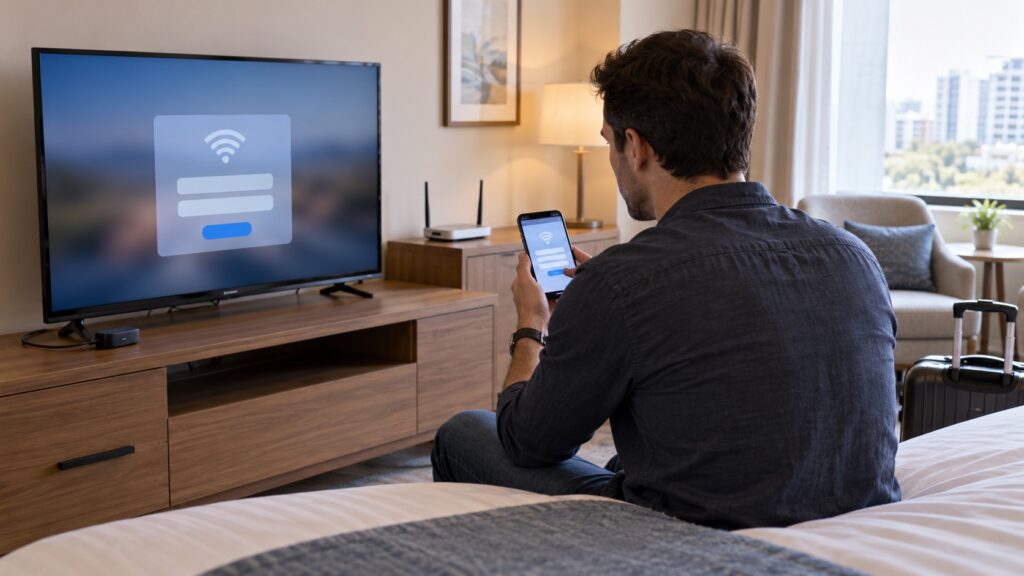
If IPTV is not working on hotel Wi-Fi, first confirm that the streaming device—not only your phone—has completed the hotel’s guest-network sign-in. Hotel Wi-Fi can require a browser portal, limit device registration, isolate clients, or restrict streaming traffic. Use this safe checklist to identify which case applies, reconnect through the hotel’s approved process, and decide when to ask the front desk or your network provider for help.
This guide is for travelers using an IPTV player on a Fire TV, Android TV box, smart TV, or another streaming device. It does not promise that every hotel network permits streaming. Hotel rules, device support, Wi-Fi design, and account terms vary; follow the property’s acceptable-use policy and ask staff to authorize a device when required. Do not try to evade a network restriction.
Quick answer: connect the streaming device to the exact guest Wi-Fi network, complete any sign-in or terms page on that device, and verify ordinary internet access before opening the player. If the device has no usable browser or the property blocks it, ask the hotel whether it can register the device or offer an approved alternative. A phone being online does not prove that the TV box has been authenticated.
Table of contents
- Why hotel Wi-Fi behaves differently
- Identify the failure before changing settings
- A safe hotel Wi-Fi troubleshooting checklist
- Device and portal compatibility
- When to stop troubleshooting and ask for help
- Frequently asked questions
Why IPTV can fail on hotel Wi-Fi even when your phone works
A hotel guest network is not always an open internet connection as soon as a device joins its Wi-Fi name. Some networks hold new devices behind a captive portal until a guest accepts terms, enters a room or booking detail, or completes another property-defined step. The Internet Engineering Task Force describes a captive portal as a network that limits communication until the user satisfies site-specific conditions in its captive portal architecture. The portal’s exact login process is controlled by the network operator, not by your IPTV player.
Authentication may be associated with each device or session. Therefore, signing in to the hotel network on a phone may not sign in a TV, streaming stick, or set-top box. The device can display “connected” while apps still cannot reach their servers. A hotel may also set a time limit, a per-device policy, or an acceptable-use rule that affects streaming. Those conditions can change during a stay or after a device reconnects.
Another issue is that many televisions and streaming boxes have limited browser controls. A captive portal may expect a web page to open, but the device may not provide a full browser or may not display the page correctly. Google’s published Wi-Fi guidance specifically says Chromecast and Google TV streaming devices do not support networks that require captive-portal connection. This is a device-specific compatibility limitation, not evidence that an IPTV account or playlist is broken.
Finally, hotel Wi-Fi can separate guest devices from one another, apply bandwidth management, or block certain traffic. A successful speed test does not prove that a specific app endpoint is reachable, and a failed player login does not by itself prove the hotel is blocking the service. Start by confirming the network state and the stage where the failure appears.
Identify the failure before changing settings
Write down what you can observe without exposing credentials: the streaming-device model, operating-system version if visible, player name, hotel Wi-Fi name, time of the test, and the exact on-screen error after removing any private account details. Note whether the player fails to open, shows a network error, rejects a login, loads categories but not video, or starts and then buffers. These are different symptoms and should not be treated as one generic “hotel Wi-Fi problem.”
Use a simple three-part test
- Network association: does the streaming device show that it joined the correct guest Wi-Fi name?
- Internet access: can that same device reach an ordinary permitted web page or complete the hotel’s sign-in screen?
- Player behavior: after internet access is confirmed, does the IPTV player show a login, playlist, playback, or buffering-specific error?
Keep the result for each stage. If the network sign-in page never appears, focus on the captive portal and device compatibility. If the portal confirms access but no apps work, ask the hotel whether the device is registered and whether its guest network has restrictions. If ordinary internet works but only the player fails, perform the app-level checks in the device guide or contact the service provider with a redacted error report.
A safe hotel Wi-Fi troubleshooting checklist
1. Confirm the exact network and connection status
Open the device’s network settings and confirm the selected Wi-Fi name character by character. Hotels may advertise similarly named networks for guests, staff, events, or different buildings. Use only the guest network and password or access method supplied by the property. If the device shows “connected, no internet” or a similar status, do not move on to playlist troubleshooting yet.
If the network list shows both 2.4 GHz and 5 GHz names, choose the network the property recommends and that the device supports. Do not assume that the faster-looking band is always the right one; signal strength, device capability, distance, and access-point configuration all matter. For a general comparison after you have permission and working access, see our guide to Wi-Fi versus Ethernet for IPTV.
2. Complete the portal on the streaming device if it supports it
After joining the guest network, look for a system notification or sign-in prompt. If the device includes a supported browser, open it and follow the hotel’s own portal instructions. Enter only the information requested by the property on its legitimate sign-in page. Do not ignore a certificate warning, install an unknown profile, or enter payment details into a page that you cannot verify.
If the portal opens on your phone but not on the TV device, that difference is useful evidence. It may mean the phone authenticated itself while the streaming device remains unauthenticated. It does not mean you should copy private device identifiers into an unofficial website or use a third-party “portal unlock” app. Ask hotel staff how they support TVs and streaming devices on the guest network.
3. Ask the property about device registration
Some properties have a documented process for registering a smart TV or streaming device; others do not allow it. Contact the front desk or the hotel’s Wi-Fi support number and explain the device type and the message shown. Ask whether a device-registration option, room network, or approved wired connection is available. Follow the property’s exact instructions. Do not spoof a phone’s hardware address or impersonate another guest device: that can break access for both devices and may violate the network’s terms.
When staff register a device, ask whether the authorization applies for the rest of the stay and whether it must be repeated after checkout or a network reset. Do not ask staff to share another guest’s access details. If the hotel cannot support the device, use an alternative that the property explicitly permits, such as your own mobile hotspot if your plan and local conditions allow it.
4. Forget and rejoin only when the hotel confirms it is safe
If the portal was interrupted or the device is stuck on an old session, forgetting the network and joining again can trigger a fresh sign-in. Before doing that, make sure you still have the hotel’s current Wi-Fi name and access details. On a device that requires hotel registration, a reconnect may create a new session and require staff assistance. Avoid repeatedly disconnecting and reconnecting; record one attempt and its result.
Do not reset the streaming device to factory settings just because the hotel portal did not open. A factory reset can remove apps and preferences while leaving the hotel-side restriction unchanged. Start with the reversible network checks and ask the hotel before trying a step that could remove account settings or create a new registration request.
5. Verify internet access using a permitted basic test
Once the hotel portal reports success, test a normal website or built-in connection check on the streaming device if available. The goal is not to benchmark the hotel’s service; it is to confirm that the device can reach the public internet at all. If a browser redirects back to the portal, the session may not have completed. If websites open but the player cannot connect, record that distinction and move to the player-specific step.
Do not infer a guaranteed IPTV result from a speed-test number. A test may use a nearby server and a different route from the player’s service. Hotel congestion, traffic management, Wi-Fi signal, and remote-service availability can all affect real playback. If you use a mobile hotspot, check your plan’s data limits and the carrier’s current terms before a long viewing session.
6. Separate network access from player or account errors
When ordinary internet works on the same device, reopen the player once and note the exact stage of failure. Check that the player is current through the device’s normal app store or update process, and confirm that the selected setup method matches the instructions you were given. Do not post a full playlist URL, password, token, or server address in a public support group.
If the app accepts the login but playback fails, test one permitted item and record whether the problem affects every item or only one. If only the IPTV player fails while other apps work, a hotel network policy or a service-side issue may be involved; the player error alone cannot distinguish them. Use the provider’s secure support route and share the device model, time, app version, and a redacted error—not credentials. Our playlist-not-loading troubleshooting guide can help separate an app or setup symptom from a network sign-in issue.
Device and portal compatibility: what travelers should expect
There is no universal rule that every IPTV device can sign in to every hotel network. A smart TV with a browser, a streaming stick with a limited interface, an Android TV box, and a casting device can behave differently. Even devices in the same product family can differ by model and software. Check the device manufacturer’s current help information—such as Amazon’s Fire TV setup and troubleshooting resources—and the hotel’s current network instructions rather than relying on an old menu path from a different model.
Google’s support documentation is explicit about its Chromecast and Google TV streaming devices: networks requiring a captive-portal connection are not supported. If that describes your device and hotel, repeatedly restarting it or re-entering the same Wi-Fi password is unlikely to change the compatibility limit. Ask the property for a supported alternative or use another permitted connection. For Fire TV and other platforms, check the current model-specific setup guidance; do not assume support based on a different device’s behavior.
Before travel, you can reduce surprises by verifying that the device boots, the player opens, and the normal setup instructions are available on a network you control. Our travel IPTV setup checklist, device setup information, and device guide index can help you review the relevant platform steps before departure. If your travel device is an Android TV box, use its Android TV box setup guide as a separate preparation step. This preparation cannot predict the hotel’s policy, but it can reveal a home setup problem before you are away from your usual support options.
What not to do on a hotel guest network
- Do not attempt to bypass a login, access control, device limit, or streaming restriction.
- Do not clone or spoof another device’s network identity to reuse its session.
- Do not install unknown certificates, profiles, apps, or “unlock” utilities to force a portal open.
- Do not disable device security or dismiss certificate errors to access a login page.
- Do not send your password, complete M3U URL, or access token in a public message or screenshot.
- Do not factory-reset the device or alter DNS settings before you know whether the network itself is authenticated.
- Do not assume a successful connection on a phone authorizes every device in the room.
Captive portals are part of the network operator’s access policy. The IETF’s captive-portal identification standard explains that a network can signal that a device is behind a portal and must satisfy the portal’s conditions. If the property says a device is unsupported or streaming is not allowed, stop there and ask what alternatives are permitted.
When to stop troubleshooting and ask for help
Contact the hotel when the portal does not appear, the sign-in page loops, the network says the device is already registered, the connection drops after a short period, or the guest policy is unclear. Give staff the room number only through the hotel’s normal private channel and describe the device without sharing your IPTV account credentials. Ask whether the property can see a registration state or has a separate support procedure.
Contact your device manufacturer when the device cannot display or complete a portal that the hotel confirms should work on that model. Contact the IPTV app or subscription provider only after you have confirmed ordinary internet access on the same device and can describe the exact player-stage error. A useful report contains the model, player version, approximate local time and time zone, whether the portal completed, whether other permitted apps work, and the error text with private values removed.
For TVMemberLink support, use the existing support centre or the WhatsApp and Telegram contacts below. Never send a password, payment data, full playlist address, or private stream link in the first message. Support can help interpret the setup stage, but cannot change hotel network rules or guarantee that a third-party guest network will permit playback.
Frequently asked questions
Why does IPTV work on my phone but not on hotel Wi-Fi TV?
The phone and streaming device may be treated as separate network clients. The phone may have completed the captive-portal sign-in while the TV device has not, or the hotel may restrict device registration or streaming. Confirm internet access on the TV device itself and ask the hotel whether it supports that device.
Can I use hotel Wi-Fi if it asks for a room number in a browser?
Only if the property permits your device and provides a supported way to complete the portal. A phone’s browser login may authorize only the phone. Ask the front desk whether a TV or streaming stick can be registered; do not try to bypass the portal or reuse another guest’s session.
Does Chromecast or Google TV work on captive-portal hotel Wi-Fi?
Google’s support guidance says Chromecast and Google TV streaming devices do not support networks that require a captive-portal connection. Check the current documentation for your exact model. If the hotel uses that sign-in method, ask for an approved alternative rather than repeatedly changing player settings.
Will a VPN fix IPTV on hotel Wi-Fi?
A VPN does not complete a hotel’s sign-in or device-registration step, and using one may be restricted by the property. Do not use a VPN to evade access controls. First complete the approved portal, verify internet access, and ask hotel staff about any policy or connectivity limitation.
Should I send support my M3U link to troubleshoot hotel Wi-Fi?
No. A complete playlist URL can contain access information. Share the device and player model, the step that fails, the approximate time, and a redacted error message. If a provider needs to verify an account, use only its approved private support method and never post the details publicly.
What if the hotel portal works but the IPTV player still buffers?
First confirm that ordinary internet works on the same streaming device. Then note whether every app is affected, whether the player fails at login or playback, and whether the issue is continuous or intermittent. Hotel congestion, network policy, Wi-Fi signal, and service availability are distinct possibilities; ask the hotel and provider with the non-sensitive test results.
Conclusion: diagnose the hotel network before changing IPTV settings
If IPTV is not working on hotel Wi-Fi, test in order: join the correct guest network, complete the portal on the streaming device if supported, verify ordinary internet access on that device, and only then investigate the player. A phone being online is not enough to prove that a TV box is authorized. Some devices do not support captive-portal networks, and hotel policy may restrict streaming or device registration.
Ask the property for an approved solution when its portal or device rules are the obstacle. If internet access is confirmed but the player alone fails, use the relevant device guidance and contact support with a redacted, step-by-step description. To discuss setup, use WhatsApp support or the official Telegram group; do not include passwords or complete playlist links.
Sources: IETF RFC 8952, Captive Portal Architecture; IETF RFC 8910, Captive-Portal Identification; Google streaming-device Wi-Fi troubleshooting.
