
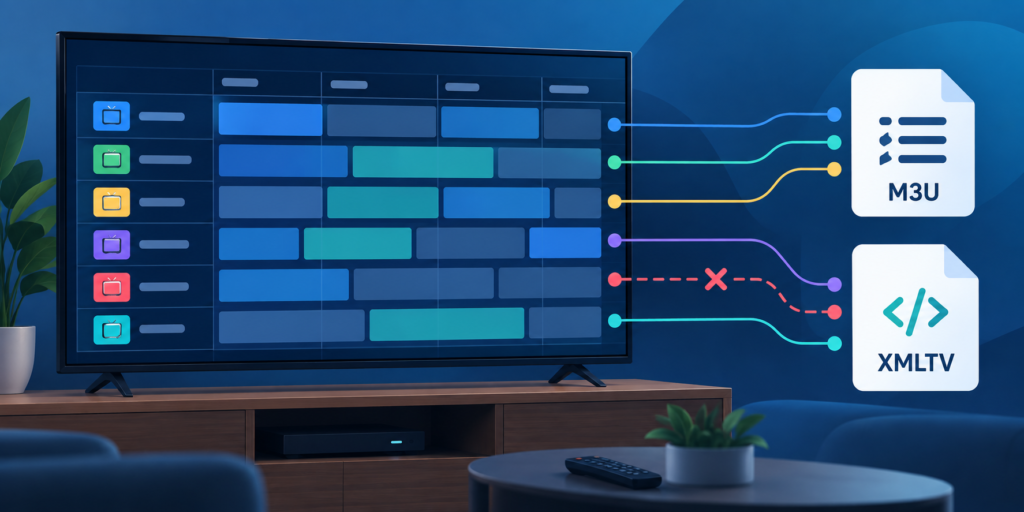
Quick answer: If your Android TV player loads an M3U channel list but shows an empty or incorrect XMLTV guide, compare the playlist’s tvg-id for one channel with the XMLTV file’s <channel id="..."> and the channel value on its programme entries. Matching visible channel names are not enough. First confirm that the playlist and guide are both current, that the player has imported the intended guide source, and that the mismatch affects the same channel after a controlled refresh. Keep account URLs and files private while you check; a local format inspection cannot verify a remote subscription or play a stream.
What this guide covers, and what it does not
This guide is for a person who is allowed to use an M3U playlist and an XMLTV programme guide in an Android TV player. The symptom is specific: channels appear and may play, but programme information is missing, assigned to the wrong channel, or inconsistent with the listing. It is not a guide to obtaining channel lists from unverified sources, bypassing service restrictions, or making an unauthorized guide. Player menus and mapping rules differ, so use the exact documentation for your installed player when a menu label here is unfamiliar.
An M3U playlist describes entries a player can present. XMLTV is a separate guide-data format. Kodi’s official IPTV Simple Client documentation identifies M3U as a live-TV source and XMLTV as an EPG source; its implementation documentation describes tvg-id as the identifier used to map a channel to XMLTV data. That is a useful, verifiable model, not a promise that every Android TV player uses the same matching algorithm. Consult the Kodi IPTV Simple Client documentation and the project’s technical description for the underlying example.
If the guide is off by one or two hours for every channel, a time-zone or programme-time issue is more likely than a single channel-ID mismatch. If the app does not load any channels at all, start with the playlist rather than XMLTV. If only one programme title is stale while neighboring entries are correct, the problem may be upstream schedule data. Separating those symptoms first prevents an unnecessary rewrite of a playlist that already maps correctly.
Understand the three values that have to line up
A common extended M3U entry looks like #EXTINF:-1 tvg-id="sample-one.example",Sample One, followed by a stream location on the next line. In an XMLTV document, a channel may be declared as <channel id="sample-one.example">, and a programme may refer to it with <programme channel="sample-one.example" ...>. These are placeholders, not real station identifiers or usable stream addresses. The XMLTV project’s format definition shows the channel and programme relationship.
The visible name “Sample One” is for people. The identifier is for matching data. An app may support a fallback based on name, an internal channel number, or a manual mapping setting, but you should not rely on any fallback without checking that player’s behavior. A playlist can contain the right display name with a blank or different tvg-id. An XMLTV file can declare a matching channel but contain no current programme entries for it. Both files can be structurally valid while the resulting guide remains empty.
It helps to think of three questions rather than one: Does the M3U entry have the intended identifier? Does the XMLTV file declare that identifier? Do programme entries refer to that XMLTV channel within the time window the player is showing? A fourth question is whether the player has actually imported the same versions of the two files you are examining. A local copy may be older than the copy cached by the app, so a perfect textual match in a downloaded file is not proof of the active configuration.
Before changing anything, record a small reproducible example
Choose one affected channel and one unaffected channel, if there is one. Note the player name and version, Android TV version if readily available, the time and time zone shown on the device, whether the playlist came from a file or an authorized URL, and whether the guide source is a file or URL. Record the precise symptom: an empty row, wrong programme title, wrong channel row, or a schedule shifted by time. Do not share a full playlist URL, XMLTV URL, username, password, token, or account ID in a public forum or support group.
Make a copy of the original settings or file before editing. A screenshot of a guide row can help, but crop out account menus and private URLs. If you need to send a short M3U or XML example to support, replace the actual stream address and account-specific fields with placeholders while preserving the punctuation around tvg-id and channel. This preserves the evidence needed for a mapping question without exposing access details. Keep the original file in a private location so that you can revert a test immediately.
Do not test several things at once. Changing the playlist, guide URL, player cache, time zone, and network in one attempt makes the result impossible to interpret. The fastest safe route is a single-channel comparison, followed by a single controlled refresh and a new observation. If the app offers a manual mapping view, inspect it before editing a provider-supplied file. A manual association may already explain why the displayed result differs from the raw identifiers.
Step 1: confirm the playlist and guide are the intended pair
Open the player’s source or playlist settings and verify which M3U source is active. Some players keep old profiles after a new profile is added. The guide may be attached to one profile while the television screen is showing another. Note only the source label or a redacted hostname; do not copy full account links into a note that may be shared. Where the app supports more than one XMLTV source, check which source is assigned to the active playlist.
Check the provider’s private instructions for the current pairing. The same provider can offer separate guides for different regions, channel packages, or editions of a list. A guide from an unrelated provider can be valid XMLTV and still have no identifiers in common with your playlist. Do not add random public guides as a workaround. They may not cover your authorized channels, and their schedule data or usage permissions may be unclear.
Confirm that both sources updated recently by using the player’s documented refresh controls. If an authorized provider gives a file, compare its modification date with your saved copy. If you only have a remote URL, ask the provider whether the guide endpoint is available rather than handing the URL to an unknown “validator.” A format checker can inspect a local file; it cannot certify the freshness or entitlement of a remote account. If the guide never imports, troubleshoot access and file structure before investigating individual IDs.
Step 2: inspect a local XMLTV file without uploading it
If you have an authorized local XMLTV file that you can safely inspect, use the XMLTV EPG Inspector in your browser to look at its structural information. The tool is designed for local inspection; it does not need your account password or a remote stream. Check whether the selected file contains channel entries, whether programme entries exist, and whether the example channel identifier is present. Its output is a snapshot of that local file only. It does not establish that the player imported that exact file or that a remote feed is reachable today.
For a manual check, search the private local XMLTV copy for the chosen channel’s exact id. Then search for a programme referencing that ID. Compare characters exactly, including periods, dashes, case, and suffixes. “sample-one.example” and “sample_one.example” are different strings. A channel declaration without any relevant programme entries can create an empty guide even when the M3U mapping is correct. Conversely, a programme referencing a missing channel declaration indicates a problem inside the guide itself.
Inspect the programme dates and the device’s present time. XMLTV programme entries carry start and stop values, often with time-zone information. Do not strip or rewrite an offset because a row looks wrong; first determine whether the row is absent, assigned to another channel, or merely displayed at a different hour. Our EPG time-zone troubleshooting guide addresses the latter symptom. A global clock shift and a per-channel identifier mismatch require different fixes.
Step 3: inspect the matching M3U entry
If you have a permitted local M3U copy, inspect the chosen channel entry with the M3U Playlist Analyzer. Look for its tvg-id field and compare it with the XMLTV channel ID, character for character. Do not submit a credential-bearing playlist to a third-party service just to compare text. The analyzer does not stream a channel, validate the provider’s server, or decide whether your subscription is active. It helps you understand the local list’s structure.
A blank tvg-id is a useful finding, but it does not establish that every player will show an empty guide: some applications offer name matching or manual assignment. A duplicate identifier on two different playlist entries may cause unexpected sharing of guide information, depending on the player. A display name that includes a region or quality suffix is not automatically the XMLTV identifier. Distinguish the machine-readable field from the human-readable label before editing either one.
Keep the stream URL out of a support screenshot. In many formats, sensitive values live in the line after #EXTINF, not in the visible channel title. If the only playlist you have is a live URL, use the provider’s approved instructions to obtain or verify a safe local sample; do not use our tools to fetch the remote URL. The tools hub explains which utilities process local input and what each one can and cannot verify.
Step 4: make a small comparison table
For your own private notes, create four columns: displayed channel name, M3U tvg-id, XMLTV channel id, and count or presence of current programme entries. Fill them for only two or three channels. This small table is usually more informative than scrolling through an entire playlist. It can reveal a consistent regional suffix difference, a blank playlist field, a duplicated ID, or a guide that simply contains no current entries for the affected channel.
If every affected row has the same mismatch pattern, do not immediately run a bulk text replacement. Identifiers are not decorative: an unreviewed replacement can map distinct channels together. Ask the authorized provider whether the playlist and guide are a mismatched pair or whether the player offers a safe mapping setting. If you maintain your own permitted local data, edit a copy of one channel first, import that copy into a test profile if the player allows it, and confirm the outcome. Keep the original configuration available for rollback.
If only one channel differs and the rest of the guide works, capture that one redacted comparison for support. If the guide’s current programmes refer to an ID not declared in its own channel list, send the provider the two relevant identifiers and programme time, not the whole file. If all channels fail after a player update, investigate import and cache behavior before treating every identifier as wrong. Pattern recognition is the point of the table; it prevents broad edits in response to a narrow symptom.
Step 5: refresh the player in a controlled way
After confirming the sources and their structure, use the application’s normal playlist and guide refresh controls. Write down when the refresh completed and whether the chosen guide row changed. Some apps cache guide data, and a refresh of the channel list may not refresh the EPG. Look for separate controls in the player’s own documentation. Avoid clearing all application data as a first step: that may delete saved profiles, local preferences, or other information while leaving the original mismatch unresolved.
If the player allows a temporary test profile, use it with the same authorized sources to see whether an old mapping or cache is involved. A new profile is a diagnostic comparison, not a reason to exceed a provider’s connection limits. Stop playback in the old profile first where the plan permits only one connection. If the new profile maps correctly while the old one does not, a stale local setting may be implicated; if both fail identically, look again at source pairing and raw data.
Do not assume a device restart proves anything on its own. A restart can clear transient state, but it does not correct a persistent mismatch in M3U and XMLTV. Likewise, changing Wi-Fi, DNS, or VPN settings is not a targeted first response when the channel list and guide files have already loaded. Network changes become relevant when the guide cannot be downloaded at all. For broader loading problems, use the playback and buffering support path only when the symptom actually concerns playback.
Common observations and what each one suggests
Channels play, but only some guide rows are blank
Compare one working row with one blank row. If the working channel’s tvg-id matches the XMLTV ID and has current programmes while the blank channel lacks one of those pieces, the mapping or coverage difference is meaningful. It is still possible that the player uses manual assignments, so verify that no override exists. Ask the provider for the correct guide/playlist pair if the issue appears in its supplied files; avoid inventing an ID based on a display name.
Guide data appears under the wrong channel
Check whether two playlist entries share an identifier or whether a manual mapping points one channel to another. Compare the XMLTV programme’s channel attribute, not just the programme title. Record the mismatch and test one controlled correction only if you maintain the files and have a rollback copy. If the provider controls the list, send a concise redacted example to its private support channel. Do not publish a screenshot that reveals stream locations.
Every channel is shifted by the same amount of time
That pattern points away from an individual ID mismatch. Check the Android TV clock, time zone, guide-source time stamps, and any EPG offset setting in the player. An offset is not a universal fix: applying one when the XMLTV data is already correct can move every programme to the wrong hour. First identify whether the source time and local display time are being interpreted consistently, then adjust only the setting the player documents for that issue.
No guide entries load at all
Verify the player is set to import the intended guide source and that the source is accessible under your authorized arrangement. Check for an XML parse error or an empty local file. If the provider supplies both files, ask whether its guide endpoint is currently available. A zero-channel XMLTV file, a malformed XML document, or a wrong profile selection will not be fixed by changing one tvg-id. Handle the broad import failure before channel-level mapping.
A cautious path for provider-supplied versus self-managed data
When your service provider supplies the M3U and XMLTV sources, treat them as a pair under that provider’s control. You can inspect copies and report a mismatch, but do not silently redistribute a modified list or present another person’s guide as your own. Give support the affected channel label, redacted IDs, time of observation, player version, and whether the problem happens after a normal refresh. Ask for the current authorized guide source or a correction to the provider’s mapping.
When you manage both files for content you are entitled to distribute, validate your edit on a private test copy. Preserve the original data, change one ID, check that the guide still parses, and confirm the targeted channel maps without altering a neighbor. Verify that programme references still point to a declared XMLTV channel. This method is slower than global search-and-replace but protects against collisions. Document what changed so the next guide update does not accidentally revert the correction.
In either case, avoid solving a mapping issue by downloading a random third-party playlist or guide. That changes rights, data quality, naming conventions, and privacy assumptions all at once. A diagnosis should isolate the cause in the current authorized setup. If the player offers documented manual mapping, it may be an appropriate local workaround, but record it: a later provider update or reimport can interact with that override.
What to send to support, and what to keep private
A useful support message says: “On Android TV, channel A plays but its guide is blank after a guide refresh at [local time]. The redacted M3U tvg-id is [ID A], while the XMLTV channel declaration for the expected guide is [ID B]. Another channel maps correctly. I am using [player name/version] with the provider’s current playlist and guide.” If programme entries are absent, say that instead of calling it a mismatch. If every channel is shifted, report the time difference and device zone.
Do not post full M3U or EPG URLs, account names, passwords, tokens, purchase receipts, or unredacted screenshots in a public Telegram group. Use a private official support path for account-specific details and ask which information is actually needed. A provider should be able to start with redacted identifiers and the observable symptom. For TVMemberLink questions, review our service overview and supported device guidance, then contact the team through the existing WhatsApp contact or official Telegram group. Keep secrets out of group posts.
If the question is whether a plan includes a particular guide feed, ask before purchasing or changing plans. The plans page is the appropriate place to review current commercial options; this article does not claim that any specific channel, guide, or feature is available on every account. Setup documentation describes a troubleshooting method, not a guarantee of content availability or a substitute for a provider’s current service terms.
Frequently asked questions
Do the visible channel names have to match exactly?
Not necessarily. Many players use an explicit identifier such as the M3U tvg-id and XMLTV channel id; some offer name fallback or manual mapping. Consult your player’s own rules. A matching display name alone does not prove that the guide is correctly linked.
Can the XMLTV inspector tell me whether my live guide URL works?
No. It inspects a local file in the browser and can help describe its structure. It does not authenticate to a provider, request a remote feed, prove the player imported that file, or guarantee that the provider will continue publishing current programmes. Use the provider’s approved support path for a remote endpoint issue.
Why does one guide row work while another stays empty?
The affected channel might have a different identifier, no corresponding XMLTV channel declaration, no current programme entries, or a player-specific mapping override. Compare one working and one failing entry using the same four-column method. This narrows the question without changing the entire playlist.
Should I edit a provider-supplied M3U file myself?
Inspecting a permitted copy can be useful, but the provider may replace its contents on the next update. Ask it to correct a supplied mismatch when possible. If you test a local edit in a player that supports it, keep a backup, change one entry, and stay within the service terms.
Is a wrong EPG time the same problem as a mismatched ID?
No. A wrong time often involves programme timestamps, time-zone interpretation, the device clock, or a player offset. An ID mismatch concerns which guide channel is assigned to which playlist entry. A consistent shift across all rows is a reason to check time settings first.
Can a guide mismatch stop a stream from playing?
Usually the guide and playback are distinct inputs in an M3U/XMLTV setup, but player behavior varies. A channel may play with no guide, and a populated guide does not prove that playback will succeed. Diagnose the exact symptom: list loading, stream playback, and programme display are separate layers.
Final checklist and next step
- Confirm that the active playlist and XMLTV source are the intended authorized pair.
- Record one affected and one unaffected channel, the player version, local time, and exact symptom.
- Compare the M3U
tvg-id, XMLTVchannel id, and programmechannelvalue without exposing stream URLs. - Check that current programme entries exist for the intended channel.
- Use the local XMLTV inspector and playlist analyzer only for files you are permitted to inspect.
- Refresh playlist and guide separately where the player documents separate controls.
- Change one setting or test one copied entry at a time; retain a rollback copy.
- Report a redacted, reproducible mismatch to the authorized provider when it controls the files.
An empty Android TV guide is not proof that the playlist or subscription has failed. The reliable route is to identify the layer that differs: source selection, file structure, channel identification, programme coverage, time interpretation, or player cache. Once you can point to a specific mismatch with a redacted example, you can make one safe local test or ask the provider for a targeted correction. That approach protects your account and avoids disruptive changes to a working channel setup.
