
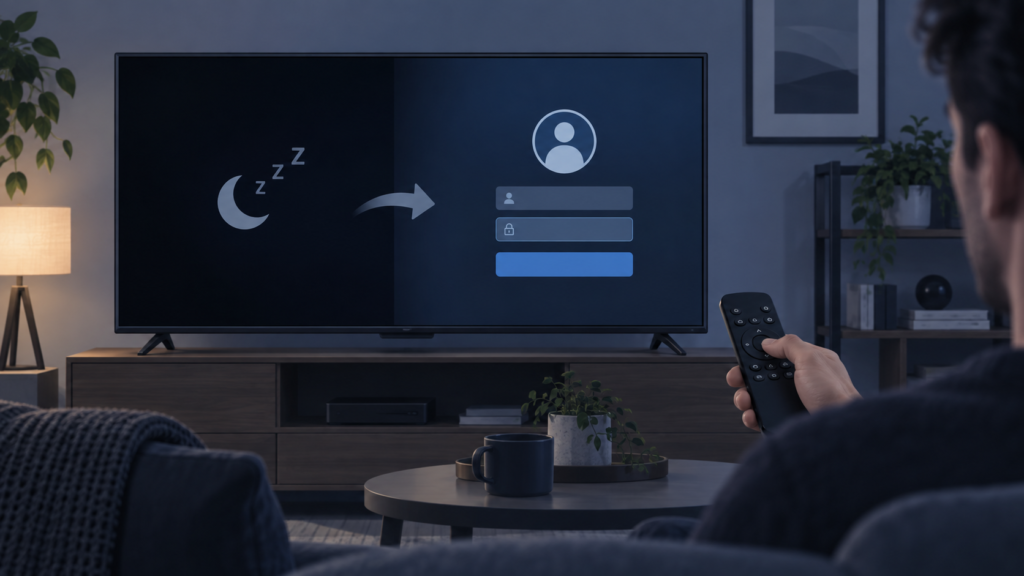
Quick answer: If an IPTV app asks you to log in again after Smart TV standby, first determine whether the app is losing a temporary session, reopening a different profile, or being closed by the TV power lifecycle. Test a normal app close and a standby wake separately. Do not repeatedly re-enter credentials or send them to support.
IPTV App Logs Out After Standby on Smart TV: Safe Checks
Standby is not always the same as a full restart. A Smart TV may suspend the app, clear memory, update software, or reopen the last application differently after waking. If the IPTV app shows a login screen after standby, the issue may be local session persistence rather than an invalid account.
Define the event
Note whether the app asks for a full login, shows the wrong profile, or simply needs a short reload. Test the app after leaving it open, after closing it normally, and after standby. If only one event causes the login prompt, record that boundary. Check whether other apps also lose their state.
Step 1: Confirm profile and device time
Check that the same app profile is selected after wake. Verify automatic date and time because an incorrect clock can affect session validity. Do not change passwords during this test. If the app returns to the correct profile after a normal reopen but not after standby, focus on Smart TV memory and power settings.
Step 2: Review app and TV updates
Check whether the Smart TV or IPTV app updated recently. Updates can change how suspended applications keep local state. Review storage and permissions without clearing data. Close unused apps and perform one normal TV restart. The setup guide offers general device checks, while the IPTV service page covers navigation.
Step 3: Compare standby and full reboot
Wake the TV from standby and record the result. Then, later, perform one full reboot and record whether the login screen behaves differently. If only standby causes the prompt, the app may be suspended or the TV may be clearing temporary memory. If every app asks for state again, investigate the television rather than the IPTV account.
Checklist
- Record whether the issue is login, profile, or reload.
- Compare normal close, standby, and full reboot.
- Confirm profile and automatic date/time.
- Check recent TV or app updates.
- Review storage without clearing data.
- Test another app after standby.
- Record model, app version, and exact event.
FAQ
Does a standby logout prove the account is invalid?
No. It may be a local session or Smart TV lifecycle issue.
Should I send my password to support?
No. Support needs device, app, profile, and timing details, not credentials.
Where can I ask for help?
Use the site’s WhatsApp button or official Telegram group with redacted evidence.
Conclusion
Separate standby from reboot, confirm profile and clock, check updates and storage, and compare another app. This keeps troubleshooting safe and focused. Visit the services page or home page.
Separate session loss from a full logout
After waking the television, check whether the app truly asks for credentials or only reloads the player. Confirm the active profile and whether the main channel list is still present. A TV that closes an app from memory can show a startup screen without proving that the account has been rejected.
Compare one standby wake with one normal app close and one full reboot. Keep the same network and profile. If only standby causes the prompt, record that boundary and review TV memory, app updates, and power-saving behaviour. If other apps also lose their state, focus on the Smart TV lifecycle rather than the IPTV account.
Never send a password to support. Share device model, app version, profile type, approximate standby duration, and redacted screenshots through the site WhatsApp button or official Telegram group.
Make the result repeatable
Repeat the smallest relevant test after a short pause and keep the same device, profile, and network. A symptom that appears once during loading should be described differently from a symptom that survives a normal reopen. The goal is not to make a confident guess from one screen; it is to find the boundary where the behaviour changes.
For guide timing issues, compare the device clock with a trusted local clock and note the exact offset. For remote delay, test the OK button outside the IPTV app and observe whether directional movement is also affected. For standby sessions, compare wake from standby with a full reboot and note whether other apps lose their state. These controlled comparisons are more useful than repeated resets.
Keep normal settings recorded before a temporary change. If a picture mode, time zone, input method, or app option is changed for testing, restore it when the test is complete unless the result clearly improves the experience. Avoid clearing app storage, reinstalling, or changing credentials until the local evidence points to that action. Those steps can remove useful state and create an additional setup problem.
When contacting support, include the product page or setup context only as needed, plus the device model, app version, affected screen, approximate time, and exact reproduction sequence. Redact usernames, passwords, access URLs, tokens, payment details, and personal contact information from screenshots. Support can investigate a display, remote, guide, or session symptom without receiving sensitive credentials.
Safe support handoff
Use the WhatsApp button already shown on the website or the official Telegram support group. Explain what worked and what did not: for example, whether another channel worked, whether another app accepted OK, or whether the app stayed logged in after a normal close. A concise, factual report helps avoid duplicate tests and keeps the account configuration protected.
After the cause is isolated, review the setup guide, IPTV service page, and services page for the next supported step. Return to the home page for navigation.
Do not treat a temporary improvement as proof of a permanent fix. Recheck once after normal use and note whether the same symptom returns. A clear timeline, one controlled variable, and redacted evidence are enough for a safe support handoff. The service team should never need a password, payment detail, or private access token to understand these device-level symptoms.
Keep the next step proportional to the evidence: refresh a guide for a guide-only issue, test a remote for an input-only issue, and compare power states for a standby-only session issue. This approach protects working settings while making the problem easier to resolve.
Keep a short record of the successful and unsuccessful checks, including the order in which they were performed. This prevents repeating disruptive steps and gives support a clear history. If the symptom is resolved, keep the normal configuration and avoid changing unrelated settings. If it returns, use the same sequence so the result can be compared accurately.
These troubleshooting notes are intended for device and interface diagnosis. They do not replace the service terms or any local legal requirements, and they do not promise indexing or a specific playback result. Use the published support routes for follow-up.
