
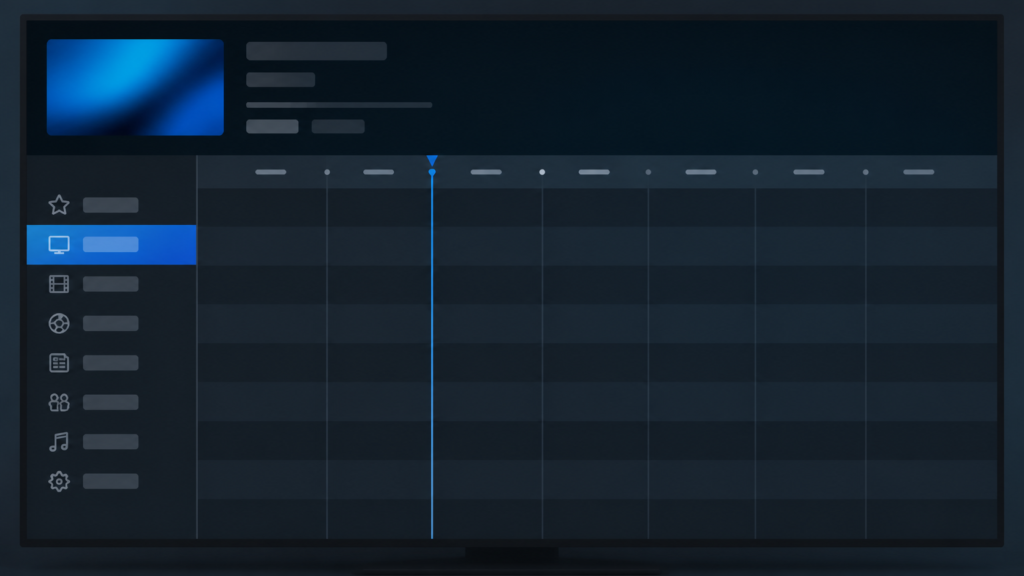
Quick answer: If IPTV EPG rows become empty after you switch categories, compare the same guide view before and after one category change, then check whether only descriptions are missing or the entire row is blank. Reopen the guide once, verify the device clock and player version, and compare another category or supported player. Do not repeatedly refresh, delete local data, or replace the source list before recording the original behavior.
IPTV EPG Empty Rows After Changing Category: Safe Guide Checks
An electronic program guide can show a channel row, a title, a description, and a time range as separate interface elements. After switching categories, one or more of those elements may appear empty while playback still works. The visible result may come from a guide view, local interface state, metadata timing, or a player-specific display rule. This article provides a controlled way to isolate the symptom without inventing claims about data coverage or service performance.
Define what “empty” means
Before changing anything, identify whether the row itself is missing, the row is visible but has no title, the title appears without a description, or the time fields are blank. Capture two or three examples and note the category. A precise description helps distinguish missing metadata from a layout or focus issue.
Check whether the same channel plays normally from the channel list. If playback works but guide text is empty, the symptom is likely limited to the guide display or its data view. If the channel also disappears from the list, record that separately. Do not combine several symptoms into one conclusion.
Step 1: Compare categories without repeated refreshes
Open the guide, select one category, and wait for the visible rows to settle. Note the first few labels and whether titles or descriptions appear. Move to a second category once and wait again. If only one category has empty rows, record that selective behavior. If every category becomes empty after the switch, record the global behavior.
Repeatedly pressing category buttons can queue interface commands and make the guide appear inconsistent. Use one selection at a time. If the guide has a loading indicator, wait for the normal completion instead of leaving the screen immediately.
Step 2: Check guide view and sorting controls
Some players offer list, grid, timeline, or compact guide views. If the player documents more than one view, compare the same category in two views. A compact view may show only labels while a timeline view expects program descriptions. Do not assume an empty field is an error until you know which fields that view is designed to show.
Review documented category filters, hidden groups, and sorting controls. Change one control only if its effect is clear, then return to the same category and compare. Record the original setting so it can be restored. Avoid renaming or deleting categories during diagnosis.
Step 3: Check date, time, and guide range
Verify that the Android TV box, Smart TV, or streaming device displays the correct date, time, and time zone using its normal system settings. A guide may show fewer populated rows when the device clock is far from the expected time. This check does not prove that the clock caused the display, but it is a useful boundary.
Compare the current guide period with a later or earlier period if the player exposes that control. Record whether blank rows occur only in one time range. Do not repeatedly jump across dates, because a large sequence of requests can make the guide harder to compare.
Step 4: Reopen the guide once
Exit the guide normally, return to playback or the player home screen, and open the guide once more. Check the same category and the same rows. If the text returns after reopening, record the persistence result. If the rows remain empty, continue with a player and device comparison.
Use a documented guide refresh only once. Wait for it to finish and compare the original category. Repeated refreshes can change the timing and may remove a useful record of the initial state.
Step 5: Compare another player or device
When practical, compare the same approved setup in another supported player or device. Use the same category and similar time range. If the second player has populated rows, record the application version and guide view. If both show the same empty rows, report the shared category and examples rather than changing lists repeatedly.
A comparison is not proof of a single cause. Players can format or cache guide data differently. It is evidence about where the behavior can be reproduced. Keep private URLs, activation codes, and login data out of screenshots and support messages.
Step 6: Review software and local state
Record the device software and player versions. Install updates through official platform paths only, then repeat the same category test. If the player documents a cache-clear option, understand whether it removes guide preferences, favorites, or account setup before using it. A full reset is not an appropriate first response to empty guide rows.
Practical checklist
- Define which guide fields are empty.
- Confirm whether playback still works.
- Compare two categories once.
- Record global or selective behavior.
- Compare documented guide views.
- Check filters and sorting without deleting data.
- Verify device date, time, and time zone.
- Exit and reopen the guide once.
- Run one documented refresh if needed.
- Compare another supported player safely.
When to request help
Review the IPTV setup guidance, the IPTV service page, and the services page. Use the official Telegram support channel with device, player version, category, guide view, example rows, clock state, refresh result, and comparison result. Do not send passwords, tokens, payment information, or private playlist URLs.
FAQ
Why are titles missing but channel playback works?
Guide text and playback can be separate interface elements. Compare another category and view before changing local data.
Should I refresh the EPG repeatedly?
No. Record the original behavior, run one documented refresh, wait, and compare the same category.
Why does another guide view show text?
Views may expose different metadata fields or formatting. Record which view displays which fields.
What should support receive?
Share device, player, category, examples, view, clock state, refresh result, and comparison result. Keep credentials private.
Conclusion
IPTV EPG empty rows after changing category should be isolated across metadata fields, guide views, filters, device time, refresh behavior, software, and player comparison. Use one controlled check at a time. Start with the TVMemberLink home page.
For a useful support record, list three visible categories in order, state which fields are empty, reopen the guide, and repeat the same observation. Mention whether the issue affects only one device or one player view. This evidence is more useful than repeatedly replacing a playlist without knowing which change affected the guide.
Keep the original setup unchanged until the comparison is complete. If a documented reset is eventually required, record the original category behavior first and understand what preferences the reset removes. Never include private access credentials in a screenshot or group message.
