
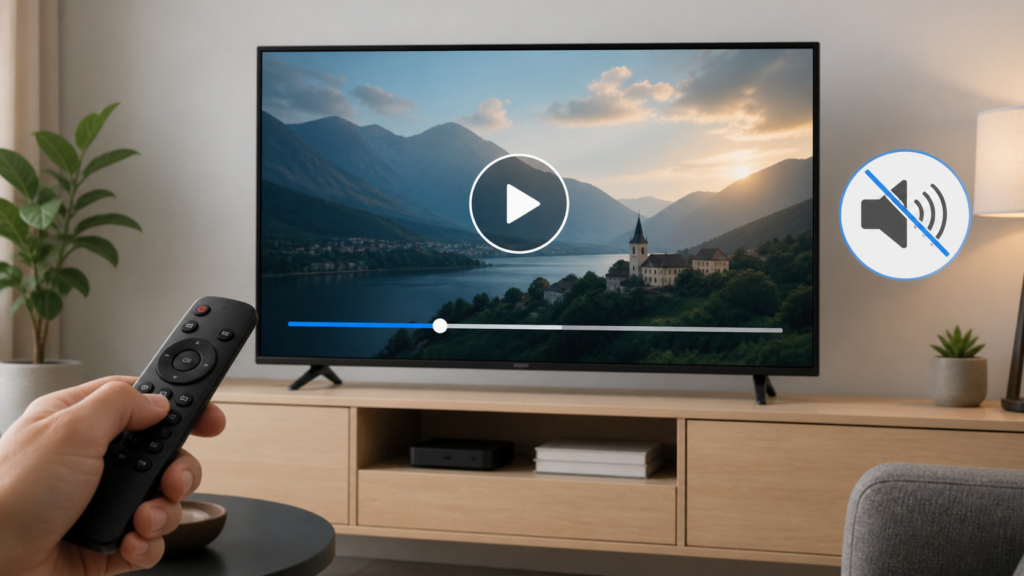
Quick answer: If an IPTV stream is silent after you pause and resume on a Smart TV, compare the same program before and after one normal pause, then test another channel or application. Check mute state, volume path, audio output, Bluetooth or soundbar routing, and whether the player has an audio-track control. Change one setting at a time and avoid claiming a provider-wide audio fault from one resume event.
IPTV Sound Muted After Pause and Resume on Smart TV: Safe Checks
A stream that has sound before pausing but is silent after resuming can involve the player’s audio state, the television output route, a Bluetooth or soundbar connection, or the specific content item. It can also be a temporary interface state. The safest approach is to reproduce the symptom once, compare a second item, and record what returns the sound. This guide focuses on observable checks and avoids unsupported claims about channels, performance, or account status.
Describe the exact audio symptom
First decide whether the picture resumes while audio is silent, whether both picture and audio remain paused, or whether the player returns to a list. Check the television volume indicator and whether a mute symbol appears. Also note whether the silence affects only the IPTV player or a normal television application.
Do not press pause and play repeatedly. Delayed commands can leave a player in an uncertain state. Press play once, wait for the picture to stabilize, and listen for a normal audio response. If sound returns after leaving and reopening the same item, record that as a local resume observation rather than proof of a permanent fault.
Step 1: Check mute and volume paths
Use the television remote to check mute and volume once. If a soundbar, receiver, or Bluetooth headset is connected, identify which device is currently selected in the television’s documented audio-output menu. A picture can appear normally while sound is routed to a different output.
Play a short clip in another installed application. If the other application is also silent, investigate the television output path before changing IPTV settings. If other audio works and only the resumed IPTV item is silent, keep the investigation inside the player and compare another item.
Step 2: Compare another channel or item
Use the player’s normal channel list and open a second approved item. Do not rapidly switch through many items. If the second item has sound, note whether the problem is limited to the original item or to the pause state. If every item is silent after the resume, continue with output and player-state checks.
Compare live playback, the guide, and any preview screen only if the player documents those views. A preview may use a different audio path from full-screen playback. Record the view and the exact point at which sound disappears.
Step 3: Check the player audio control
Open the player’s documented audio menu and check mute, volume, and audio-track controls. Some players remember a separate volume or track state. Restore only an obviously incorrect setting, then return to the same item and test once.
Do not assume an empty audio-track menu means the service has no sound. The control may appear only after playback starts, or it may vary by player. Record what the interface actually shows. Avoid changing several tracks and output modes together because that makes comparison difficult.
Step 4: Review external audio devices
If sound uses Bluetooth headphones, a soundbar, or an AV receiver, check the connection status and documented input selection. Test the television speakers if the device provides a safe output selector. Disconnecting a paired device may change the whole household audio setup, so use the normal menu and note the original state.
If audio returns through the television speakers but not the soundbar, the resume event may have exposed an output-handshake issue. This is a useful boundary for support, but it does not identify a single cause. Restore the preferred output after the comparison.
Step 5: Restart in a controlled order
Exit the player normally, return to the Smart TV home screen, and reopen it once. If the platform offers a normal restart, use that rather than disconnecting power repeatedly. Test the same item and the same output path after the restart.
Record whether sound is present before pausing and absent only after resuming. If the symptom no longer appears, document that result and avoid unnecessary resets. If it persists, record the player version, television model, output device, and exact sequence.
Step 6: Consider updates and local state
Check the player and television software versions through official menus. If an update is available, follow the platform’s standard procedure and repeat the same controlled test. Do not install an unknown modified application as a troubleshooting step.
Use cache-clear or reset actions only when documented and only after understanding what local preferences they remove. A reset can erase favorites, output choices, and setup information. It is not the first response to a single pause-and-resume audio event.
Practical checklist
- State whether picture resumes while sound is silent.
- Check mute and volume once.
- Test another ordinary application.
- Open one second IPTV item.
- Check documented player audio controls.
- Identify the active audio output.
- Compare television speakers and external audio safely.
- Exit and reopen the player once.
- Record versions and exact timing.
- Keep credentials and private links confidential.
When to request help
Review the Smart TV setup guidance, the IPTV service page, and the services page. Use the official Telegram support channel with the TV model, player version, output device, affected view, pause sequence, and comparison result. Never send passwords, tokens, or payment information.
FAQ
Why is the picture back but audio silent?
The player may have resumed video before restoring its audio state, or the television may be routing sound elsewhere. Compare another item and the output path.
Should I change the audio track?
Only check the documented player control and change one obviously incorrect setting. Record the original option first.
Why does another app have sound?
That suggests the television can produce audio, while the resumed player item or player state needs further isolation.
What should support receive?
Share model, player version, output device, exact pause sequence, and comparison result. Keep credentials private.
Conclusion
IPTV sound that is muted after pause and resume on a Smart TV should be isolated across mute state, player controls, content comparison, audio routing, external devices, software versions, and local state. Test once, record the result, and start with the TVMemberLink home page.
For a useful comparison, keep the same television output, player view, and item during the first test. Note whether sound returns after leaving the player, after reopening it, or only after a device restart. These observations help support separate a temporary resume state from a persistent output problem.
Do not publish private account details when asking for help. A redacted description of the pause sequence, output device, and visible mute state is enough to begin an investigation. Restore the household audio output to its preferred setting after testing.
